Part 2 - Getting Started
25
Camera Registration
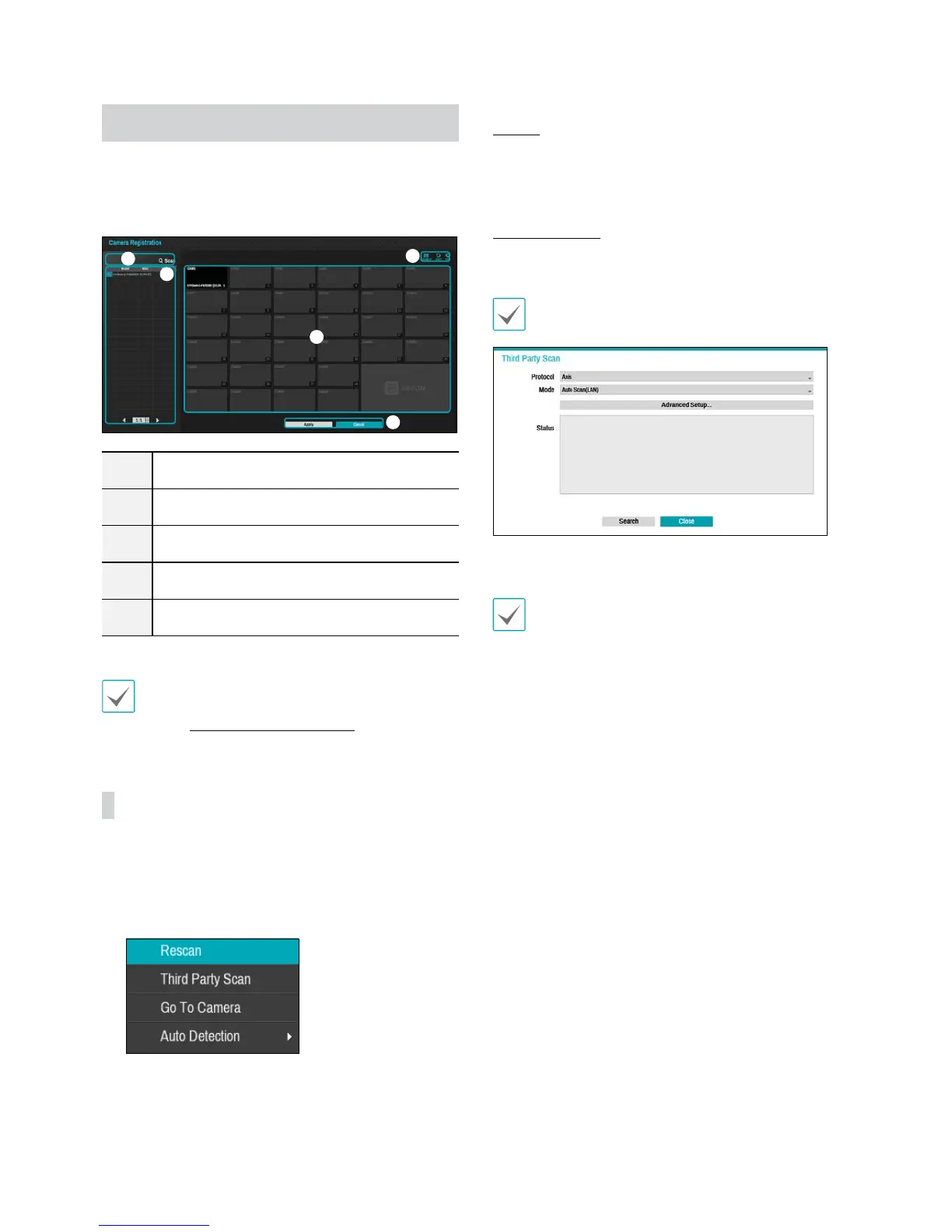
Once Network Setup Wizard is complete, the system will
automatically enter Camera Registration mode and scan
for cameras connected to the NVR.
1
2
3
4
5
1
Camera Scan Button
2
Camera View Menus
3
Camera List Area
4
Video Display Area
5
Apply/Cancel Buttons
You can also register cameras on the remote program.
For more information on remote camera registration
,
refer to Registration on page 44.
Camera Scan Button
You can scan and search and register cameras that were
not detected automatically or third party cameras.
Pressing the Scan button displays the following
submenu.
Rescan
Scans for DirectIP™ cameras that were not scanned
automatically.
Third Party Scan
Used to manually scan for third-party cameras that
cannot be recognized by the auto scan feature.
Some functions may not be supported for the third-
party cameras depending on their protocol and model.
t Protocol: Select the protocol used by the camera (or
video encoder) you wish to search for.
Even if the network device uses a protocol supported
by the NVR, the device itself may not be visible for
scanning and registration by the NVR. For more
information about supported network devices and
models, contact your retailer.
t Mode: Select the scan mode.
- Auto Scan (LAN): Lists cameras in a LAN
environment. If Auto Scan (LAN) fails to recognize
a camera, try using IP Address Scan instead.
- IP Address Scan: Enter the IP address of a
camera. The NVR scans for the camera matching
the specied address. If you enter IP address's
range, the NVR scans for cameras falling under
the specied address's range. By specifying an IP
address, you can also specify which port to use with
the Remote Admin feature. It is recommended that
the camera not be networked via DHCP (Dynamic
Host Conguration Protocol). If the camera is
networked via DHCP, connection to the camera may
not be made properly depending on changes in the
external network environment.


 To Next Page