Part 2 - Getting Started
24
2
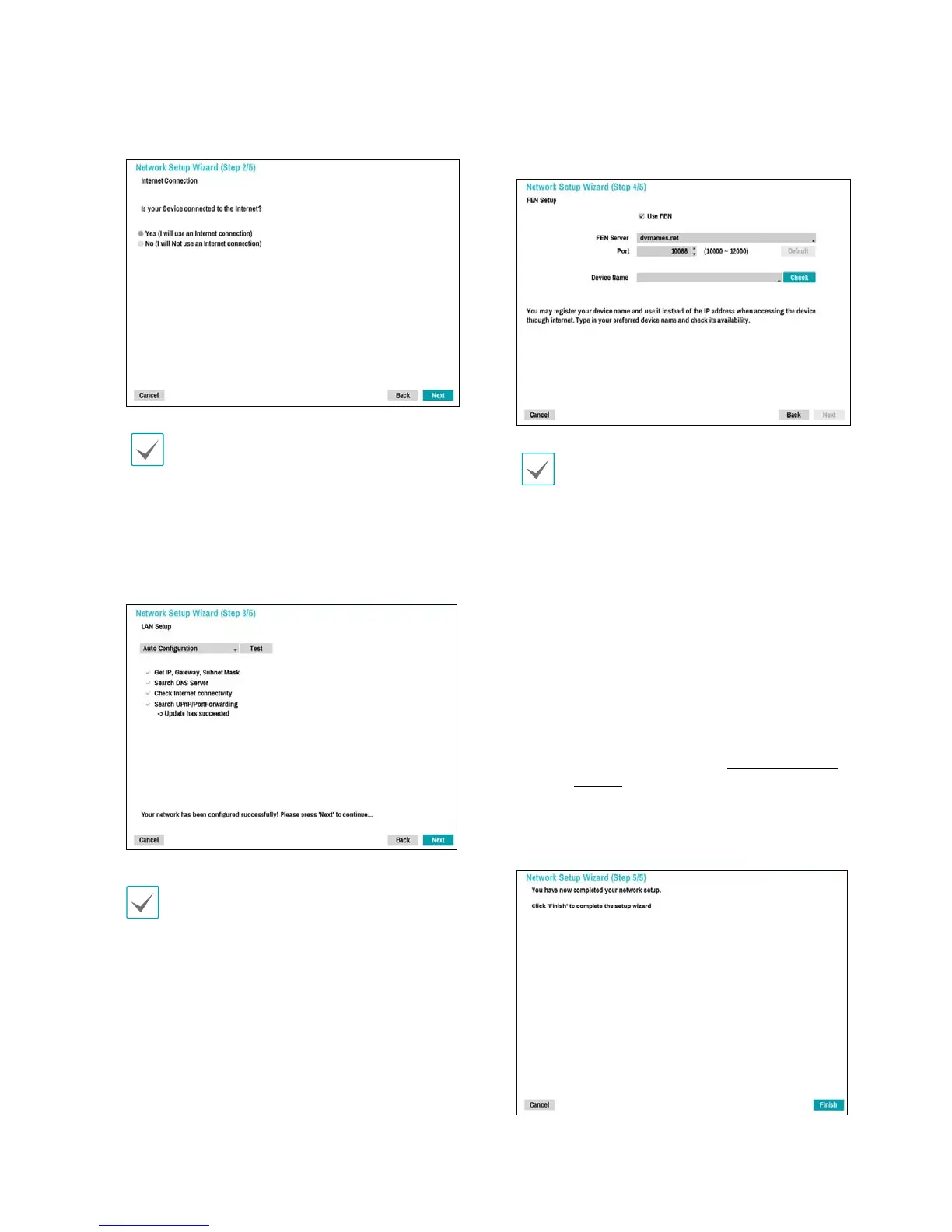
Specify whether the system is connected to the
Internet and click Next.
If you have chosen No, wait for the test to nish
and then click Finish to exit Network Wizard.
3
Select Network Conguration and then click
Next. Select either Auto Conguration or Manual
Conguration and then click Test to test the
system's current network conguration.
t This test must be performed before proceeding
to the next step.
t If the NVR is on a network connected to a
network that has a DHCP server, selecting Auto
Conguration retrieves LAN settings such as
IP and DNS addresses automatically. Selecting
Manual Conguration, on the other hand, lets
you specify the settings manually.
t UPnP support device not found. If this error
message is displayed, check to see if the IP router
(or NAT) supports UPnP and if UPnP has been
enabled. For more information about the router's
UPnP function, refer to the router's operation
manual.
4
Enter in the Device Name eld the NVR name to be
registered on the FEN server and then click Check to
check its availability.
t The device name you register on the FEN
server will be a unique name used to identify
the NVR. Once registered, the name can be
used to access the NVR directly from clients
such as the RASplusIP Check the name's
availability to complete the registration
process. The Finish button will then become
activated.
t You will be prompted with an error message if
you do not enter a name for the NVR or enter a
name already registered on the FEN server.
t Depending on the network environment,
FEN services may not be active and therefore
prevent the NVR from connecting to the
network. In this case, you will need to manually
congure the ports. For more information on
port conguration, refer to Network Setup on
page 63.
5
Click Finish to exit Network Wizard.


 To Next Page