Part 1 – Introduction
15
Rear Panel Connections
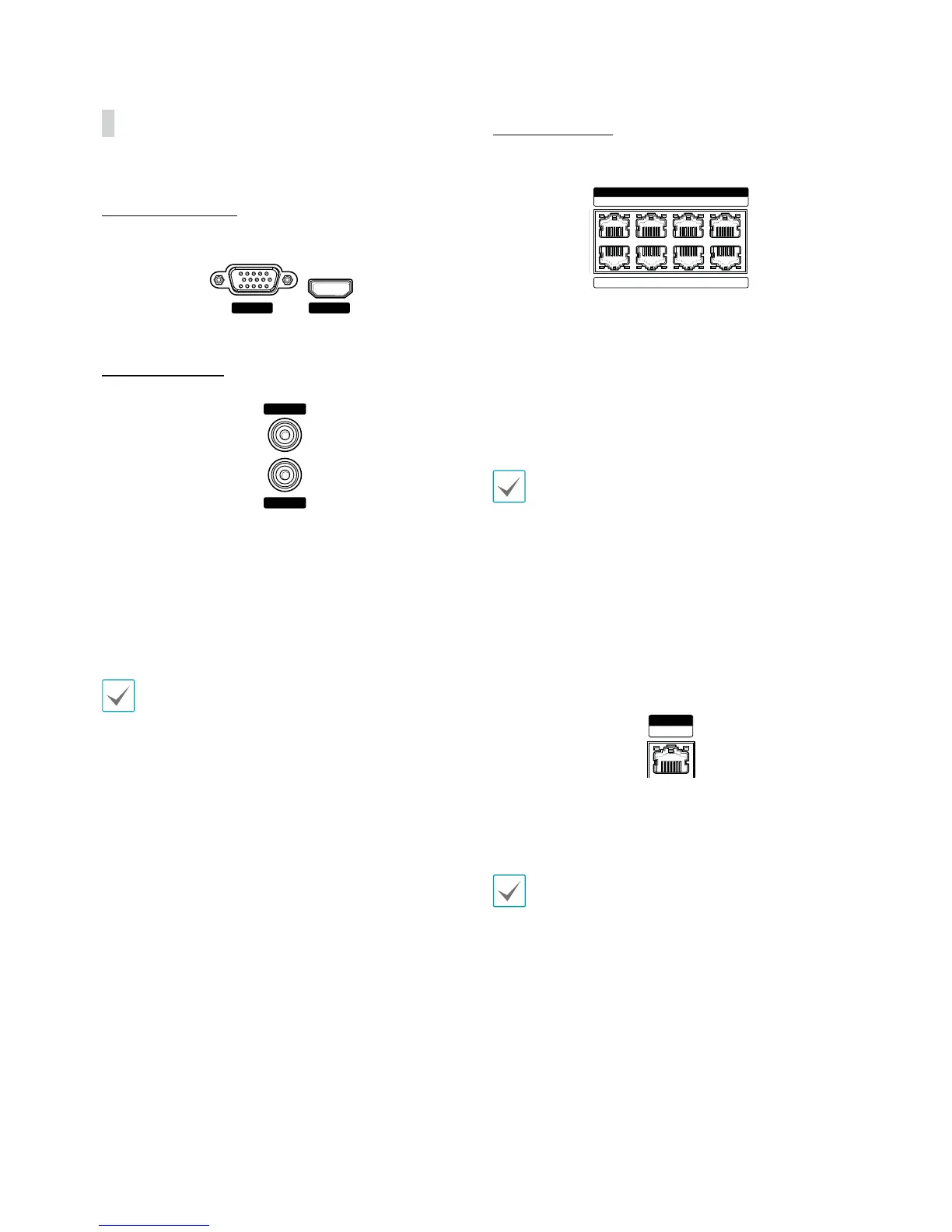
Monitor Connection
Connect to the VGA OUT or HDMI port.
VGA OUT
HDMI
Audio Connection
AUDIO IN
AUDIO OUT
Connect the audio device to the AUDIO IN port and
speakers with a built-in amplier to the AUDIO OUT
port. Use the AUDIO OUT port to listen to audio from
network cameras.
Use the AUDIO IN port to establish two-way
communication with cameras.
t This NVR does not feature a built-in audio amplier
unit and therefore requires the user to purchase a
speaker system with a built-in amplier separately.
It's possible to connect an amplied audio source to
the NVR, but microphones that do not have a built-
in amplier will not function properly if connected
to the NVR directly. If this is the case, connect the
microphone to the NVR via a pre-amp.
t Check your local laws and regulations on making
audio recordings.
t The AUDIO IN port is not currently supported.
Video Connection
t Video In/PoE Port
VIDEO IN / PoE
ACE G
BDF H
Connect network cameras or video encoders to the NVR
using RJ-45 cable (Cat5, Cat5e, or Cat6). In addition to
cameras or video encoders, you can connect external
hubs (Optional: SmartIP-SW2112PF, SmartIP-SW2128PF)
to form a network. The NVR recognizes DirectIP™
network cameras automatically. Ports A through H
support PoE.
t We recommend that you use the Ext. port for
connecting to an external hub and using features
such as camera alignment.
t Green LED on the right will turn on when PoE comes
on line. Orange LED on the left will then ash once a
link has been established.
t If more than 16 cameras from video encoders are
registered on the NVR, video may not be displayed
smoothly in a remote program.
t Video In / Ext. Port
VIDEO IN
Ext.
This port does not support PoE. It's possible to establish
a network with network cameras and external hubs
using a Cat6 cable.
t Green LED on the right will turn on if connected to
a 1000 BASE-T network. Orange LED on the left will
then ash once a link has been established.
t When using a Cat5e cable, the data transfer speed
may decrease depending on how to establish a
network.



 To Next Page