Part 3 - Conguration
51
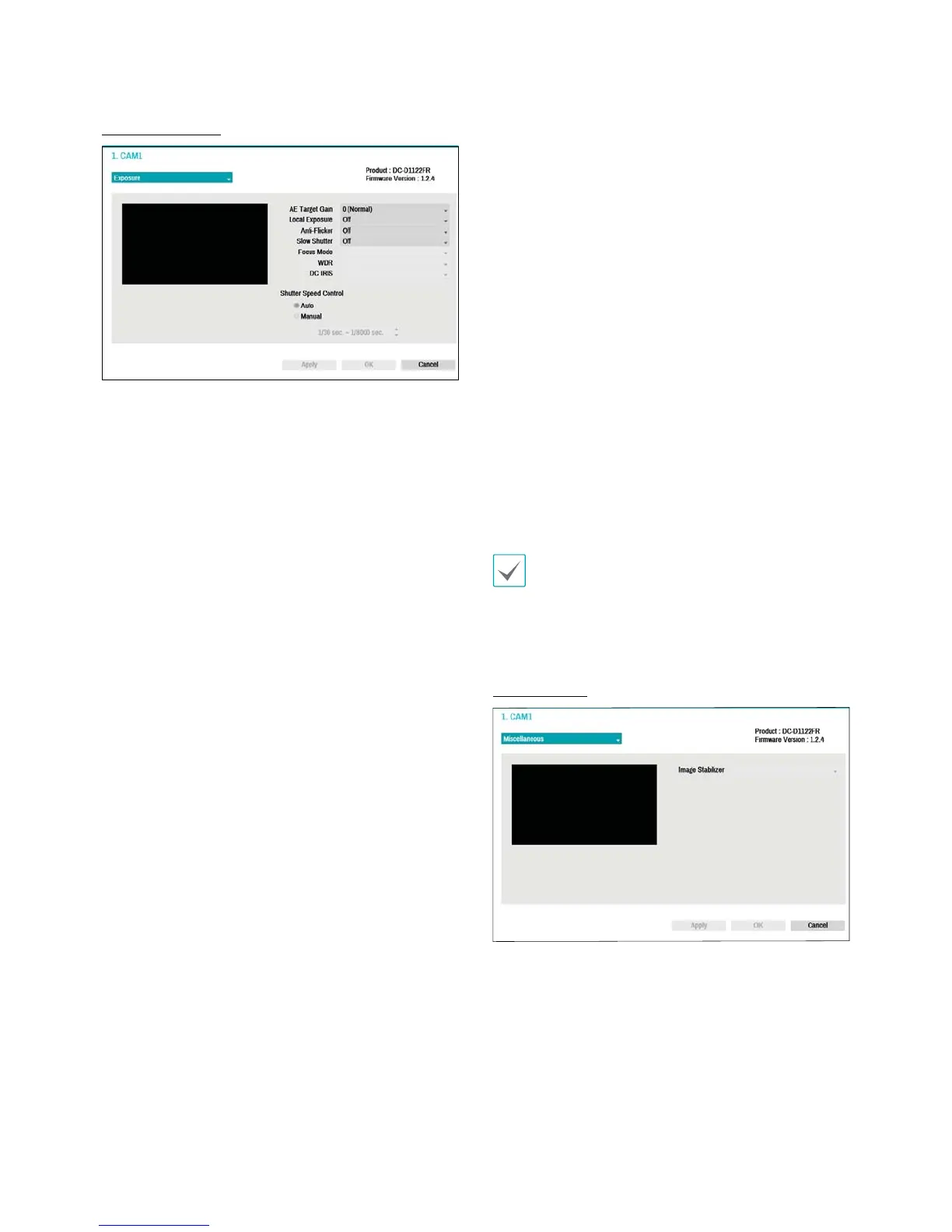
Exposure Options
t AE Target Gain: Specify exposure compensation's
target gain. Exposure is compensated automatically
based on the specied target gain. Higher the gain,
brighter the images.
t Local Exposure: Activate Local Exposure. Use Local
Exposure on images that appear too dark due to
backlighting conditions and on images containing
over-exposed sections. Greater the value, clearer the
image. e.g.) Dark parking lot entrances and gas station
entrances at night (Local Exposure compensates
for the bright light coming from incoming vehicle
headlights and makes it possible to see the license
plates).
t Anti-Flicker: If the lights in the area where the
camera is located use alternating current, specify
the frequency of the lights to minimize ickering.
Matching the frequencies can eliminate ickering
completely. (NTSC: 60Hz, PAL: 50Hz).
t Slow Shutter: Activate Slow Shutter. The slow shutter
mode functions only under low lighting conditions.
When the slow shutter mode is enabled, images
are displayed bright even under the low-lighting
conditions. There may be a dierence in the way it
functions depending on the camera model. See the
camera user's manual for details.
t Focus Mode: Used to change the focus movement
format as Auto/Manual/Semi-Automatic. It may not
be supported depending on the device.
t WDR: Disables or enables the WDR (Wide Dynamic
Range). When the very dark and very bright areas
exist simultaneously on the screen, WDR allows you to
recognize the both areas.
t IRIS: Select the lens IRIS type. If a manual IRIS lens is
mounted on the camera, select Manual. If a DC-type
auto IRIS lens is mounted, select DC IRIS.
t Shutter Speed Control: Adjust Shutter Speed. This
option is available only when Anti-Flicker and Slow
Shutter are both set to O.
- Auto: The system will assess the lighting conditions
and adjust the shutter speed automatically.
- Manual: Use the slider to select the desired
shutter speed. Select the most suitable minimum
and maximum shutter speeds for the lighting
conditions in the area where the camera is located.
(1/30 to 1/8000)
Select Apply after setting up a camera to see images
from the concerned camera on the left side of the
screen. Selecting Apply or OK displays a popup screen
that indicates whether the camera has been set up
successfully or not.
Miscellaneous
t Image Stabilizer: Activate Image Stabilizer. The
Image Stabilizer reduces blurring caused by camera
shake that results from external conditions such as
the wind.


 To Next Page