Part 3 - Conguration
55
Simple Mode Options
t Mode: Select No Record, Time, Event, or Time &
Event.
No
Record
Unless the Panic Record button is
pressed, no recording will take place
during the scheduled time frames on the
scheduled days.
Time
The
icon appears on the upper
left corner of the screen. The
icon
appears at scheduled times to indicate
recording is in progress.
Event
The
icon appears on the upper
left corner of the screen. The
icon
appears when the specied event occurs
to indicate recording is in progress.
If Pre-Event is enabled, the and
icons appear when recording is
not in progress, or the
and
icons appear when an event occurs
and recording is in progress.
Time &
Event
The
icon appears on the upper left
corner of the screen and recording
commences as per the video prole
selected for time under Setup. When
an event occurs, the icon changes into
icon and recording commences as
per the video prole selected for events
under Setup.
t Channel: Select which cameras to apply the schedule
to.
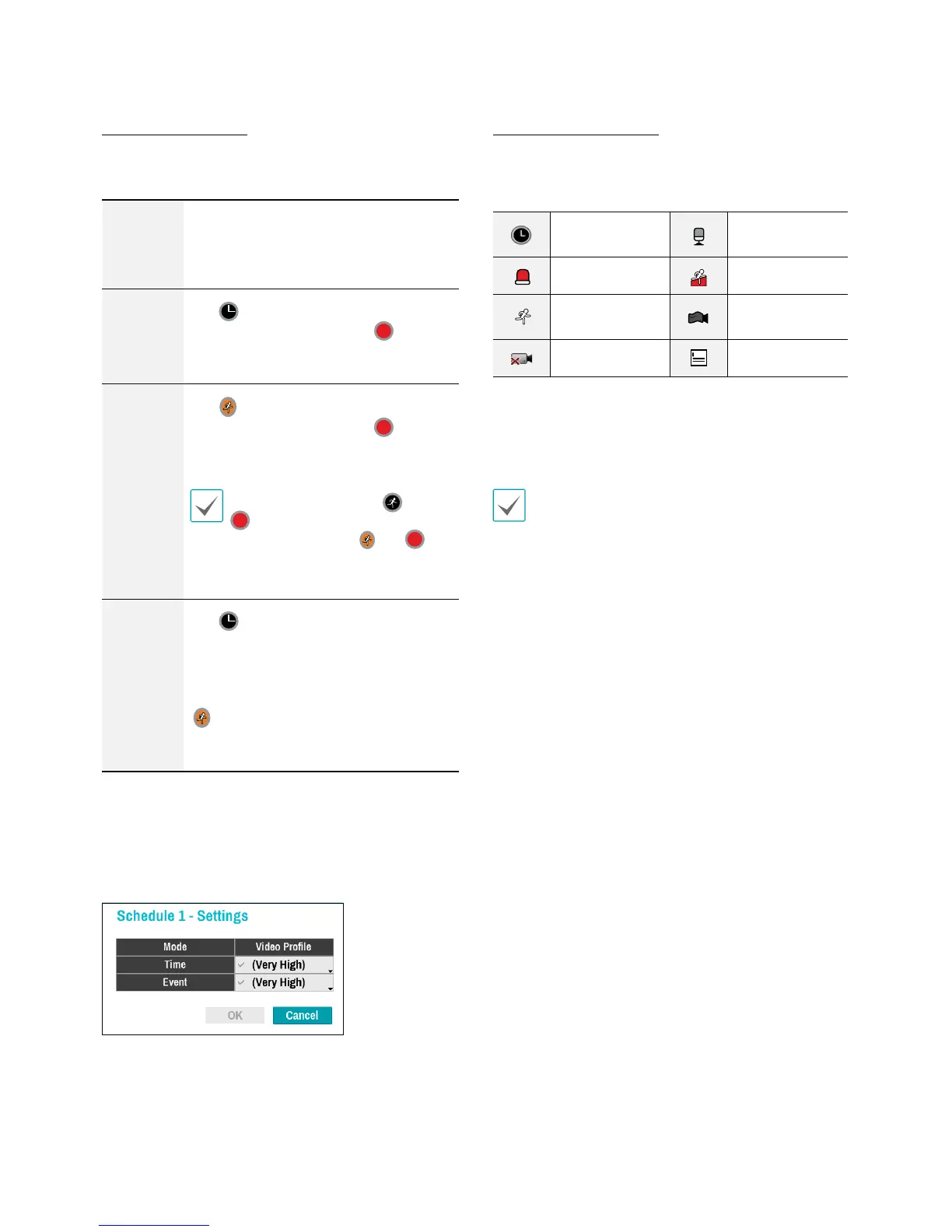
t Settings: Select to congure default recording prole
values for Time Lapse and Event Recording modes.
Advanced Mode Options
Select to congure event types and video proles.
t Type: Event-specic and time recording icons are as
follows:
Time Lapse
(Time)
Audio Detection
Alarm-In Trip Zone
Motion
Detection
Tampering
Video Loss Text-In
t Video Prole: Congure the prole to use for
recording.
t Dwell: Specify how long to record for after a
corresponding event occurs.
t Upper-tier schedule's settings apply to
uncongured channels.
t If multiple events take place on a specic channel
and dierent Video Prole and Dwell Time settings
apply, highest settings apply to all event-linked
recordings.


 To Next Page