EasyManua.ls Logo

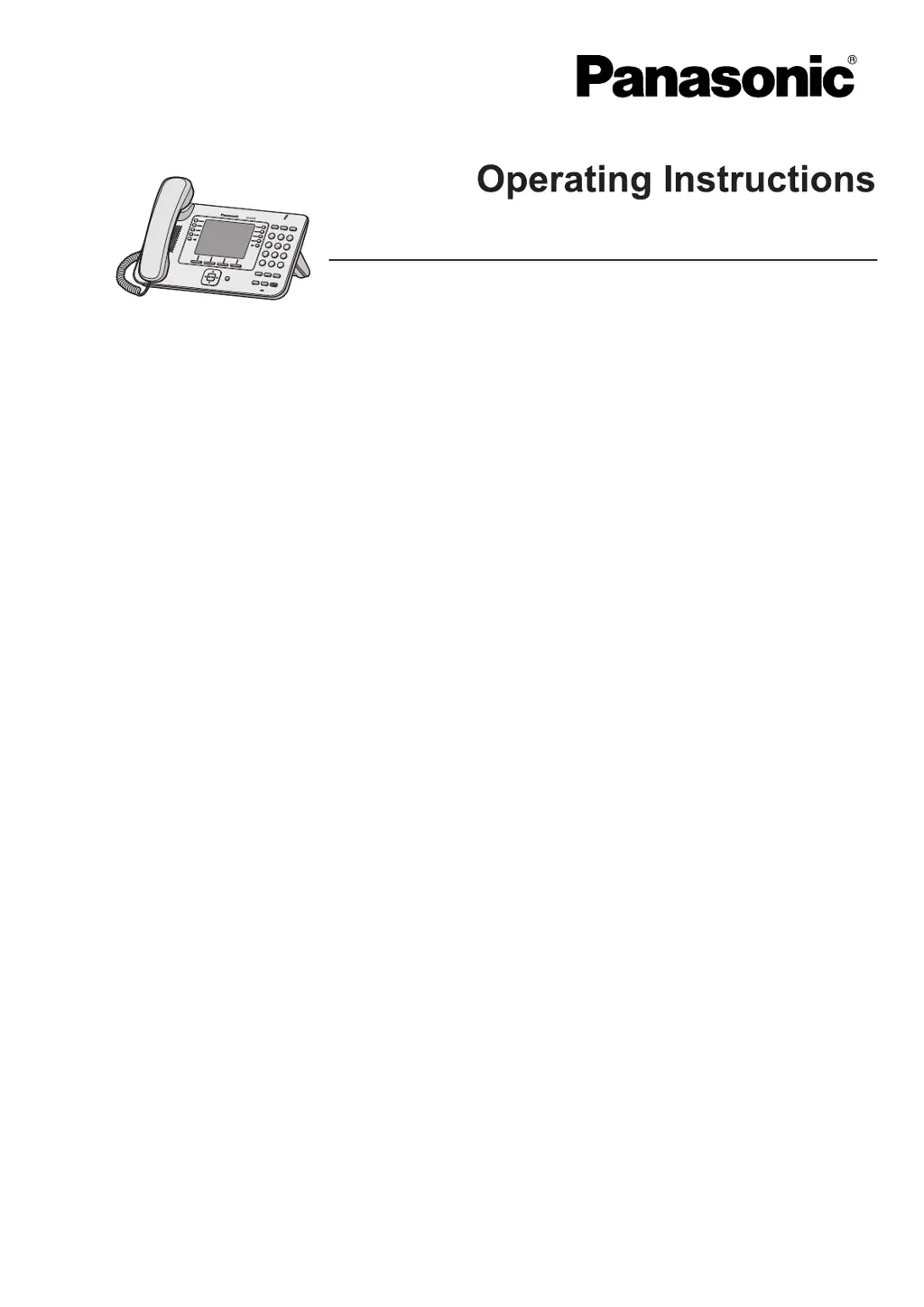
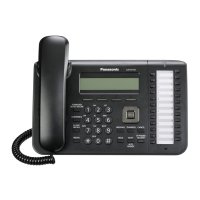
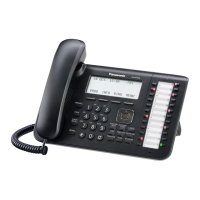
Panasonic KX-UT113 - User Manual

Panasonic KX-UT113
100 pages
Print Icon
To Next Page IconTo Next Page
Loading...
Document Version 2013-03
Model No. KX-UT113/KX-UT123
KX-UT133/KX-UT136
SIP Phone
KX-UT248
<KX-UT248>
Thank you for purchasing this Panasonic product.
Please read this manual carefully before using this product and save this manual for future use.
KX-UT113/KX-UT123/KX
-UT133/KX-UT136/KX-UT248: Software File Version 01.250 or later
In this manual, the suffix of each model number (e.g., KX-UT113NE) is omitted unless necessary.

Table of Contents

Other manuals for Panasonic KX-UT113

Questions and Answers

  • M
    Mark GibsonSep 23, 2025
    What to do if I cannot add or edit entries to the phonebook list on Panasonic KX-UT113 IP Phone?
    • R
      Roy SmithSep 23, 2025
      If you cannot add or edit entries to the phonebook list, the phonebook list might be full. Delete any unnecessary entries. The maximum number of entries in the phonebook list is 500 for the KX-UT123/ KX-UT133/KX-UT136 and 100 for the KX-UT113.
  • M
    millsmelissaAug 31, 2025
    What to do if I cannot hear a dial tone on my Panasonic KX-UT113 IP Phone?
    • M
      Melissa RileyAug 31, 2025
      If you cannot hear a dial tone, confirm that the LAN cable is properly connected.
  • J
    Justin ArnoldAug 25, 2025
    What to do if my Panasonic KX-UT113 display is blank?
    • E
      Erik MartinAug 25, 2025
      If the display is blank, it means the unit is not receiving power. Make sure the device supplying PoE is receiving power and the Ethernet cable is properly connected. If using an AC adapter, check that it is connected and also receiving power.
  • B
    Bradley PrattAug 25, 2025
    What to do if my Panasonic IP Phone does not ring when a call is received?
    • R
      Robin HowardAug 26, 2025
      If the unit doesn't ring, the ringer may be turned off. Press [ ] while a call is being received, or change the ringer volume setting.
  • T
    Tony MorrisonAug 26, 2025
    What to do if my Panasonic KX-UT113 IP Phone does not ring when I receive a call?
    • N
      Nathan DonovanAug 26, 2025
      If your Panasonic IP Phone is not ringing when you receive a call, the ringer may be turned off. To solve this, press the designated button ( [ ] ) while a call is coming in, or adjust the ringer volume within the phone's settings.
  • E
    Eric LewisAug 27, 2025
    What to do if I cannot make calls with my Panasonic KX-UT113 IP Phone?
    • G
      gomezannaAug 27, 2025
      If you cannot make calls, there might be several reasons: * Your phone system/service has disabled service for your unit. On the Information Display screen, if 'Not registered' is displayed in 'Status', consult your administrator or dealer. * The phone number was entered incorrectly, so confirm that you have entered the phone number of the other party correctly. * The unit is downloading a firmware update. Wait for the update to finish, and then try making a call. * The phonebook list is being imported or exported. Wait a few minutes for the operation to complete.
  • C
    cookericAug 27, 2025
    What to do if my Panasonic KX-UT113 IP Phone unit is not performing properly?
    • J
      Jeremy BarreraAug 27, 2025
      If the unit is not performing properly, check that all cables or cords are properly connected. Also, your connection settings may be incorrect; consult your administrator to confirm that your settings are correct. If the problem persists, consult your dealer. Finally, if an error has occurred, try restarting the unit.
  • J
    Jennifer HouseAug 28, 2025
    Why does sound cut out and I can hear myself through the speaker on my Panasonic KX-UT113?
    • C
      Charles WilliamsAug 28, 2025
      This issue can occur for several reasons: * You are too far away from the microphone, so try speaking closer to it. * The environment is not suited to speakerphone calls. Do not use the unit near noise emitting devices. If in a room with windows, close the curtains or blinds. * The unit was moved during a call, so do not move the unit while on a call. * Objects are obstructing the microphone, so keep hands and objects away from the unit during calls. * The other party is using a half-duplex speakerphone. For best performance, the other party should use a full-duplex speakerphone.
  • B
    bishopfrancesAug 28, 2025
    Why is the Message/Ringer lamp lit on my Panasonic IP Phone?
    • F
      Frank McdonaldAug 29, 2025
      The Message/Ringer lamp lights up when you receive a voice message while you were on the phone or away from your desk. Check the voice message.
  • P
    Patricia ChandlerAug 29, 2025
    What to do if I cannot make long distance calls on my Panasonic IP Phone?
    • D
      Dean BridgesAug 29, 2025
      If you cannot make long distance calls, make sure that you have subscribed to your telephone company’s long distance service, as your telephone service may not allow you to make long distance calls.

Summary

Important Information

Safety and Hazard Warnings

Details critical safety precautions, hazard symbols, and general safety guidelines to prevent injury or damage.

Installation and Placement Safety

Covers safety during installation, wall mounting, use near water, and proper unit placement.

Data Security and Privacy

Preventing Data Loss and Disclosure

Provides guidance on protecting user data, backups, and preventing unauthorized access or leakage.

Additional Information and Safety

General Safety Instructions

Lists important safety instructions for using the unit, including avoidance of water and electrical storms.

Location of Controls

Front View Control Identification

Illustrates and labels all controls visible on the front panel of various phone models.

Display and Button Identification

Soft Buttons and Key Functions

Soft Button Operations and Indicators

Explains the functionality of soft buttons, message/ringer lamps, and other key buttons.

Understanding the Phone Screen

Screen Layouts and Status Icons

Displays sample screens for different models and explains the meaning of status icons.

Display Element Reference

Soft Button Icons and Status Indicators

Details soft button icons, scroll indicators, flexible button display, and a comprehensive status icon guide.

Soft Button Operations

Using Soft Buttons for Features

Explains how to use soft buttons to access settings, call logs, phonebooks, and system features.

Button Action Reference

Common Button Actions and Functions

Lists common button actions like Answer, End, Reject, Add, Delete, Save, Call, Edit, and their page references.

Basic Telephone Operations

Hook Status and Hands-Free Mode

Guides on checking extension number, going off/on hook, and utilizing hands-free mode and off-hook monitoring.

Feature Operations - Making Calls

Call Initiation Methods

Details how to make calls directly, from the phonebook, and using pre-dialing.

Feature Operations - Call Logs and Dialing

Using Call Logs and Redial

Covers dialing via call logs, editing numbers, redialing, and adding log entries to the phonebook.

Feature Operations - Receiving and Rejecting Calls

Handling Incoming Calls

Guides on answering calls, setting auto-answer, and rejecting incoming calls.

Feature Operations - Call Blocking

Managing Blocked Phone Numbers

Explains how to add, edit, and delete specific phone numbers from the call block list.

Feature Operations - Call Holding and Waiting

Holding and Retrieving Calls

Covers putting calls on hold and retrieving them from hold.

Answering Second Calls (Call Waiting)

Describes how to manage call waiting by answering a second call or switching between calls.

Feature Operations - Advanced Call Handling

Call Splitting and Transferring

Explains how to talk to two parties alternately and transfer calls to other extensions or parties.

One-Touch Call Transfer

Details the process of performing a one-touch call transfer using flexible buttons.

Feature Operations - Mute Function

Feature Operations - Conference Calls

Setting Up and Managing Three-Way Conferences

Provides instructions on initiating, managing, and ending conference calls.

Feature Operations - Messages and Call Logs

Feature Operations - Call Forwarding and Group Management

Call Forwarding and Do Not Disturb Settings

Guides on configuring call forwarding and Do Not Disturb settings for incoming calls.

Feature Operations - Flexible Buttons

Flexible Button Types and Functions

Describes various flexible button types (DN, BLF, ACD, etc.) and their configurations and lamp indications.

Customising the Telephone - Phonebook

Managing Phonebook Entries

Guides on adding, editing, searching, and deleting entries in the phonebook.

Customising the Telephone - User Settings

Detailed Settings Configuration

Network Settings and Information Display

System Maintenance and Updates

Call Blocking Management

Bluetooth Headset Configuration (KX-UT248 only)

Web User Interface Programming

Features Programmable Via Web UI

Lists various features that can be configured using the unit's Web user interface.

Unit Connections

Wall Mounting Instructions

Preparing for Wall Mounting

Covers safety precautions and preparation steps before mounting the unit on a wall.

Headset Usage Details

Initial Unit Setup

Accessing and Configuring Start-up Settings

Guides on accessing the start-up menu to configure initial settings like network, language, and ECO mode.

Unit Maintenance Procedures

Troubleshooting Common Issues

General Use Problems and Solutions

Provides solutions for common issues like display problems, power, connectivity, and errors.

Call Handling and Sound Quality Issues

Addresses problems with making calls, call duration limits, and sound quality issues.

Troubleshooting Bluetooth Headset Issues (KX-UT248 only)

Error Message Reference

Panasonic KX-UT113 Specifications

General IconGeneral
BrandPanasonic
ModelKX-UT113
CategoryIP Phone
LanguageEnglish

Related product manuals