37
Picture Pro¿ les
Editing pro¿ les
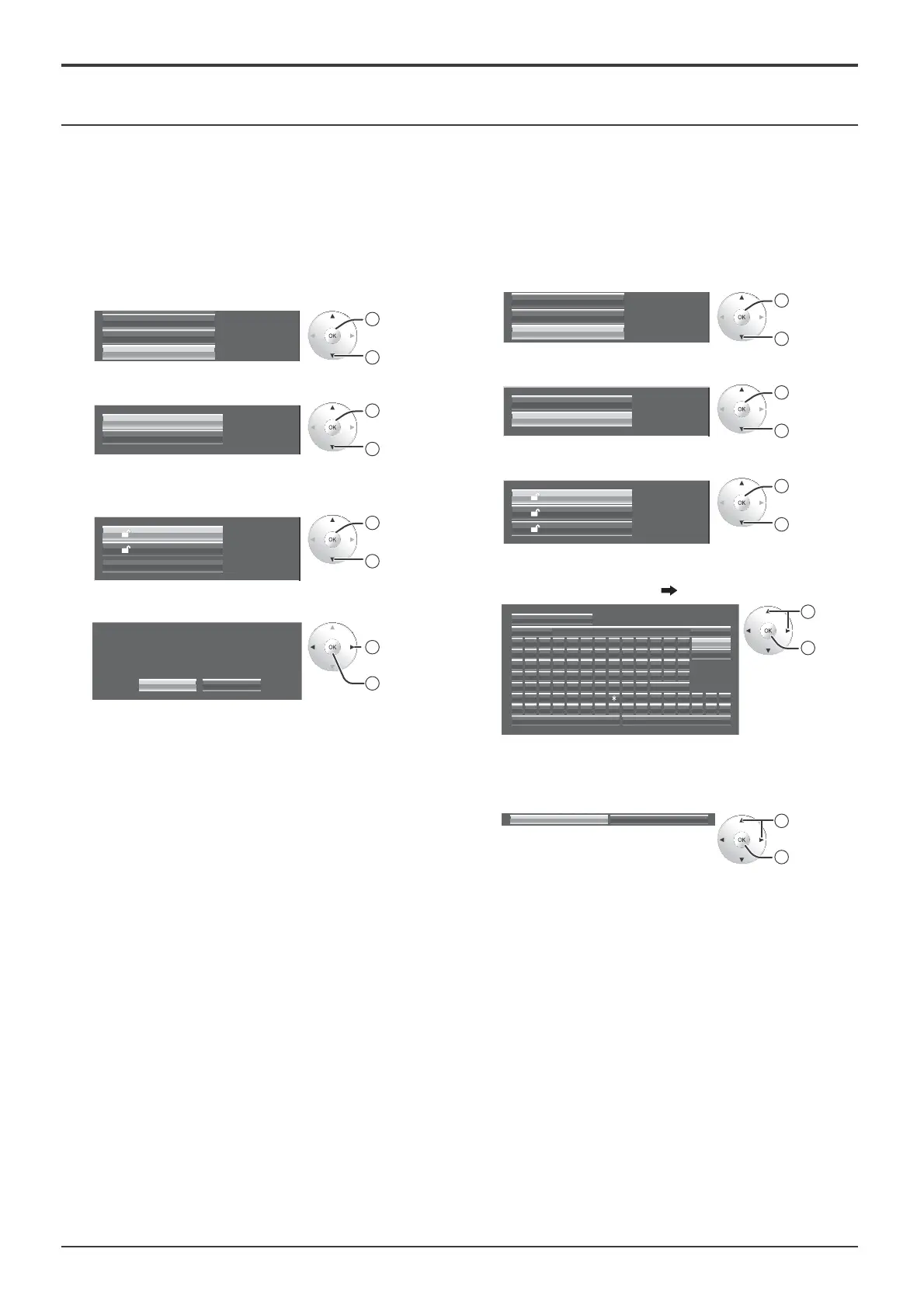
Delete or rename pro¿ les as follows.
<Deleting pro¿ les>
Note:
Locked pro¿ les and pro¿ les currently in use cannot be
deleted.
1
In the Picture menu, select “Memory edit”.
Memory save
Memory load
Memory edit
2
access
1
select
2
Select “Memory delete”.
Memory name change
Memory delete
2
set
1
select
3
Select the pro¿ le to delete.
To delete all pro¿ les, select “All delete”.
1.
[
]
MEMORY1
MEMORY2
All delete
2.
[
]
2
set
1
select
4
Select “Ok”.
Ok Cancel
Memory delete
Delete the ”MEMORY1” data.
1
select
2
set
<Renaming pro¿ les>
Note:
Locked pro¿ les cannot be renamed.
1
In the Picture menu, select “Memory edit”.
Memory save
Memory load
Memory edit
2
access
1
select
2
Select “Memory name change”.
Memory name change
Memory delete
2
set
1
select
3
Select the pro¿ le to rename.
1.
[
]
MEMORY1
MEMORY2
2.
[
]
MEMORY12
12.
[
]
2
set
1
select
4
Enter a name for the pro¿ le.
Entering pro¿ le names
page 35
Ű
Ok
A
Memory name input
BCDEFGH I JKLM
N O P Q R S T U V W X Y Z Delete
Space
abcde fgh i j k lm
nopqr s t uvwxyz
0123456789
”#$%&’ +–/=?
_` |~<>( ) [ ]{ } ,
@\ ˆ
.;:
Cancel
All delete
!
MEMORY1
5
When you ¿ nished entering the pro¿ le name, select
“Ok”.
To cancel renaming the pro¿ le, select “Cancel”.
Ok Cancel
1
select
2
set
1
select
2
set





 To Next Page