38
Picture Pro¿ les
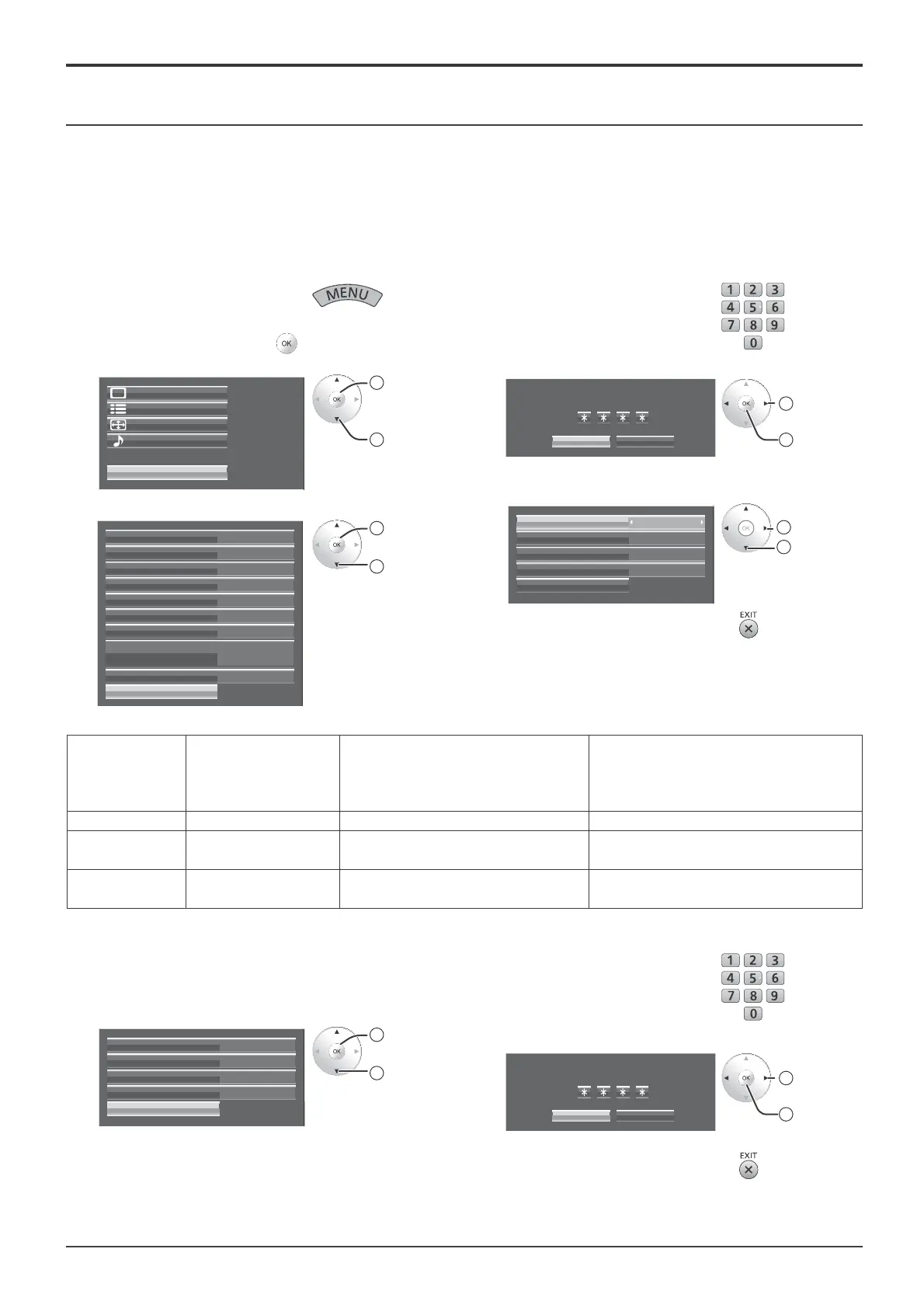
Once a pro¿ le is locked, the following operations are restricted when the pro¿ le is loaded.
Setting Editing the Pro¿ le
(Memory edit)
Editing Picture Adjustment
Values via the Menu
(Picture menu, Advanced
settings)
Saving Picture Adjustment Values
(Memory save)
Off (unlocked) Allowed Allowed Allowed
Lock1 Prohibited Prohibited (picture adjustment
values are shown)
Allowed
Lock2 Prohibited Prohibited (picture adjustment
values are hidden)
Prohibited
Note:
Make a note of the new password to remember it.
Locking pro¿ les
You can lock saved pro¿ les to restrict operations when the pro¿ les are loaded. You can also set passwords.
Notes:
• When the lock is set in “Extended life settings”, pro¿ le cannot be locked.
• If pro¿ le is locked, the menu operations of “Extended life settings” are restricted. (see page 55)
<Locking and unlocking pro¿ les>
1
Display the menu screen.
2
Select “Options” and hold for 3 seconds or
more.
Setup
Pos. /Size
Sound
Options
Picture
2
access
(3 seconds
or more)
1
select
3
Select “Memory lock”.
OffStudio mode
OnInternal 3D Emitter
OffDisplay size
ManualAuto Setup
OnAdvanced Motion Resolution
OffAll Aspect
On
Power On Message (No activity power off)
On3D Safety Precautions
Memory lock
On
Onscreen display
2
access
1
select
4
Enter a 4-digit password.
The default password is
“0123”.
5
Select “Ok”.
Ok Cancel
Input password
1
select
2
set
6
Select the pro¿ le and specify the desired lock
setting.
Lock1
Change password
MEMORY1
Off
Off
MEMORY2
MEMORY12
Offisf Mode
2
adjust
1
select
7
Exit the menu.
<Changing passwords>
1
Follow steps 1–5 in the previous procedure, <Locking
and unlocking pro¿ les>.
2
Select “Change password”.
Lock1
Change password
MEMORY1
Off
Off
MEMORY2
MEMORY12
Offisf Mode
2
access
1
select
3
Enter a new 4-digit password.
4
Select “Ok”.
Input new password
Ok Cancel
1
select
2
OK
5
Exit the menu.





 To Next Page