106
LSQT1150
With a computer (VDR-D310/VDR-D230)
≥ If the screen showing a brief explanation of the
application is displayed, close it.
DVD-MovieAlbumSE starts and the images
recorded on the disc are displayed.
5 (When using a DVD-RAM only)
Edit the images on the disc as
required.
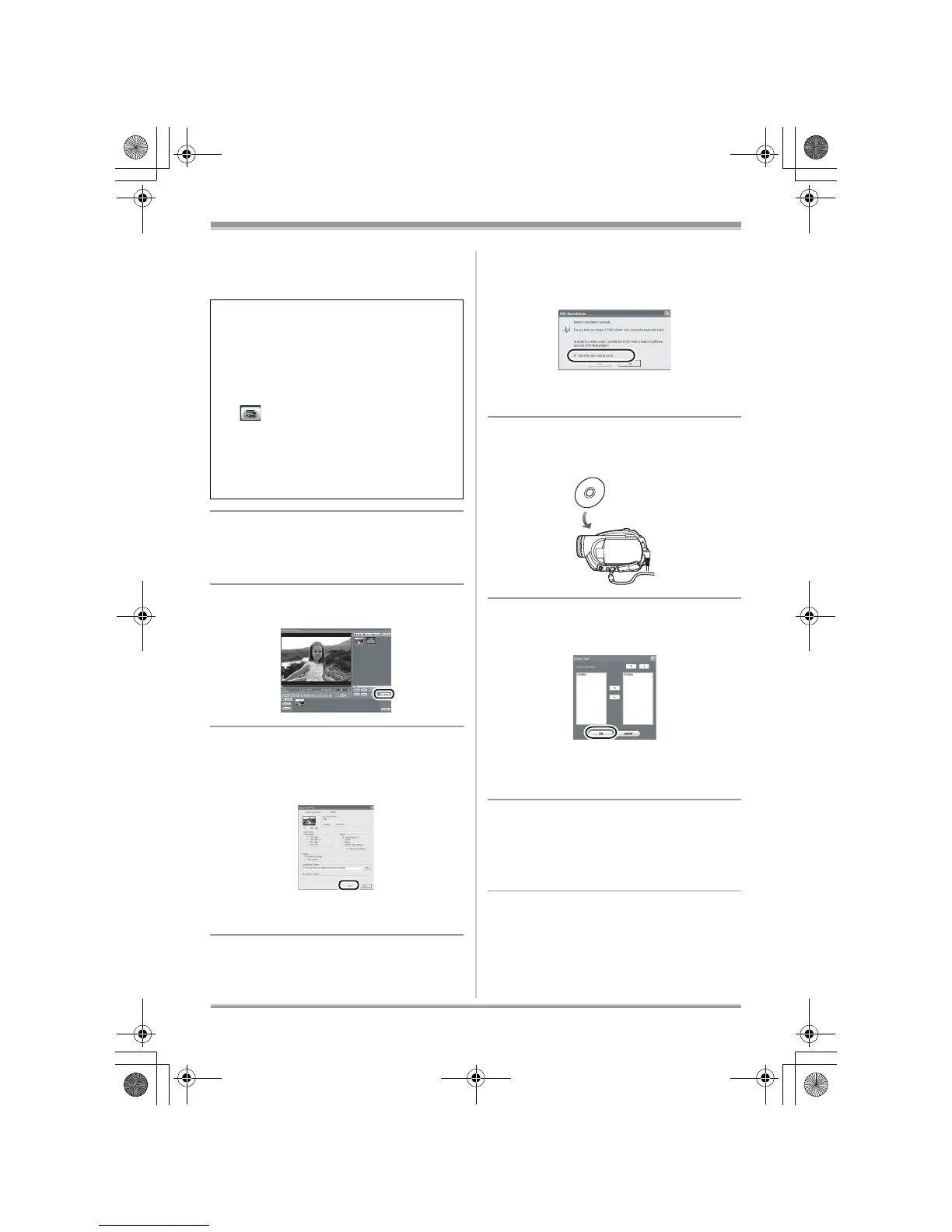
6 Click [Export].
7 Set the export settings in the
[Export all titles] screen and click
[Start].
≥ It is recommended that you do not change the
settings displayed on the screen.
8 When export is complete, a
message will appear. Check the
small box for [Eject the disc
being used.], and then click
[Yes].
DVD-MovieAlbumSE automatically closes and
DVDfunSTUDIO automatically starts.
9 Insert a brand-new DVD-RW or
DVD-R disc into the unit.
10
When the [CollectTool] screen
appears, click [OK].
The exported scene will be automatically
registered on the DVDfunSTUDIO editing
screen.
11
Edit the DVD menu as required.
≥ Set the disc size to [8cm DVD] or
[8cm DVD DL].
≥ Select the desired destination drive to write to if
necessary.
When starting DVD-MovieAlbumSE, the
[Mount Information] dialog box may appear or
the recorded images may not be shown. If this
occurs, try the following procedure. If there
are multiple drives, a drive other than this unit
may be selected.
1) Click [Preference] on the dialog box or
([Preference]) button at top right of
DVD-MovieAlbumSE screen, and then
click the [Device setting] tab.
2) Choose the drive where the disc is loaded
in the [Drive Select] column, and then
click [OK].
LSQT1150.book 106 ページ 2007年1月19日 金曜日 午前9時27分




 To Next Page