120
LOCATION-BASED SERVICES
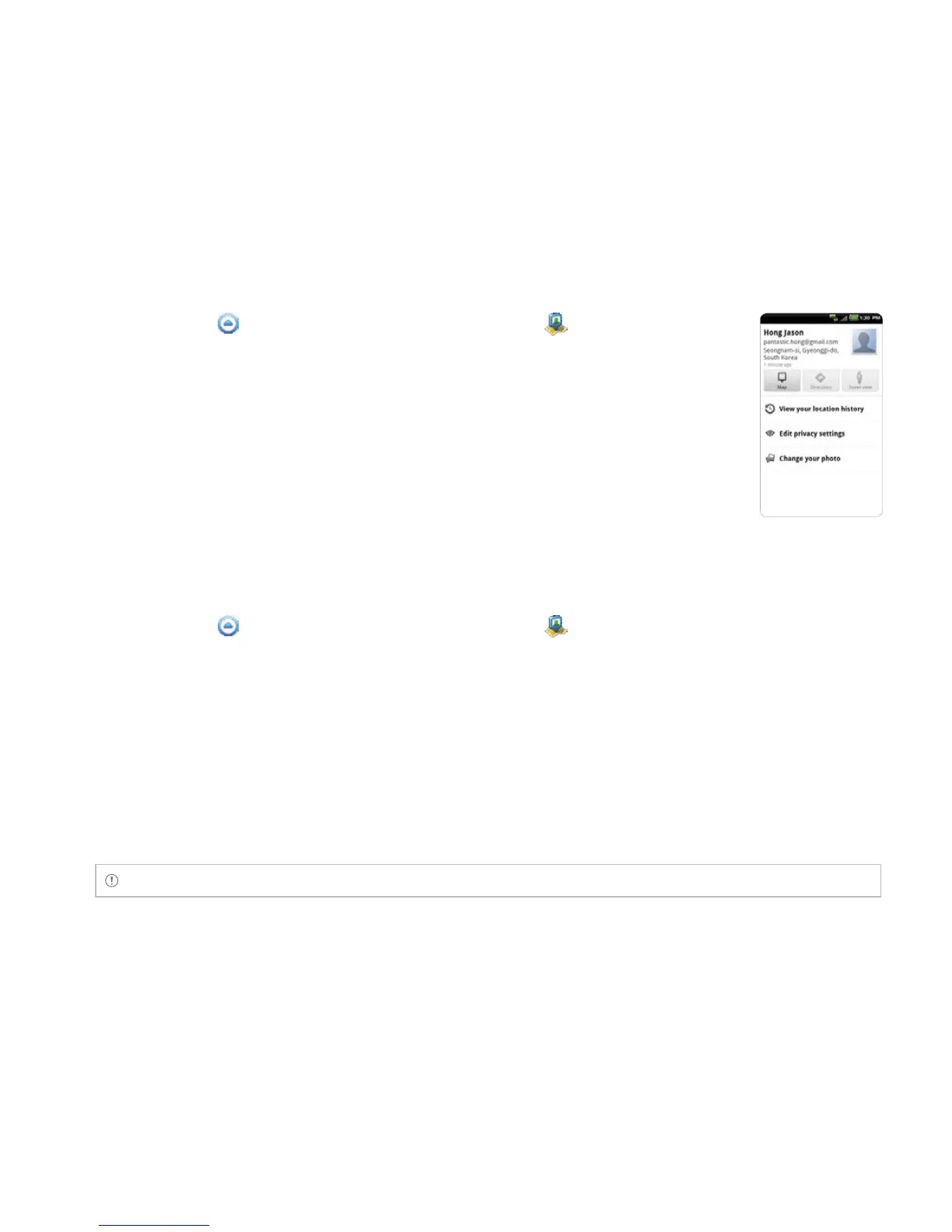
CHECKING PERSONAL SETTINGS
1 Touch Apps from the Home Screen. Touch Latitude .
2 Touch your name on the top of the screen. You can see your name,
Gmail account and your current location.
3 Touch View your location history if you want to save your past Latitude
history, and follow the instructions.
4 Touch Edit privacy settings if you want to adjust settings for privacy.
5 Touch Change your photo if you want to change the photo for Latitude,
and touch Take a photo or Pick from gallery and follow the instructions.
ADJUSTING PRIVACY SETTINGS
1 Touch Apps from the Home Screen. Touch Latitude .
2 Press the Menu Key B and touch Settings.
3 Touch Detect your location, Set your location or Do not update your location for a location
reporting. Detect your location is selected by default.
4 Touch Enable location history if you want to store your locations in the past and view them on the
Latitude website.
5 Touch Sign out of Latitude if you do not want to use Latitude. If you want to join Latitude again,
press the Menu Key B and touch Join Latitude.
Note For more information on the map, refer to Using Google Maps on page 115.



 To Next Page