87
ENTERTAINMENT
USING CAMERA AS CAMCORDER
RECORDING VIDEOS
1 Touch Apps from the Home Screen and then touch Camera . Or, press and hold the Camera/
Video Key G on the right side of the phone. The screen changes to landscape mode by default.
2 Touch .
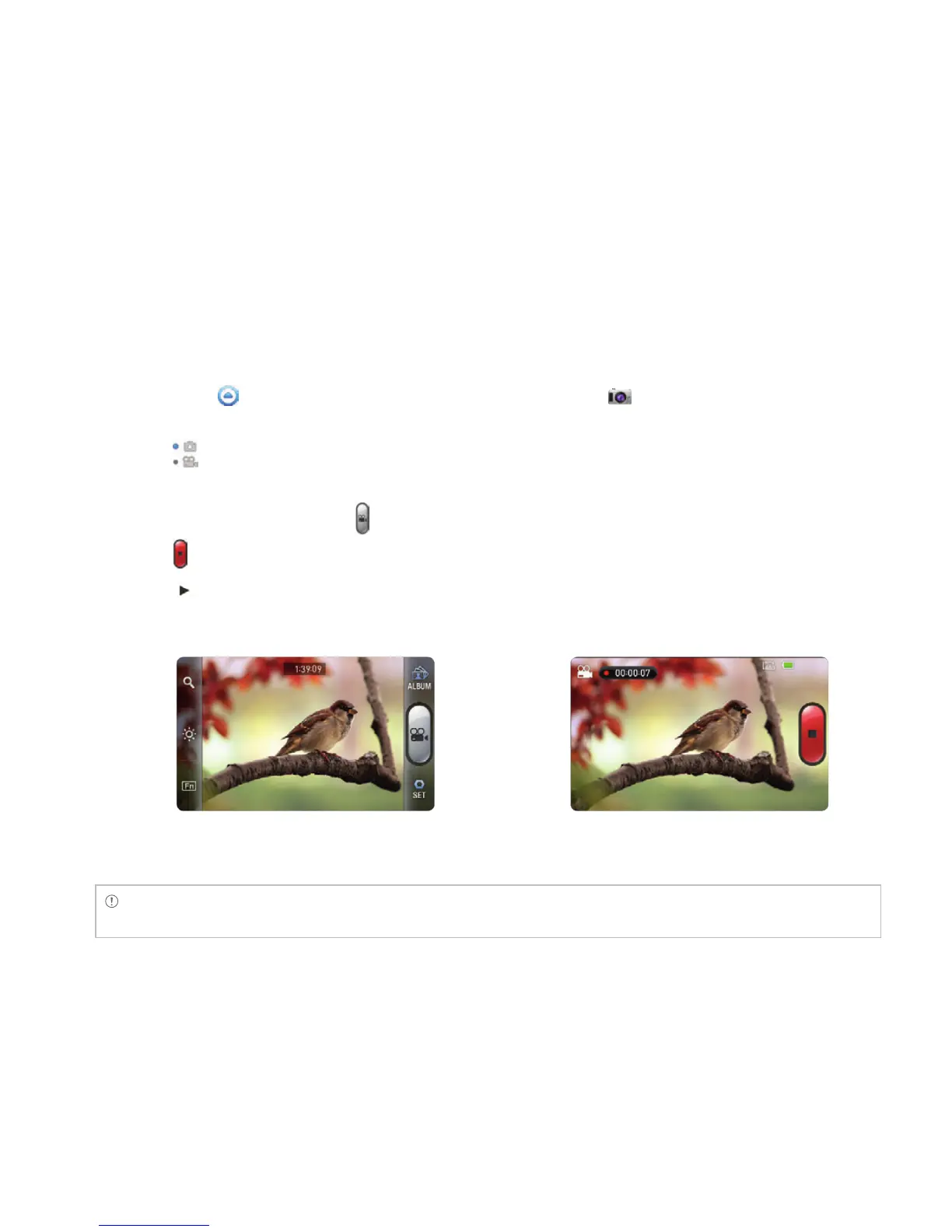
3 Touch on the screen and select options if necessary. Option buttons disappear in a few seconds.
4 Focus on the object and press . Press the Back Key C if you want to cancel recording.
5 Touch if you want to stop recording. The recorded video would be saved automatically.
6 Touch if you want to see the recorded video. Or touch Share or Delete and take necessary steps.
7 Press the Back Key C if you want to record another video.
Selecting options Recording a video
Note The screen moves to the Applications menu if you do not touch the screen or run an application for two
minutes.



 To Next Page