161
STORAGE
ERASING THE microSD™ CARD
1 Touch Apps from the Home Screen. Touch Settings .
2 Touch Storage > Unmount SD card > OK.
3 Touch Erase SD card > Erase SD Card > Erase everything. All data stored in the card will be
deleted.
CONNECTING TO A PC
Synchronize files and exchange data with a computer using the PC data cable. Keep in mind that you
cannot transfer media files if you turn on the USB debugging mode (Apps > Settings > Applications >
Development > USB debugging).
SELECTING THE USB MODE
1 Connect the USB cable to the Breakout™.
2 Connect the other end of the cable to your computer.
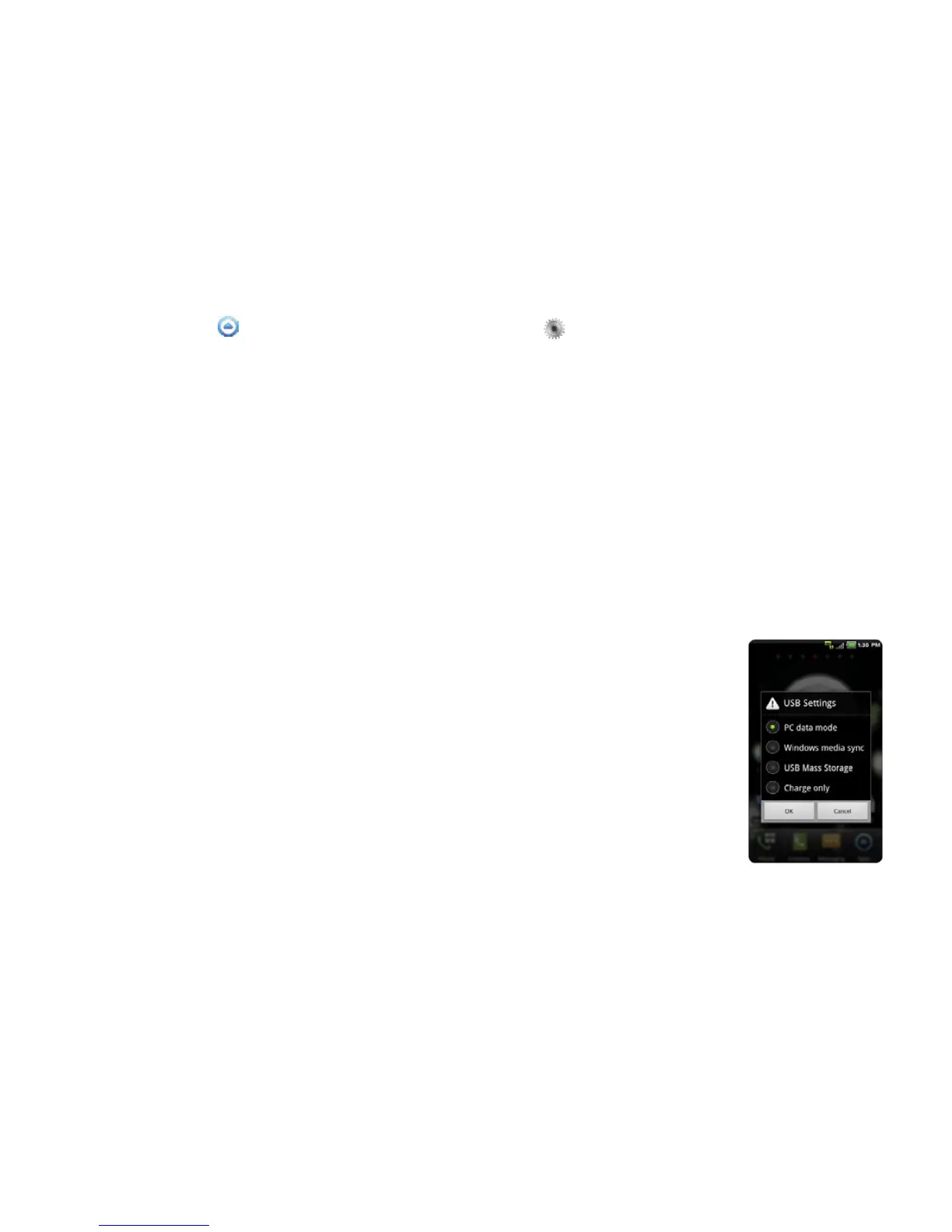
3 Select and touch a USB mode for your purposes:
x Tap PC data mode > OK if you want to transfer files between the
Breakout™ and PC when they are connected. You can also use your
Breakout™ as a PC when PC data mode is on.
x Touch Windows media sync > OK if you want to transfer media files
between the Breakout™ and your PC.
x Tap USB Mass Storage > OK if you want to save mass files in the
Breakout™. USB Mass Storage mode will not appear if there is no
memory card in the Breakout™. It is selected as a default mode.
x Touch Charge only > OK if you only want to connect the USB cable
to charge the Breakout™. Remember that the Breakout™ continues to
be charged as long as it is connected to PC through the cable even if
you have not selected the Charge only mode.



 To Next Page