80
ENTERTAINMENT
USING CAMERA
Take pictures and record videos with the built-in camera. They can be saved in the Breakout™ and sent
via multimedia messages.
TAKING PICTURES
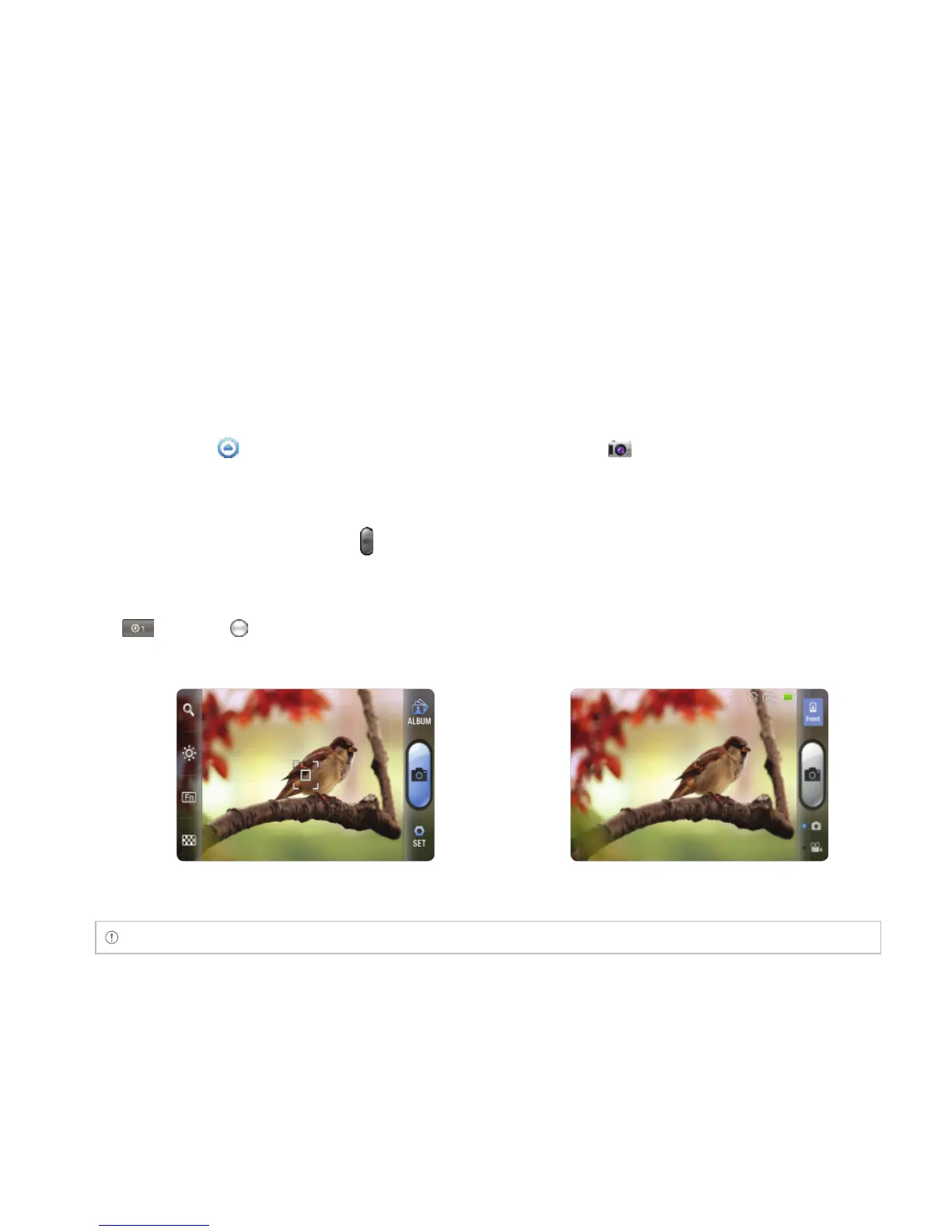
1 Touch Apps from the Home Screen and then touch Camera . Or, press and hold the Camera/
Video Key G on the right side of the phone. The screen changes to landscape mode by default.
2 Touch on the screen and select options if necessary. Option buttons disappear in a few seconds.
3 Focus on the object and touch or press the Camera/Video Key G. The picture is saved
automatically.
4 Touch Share, Set as or Delete and take necessary steps. If you want to zoom in the picture, touch
and drag to the right.
5 Press the Back Key C if you want to take another picture.
Selecting options Focusing on the object
Note The screen moves to Applications if you do not touch the screen or use the camera for two minutes.



 To Next Page