150
TOOLS
MOVING TO A PAGE IN A DOCUMENT
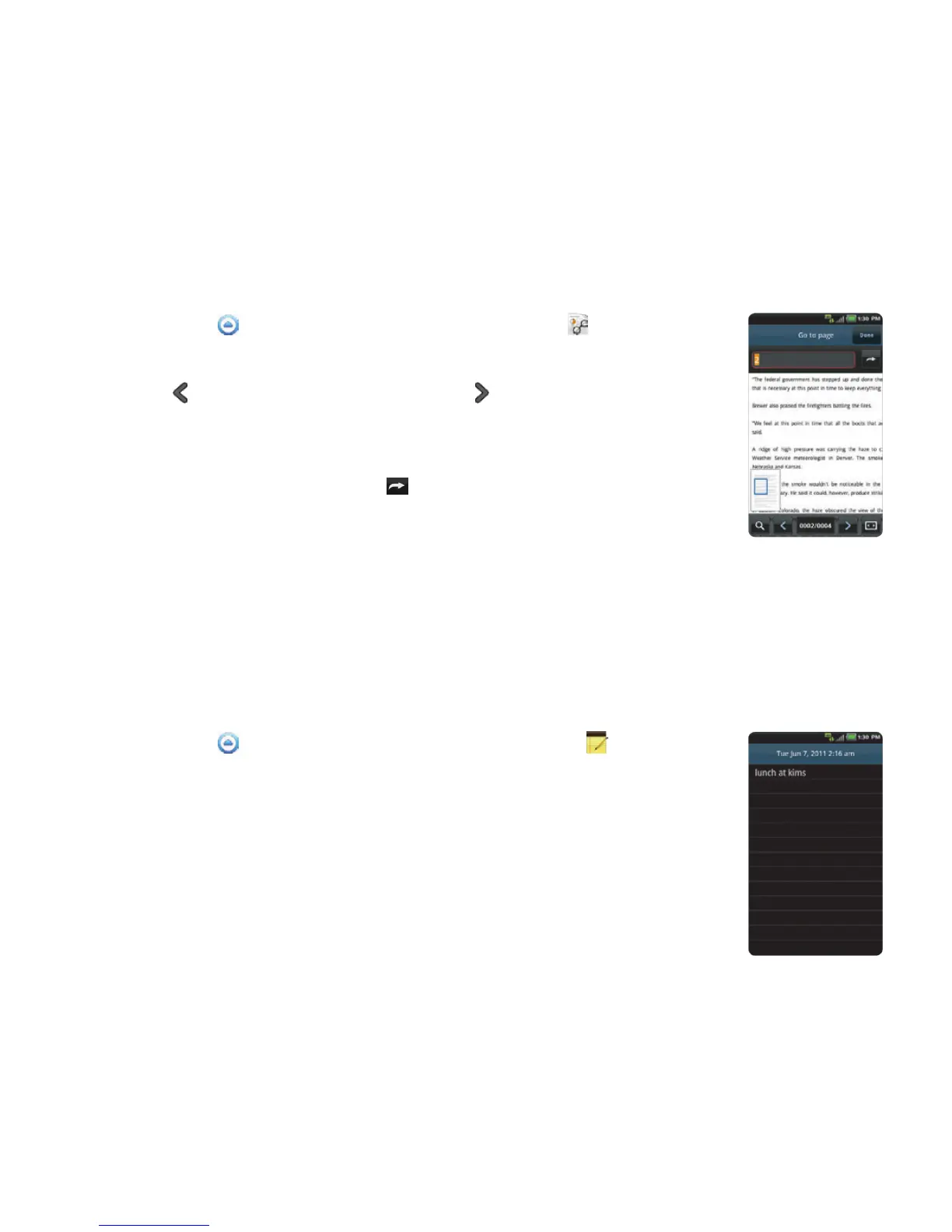
1 Touch Apps from the Home Screen. Touch Doc Viewer .
2 Open a document.
3 Touch to move to the previous page. Touch to move to the next
page.
4 Press the Menu Key B and touch Go to page.
5 Enter the page to go to and touch .
HANDY MEMO
Write a memo with your finger or the keypad. Make sure to insert a microSD™ card to use Handy
Memo.
WRITING TEXT MEMOS
1 Touch Apps from the Home Screen. Touch Handy Memo .
2 Touch Create new > Text memo. If there are no memos saved in the
memory card, the screen appears first by default where you can type in
a text memo.
3 Type in text.
4 Touch Save. The memo appears in full view. Press the Back Key C if you
want to return to the first screen of Handy Memo.



 To Next Page