151
TOOLS
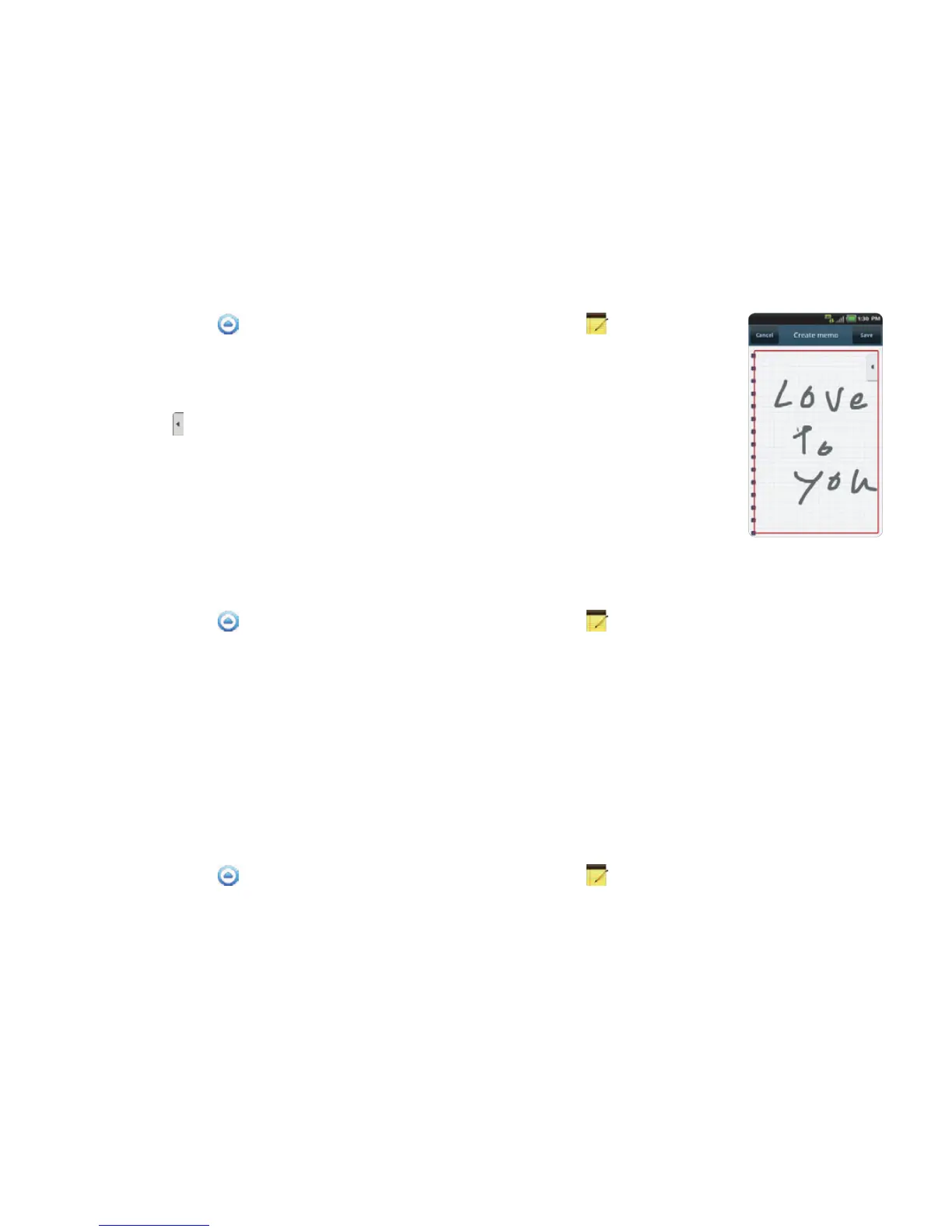
DRAWING A HANDY MEMO
1 Touch Apps from the Home Screen. Touch Handy Memo .
2 Touch Create new > Hand drawing memo.
3 Draw a memo with your finger.
4 Touch to select effects.
5 Adjust the thickness of the pencil and the eraser.
6 Touch Save. The memo appears in full view. Press the Back Key C if you
want to return to the first screen of Handy Memo.
EDITING MEMOS
1 Touch Apps from the Home Screen. Touch Handy Memo .
2 Before editing a memo:
x If you want to edit a memo without checking it in full view, touch and hold the memo to edit
and touch Edit.
x If you want to check a memo in full view before editing, touch the title first. Then, touch on the
screen.
3 Edit the memo and touch Save.
SHARING MEMOS
1 Touch Apps from the Home Screen. Touch Handy Memo .
2 Before sharing a memo:
x If you want to send a memo to your friends without checking it, touch and hold the memo to
share and touch Share.
x If you want to check the memo before sending it to your friends, touch the title, press the Menu
Key B and touch Share.



 To Next Page