8200w² Monitor Instruction Manual
6.2 Sensor Config
The monitor leaves the factory with no sensors pre-installed. Before attempting to configure a
measurement, the sensor must be installed. At this stage it is worth reviewing the contents of the
sensor manual(s) to ensure each sensor has been mechanically and electrically installed correctly.
NOTE: Once the Sensors have been wired, unplug each 4-way connector from the 8200w² Monitor or
Expansion Box before powering up the unit. The system must recognise each sensor in turn through
the ModTechw² Protocol in the “Add Sensor Config Menu”.
For further information on the configuration and operation of our sensors
please refer to their relevant manuals supplied with the sensor, please
read both manuals to ensure correct set up and operation. To access the
Sensor Config Menu:
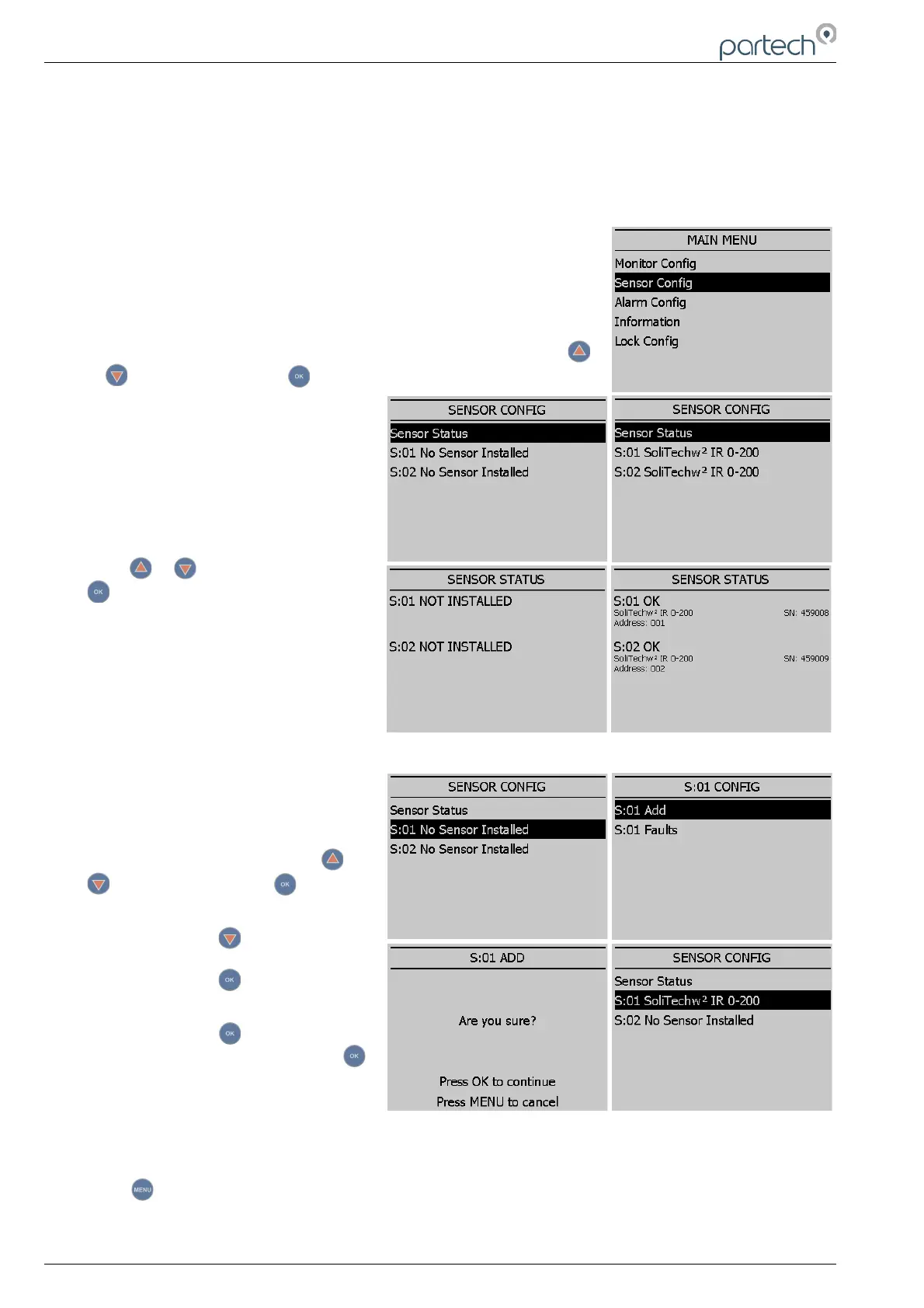
From the MAIN MENU screen, select SENSOR CONFIG by pressing
or to highlight, and press to select.
The SENSOR CONFIG menu should be
displayed. The screen shot on the right,
shows that no sensors have been
installed. The screen shot on the far
right shows both sensors installed.
6.2.1 Sensor Status
From the SENSOR CONFIG menu
press or to highlight, and press
to select. This menu will display a
which of the sensors are installed and
will include the serial number for
reference. Up to 2 sensors can be
configured to a single monitor. If only
one sensor is installed, the remaining
sensor allocation will display ‘NOT
INSTALLED’. The first screen shot on
the right shows the SENSOR STATUS
menu with no sensors installed. The far right with both installed.
6.2.2 Add Sensor
After power up, plug in the sensor(s).
From the MAIN MENU screen, select
SENSOR CONFIG by pressing or
to highlight, and press .
The SENSOR CONFIG menu should be
displayed. Press to highlight the
appropriate NO SENSOR INSTALLED
channel and press .
The S:0x Add option will now be
highlighted. Press and the ‘Are you
sure’ page will be displayed. Press
again and the monitor will now search
for the plugged in sensor.
Once the search is complete, the Monitor will display the sensor found.
Repeat the addition process to install a second sensor. Sensor addition is now complete.
Press to exit this option.
Page 20 of 34 229844IM Issue 01 Issue Date 24/06/2019



 To Next Page