8200w² Monitor Instruction Manual
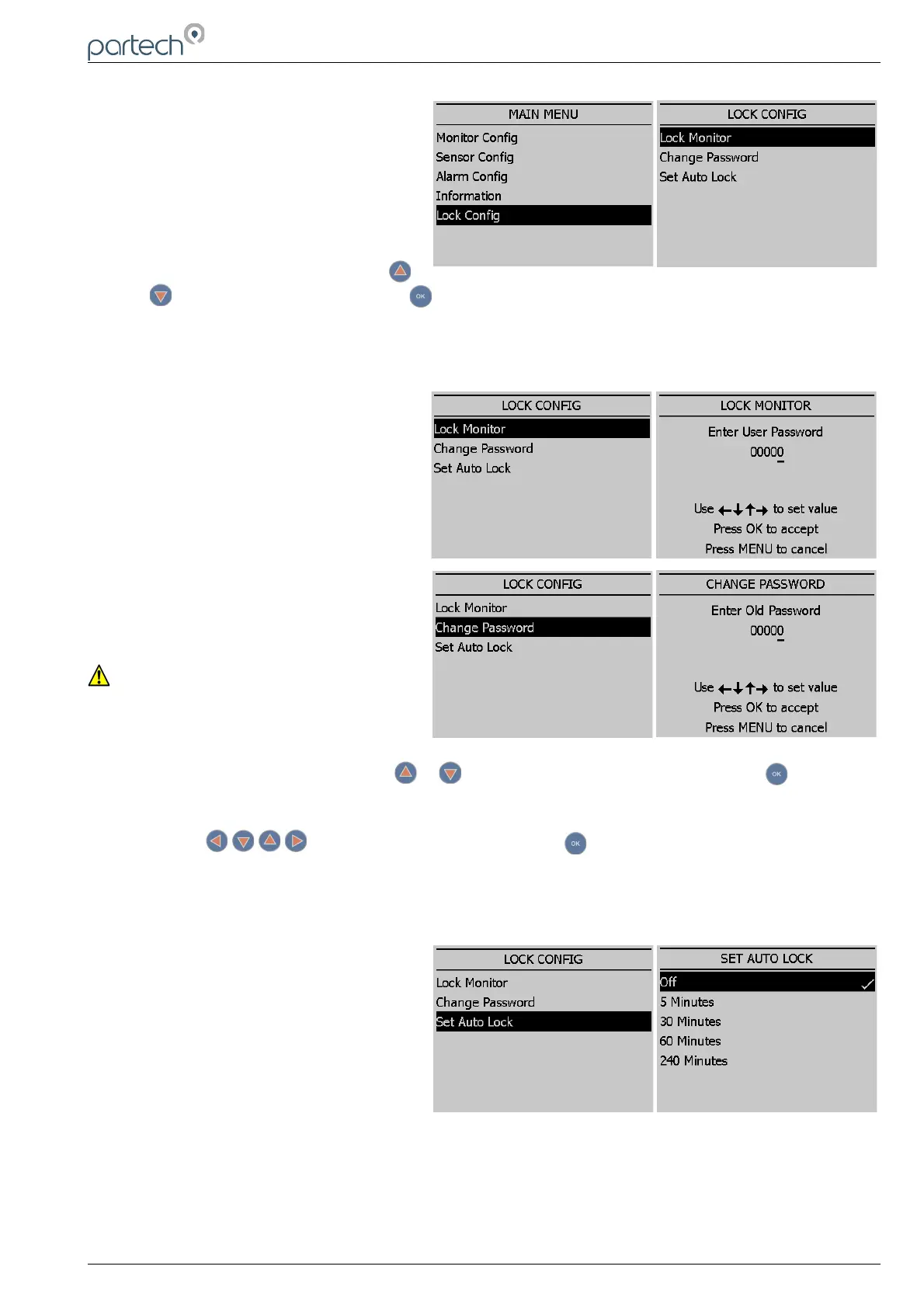
6.6 Lock Config
This function allows the user to restrict
access to all configuration features of
the monitor. This is useful in
circumstances where unintended
adjustment may occur.
From the MAIN MENU, ensure LOCK
CONFIG is highlighted (if not, press
or to highlight the option) then press .
The keypads will allow access to top level functions such as INFORMATION and certain features such
as BACKLIGHT but will not allow adjustment of any setting that effects the measurements being
made. Users will also be able to use the arrow keys to scroll through the different display types.
6.6.1 Lock Monitor
Select LOCK MONITOR to lock. You will
be prompted for a password. The factory
default password is 1000.
Once entered, the monitor is locked.
6.6.2 Change Password
The CHANGE PASSWORD menu allows
the operator to set a user defined
password for menu access.
Care should be taken when changing the
password. If the password is lost, it may
be necessary for Partech to visit the
instrument to unlock the monitor and
reset the password.
From the LOCK CONFIG menu press or to select CHANGE PASSWORD and press .
This screen requests the OLD password. The factory default setting is 1000.
Press the keys to change the password. Press to accept.
You will then be asked to enter the new Password. Repeat the above procedure to set the new
password.
Password is now set.
6.6.3 Set Auto Lock
Two modes of “Lock Instrument” are
available and are configured from this
menu.
Mode 1: AUTO LOCK set to OFF. This is
a “Once Only” lock. If any menu is
accessed that has been locked, the
operator will be required to enter the
password. Once entered the LOCK MONITOR function will be permanently disabled. The monitor
must be manually re-locked again in the LOCK CONFIG Menu if the function is still required.
Mode 2: AUTO LOCK set to 5 mins, 30 mins, 60 mins or 240 mins. This is a temporary unlock
function. If any menu is accessed that has been locked, the operator will be required to enter the
password. Once entered, the LOCK MONITOR function will be temporally disabled for this specified
time. Once this time has elapsed, the monitor will automatically lock again.
229844IM Issue 01 Issue Date 24/06/2019 ` Page 25 of 34



 To Next Page