58
support@pax.us
(877) 859-0099
www.pax.us
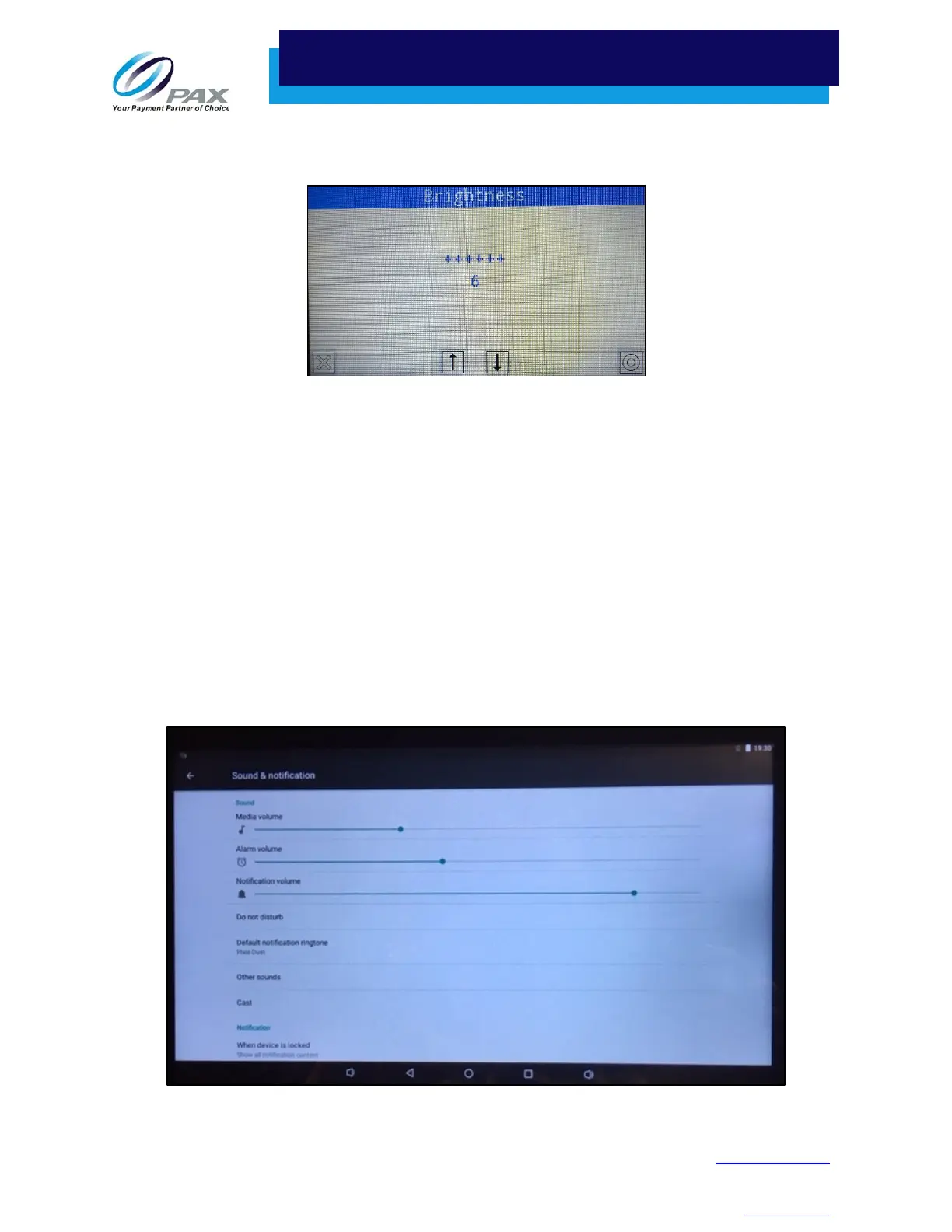
On the Q20, from the TM Main Menu, select System Config. Enter the password. Press Enter. Select
Media > Brightness. Press the Up Arrow to brighten the display or the Down Arrow to darken the
display.
Adjusting Q20 Brightness Level
Note: The Q20 default setting is “6”. The brightest setting available is “10”. The dimmest setting is “1”.
19.15 Does the E800 have a camera?
Yes, the E800 includes a 5-megapixel auto zoom read camera that can read 1D and 2D barcodes.
19.16 What is the screen resolution? Can I change the screen resolution?
The screen resolution for the 15.6-inch clerk-facing E800 screen is 1920 x 1080 pixels. The screen
resolution for the 4.3” Q20 screen is 480 x 272 pixels. The screen resolution for the E800 and the Q20
are fixed and cannot be changed.
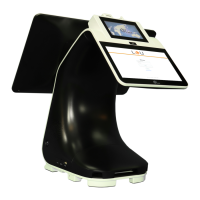
19.17 How do I change the volume on an E800? Where are the volume control buttons?
Under Settings, select Device > Sound & notification. Click the pull-down menu to set the volume for
media, alarms, and notifications. There are no external volume control buttons on the E800.


 To Next Page