90
Taking Pictures
4
Recorded pixels and zoom ratio
The [Digital Zoom] is set to [O(On)] by default. To take pictures using
only the optical zoom, set the [Digital Zoom] to [P(Off)].
1 Press the MENU button in Capture mode.
The [A Rec.Mode] menu appears.
2 Use the four-way controller (23)
to select [Digital Zoom].
3 Use the four-way controller (45)
to select [O (On)/P (Off)].
4 Press the shutter release button
halfway.
The camera is ready for taking pictures.
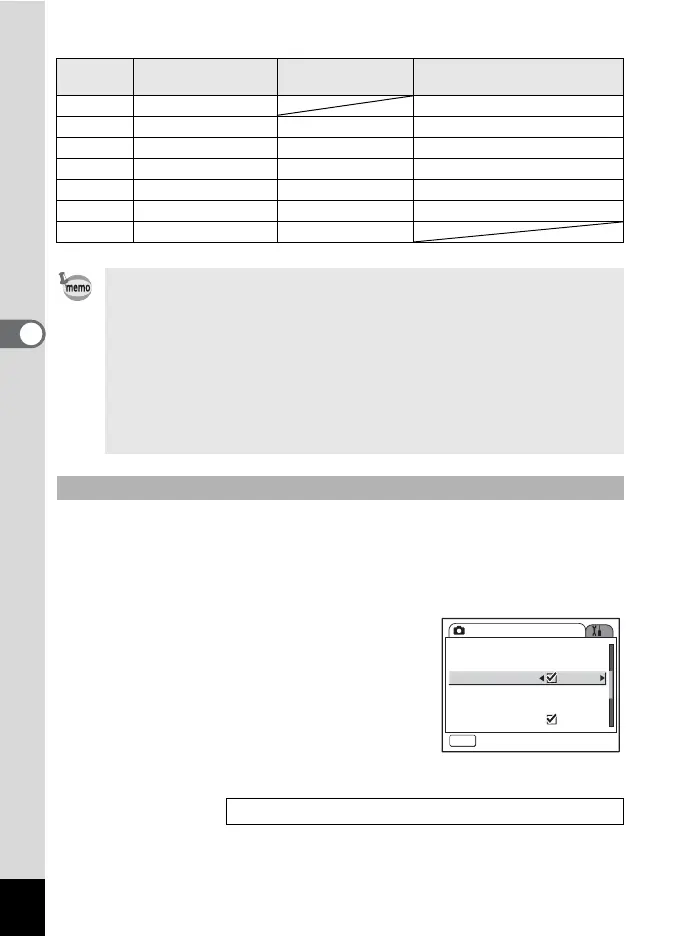
Recorded
pixels
Optical Zoom Range Intelligent Zoom Digital Zoom Range
12M 1× to 3× 3.3× to 17.9×
10M 1× to 3× 3.3× 3.9× to 17.9×
7M 1× to 3× 3.3× to 3.9× 4.6× to 17.9×
5M 1× to 3× 3.3× to 4.6× 5.7× to 17.9×
3M 1× to 3× 3.3× to 5.7× 11.4× to 17.9×
1024 1× to 3× 3.3× to 11.4× 13.9× to 17.9×
640 1× to 3× 3.3× to 17.9×
• Intelligent Zoom is not available under the following conditions.
- When Digital Zoom is set to Off.
- When the recorded pixels is 12M. (3× optical zoom and digital
zoom available.)
- In Digital SR Mode or Movie mode
• The image enlarged using Intelligent Zoom may appear rough on
the display. This does not affect the quality of image.
• Only the Digital Zoom is available in Movie mode. Set Movie SR
to Off in [A Rec.Mode] menu to use the Digital Zoom in Movie
mode. (1p.111)
Setting the Digital Zoom
Saving the Digital Zoom Function Setting 1p.122
Rec.Mode
MENU
Exit
EV Compensation
Movie
±0.0
D-Range Comp.
One push PF
Off
Digital Zoom
Instant Review 0.5sec0.5sec




 To Next Page