Operation Guide 250ML Lighting Control Consoles
39 OPERATION
WARNING! Once executed, this command cannot be reversed.
S10 - Name:
This option allows the ability to label the cue. Pressing (S10 - Name) shall bring up the naming screen for labeling.
Encoder A - C-Step U/D (Current Step):
Notice that the Current Step indicator in the screen is one number higher than the total steps and there is an asterisk.
This indicates that a new step will be added. By adjusting the Current Step encoder, the Current Step will change to
one of the existing recorded steps and allow the ability to record over an existing step indicated by Current Step.
Normally this encoder would not be adjusted and the current values will be added as a new step in the submaster
effect.
Encoder B - Speed:
This option will adjust the rate at which the effect's step will wait prior to triggering the next step.
Note: Repeat this process for the number of steps that are required on that submaster effect.
13. Cue/Submaster Preview
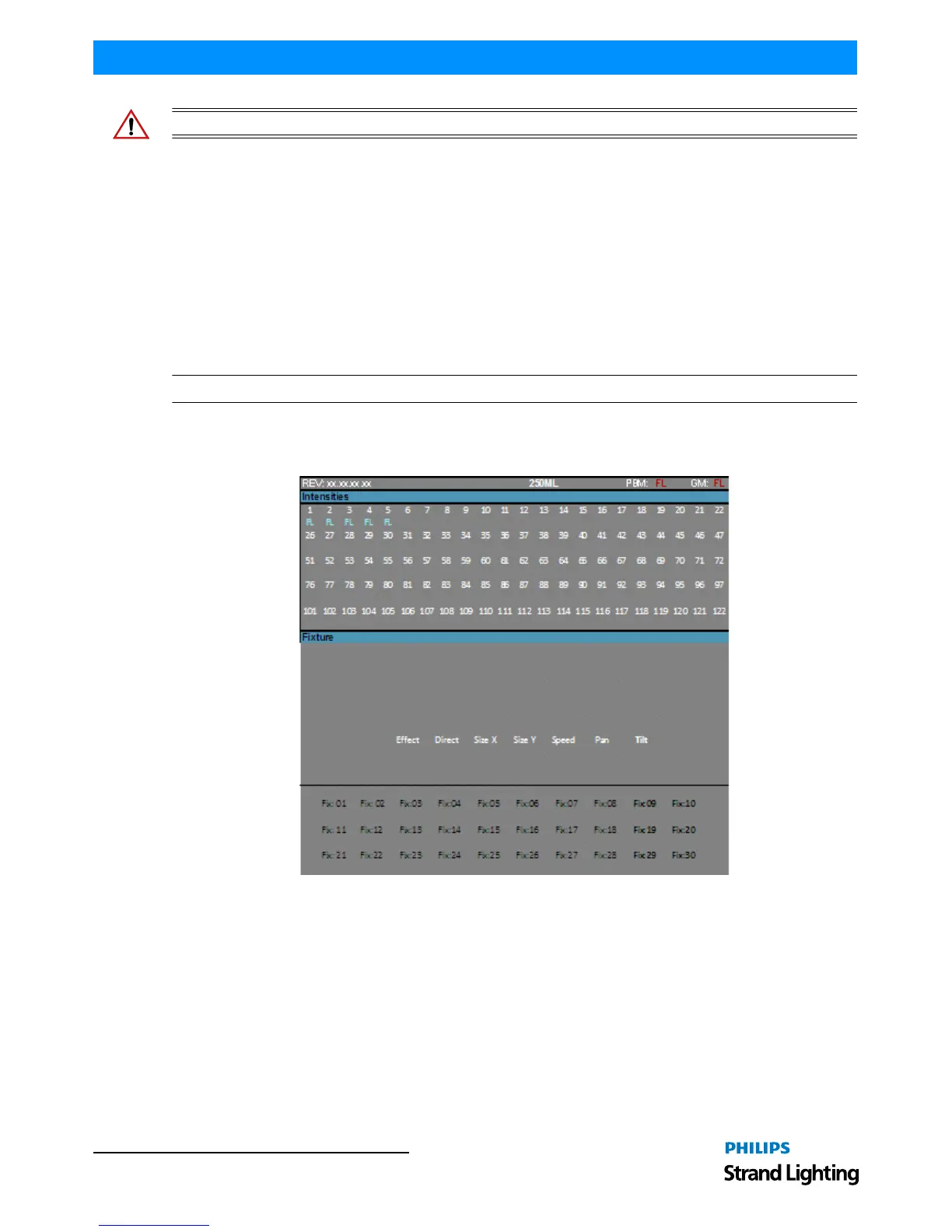
The Cue/Submaster preview screen (Figure 56) is in a grey background to let you know you are in preview.
Figure 56: Cue/Submaster Preview Screen
• Level information is in the Intensity section for conventional and can be edited as needed.
• The Fixture section is for fixture data and below that will be unit’s data.
• To edit level information in preview, adjust the information via command line as you normally would.
Example: [1] [@] [5] [ENTER]
• This shall place channel 1 at 50%. If you want this information stored, just press the LIST softkey to store and
return to the previous key.
• This screen also allows the editing of Cue Timing information. Just adjust via the Encoders and then press the
LIST softkey to store the changes.


 To Next Page