Submaster List 42
250ML Lighting Control Consoles
Operation Guide
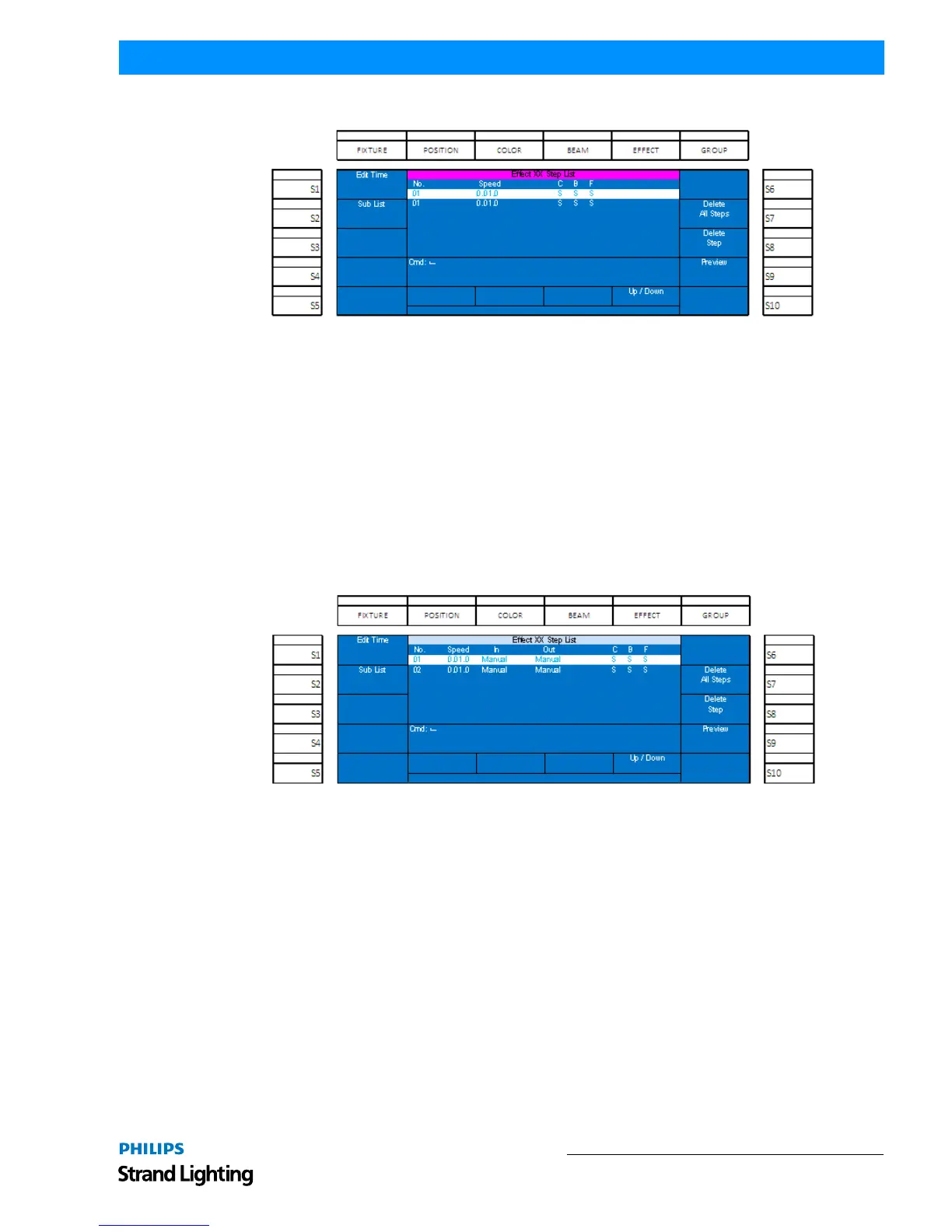
Here is a description of the S keys and their functions.
Figure 60: Editing a Submaster Effect
• (S1 - Edit Time): This will allow the editing of all parameters of the submaster effect that was selected as well as
editing the item in Preview.
• (S2 - Sub List): will restore the screen back to the Sub List.
• (S7 - Delete All Steps): will delete all steps of the effect.
• (S8 - Delete Step): Will delete the highlighted step of the effect.
• (S9 - Preview): will show the content of the step in blind where it can be edited. Just press (S9-List) to confirm the
changes to the effect step once they are made.
• Encoder D - use the Up/Down action to highlight the effect step that is to be affected.
Edit a Submaster Playback
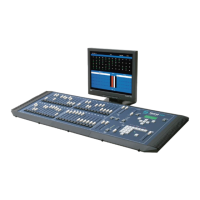
Once a playback is stored as a submaster, it can be edited without the need to recreate the look onstage and rerecord.
Figure 61: Edit a Submaster Playback
• (S1 - Edit Time): This will allow the editing of all parameters of the submaster effect that was selected as well as
editing the item in Preview.
• (S2 - Sub List): will restore the screen back to the Sub List.
• (S7 - Delete All Steps): will delete all steps of the effect.
• (S8 - Delete Step): Will delete the highlighted step of the effect.
• (S9 - Preview): will show the content of the step in blind where it can be edited. Just press S9-List to confirm the
changes to the effect step once they are made.
• Encoder D - use the Up/Down action to highlight the effect step that is to be affected.


 To Next Page