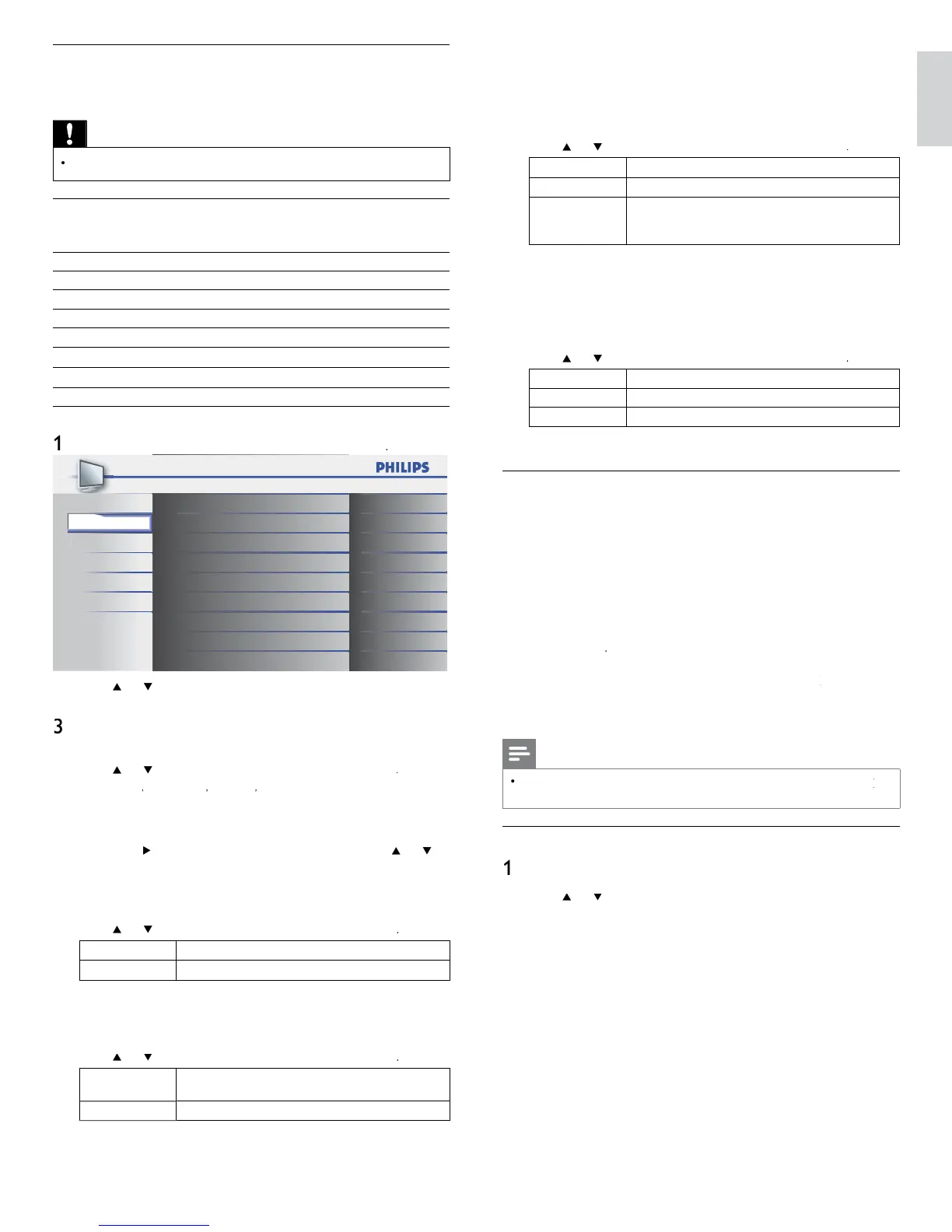
17
English
Using your TV as a PC monitor
se an HDMI-DVI cable or an HDMI-DVI ada
tor to connect a PC to
our
.
or soun
, a
an au
o ca
e w
t
a stereo m
n
ac
Caution
Before you connect your PC, set the PC monitor refresh rate to 60Hz
Supported screen resolutions
he followin
screen resolutions are su
orted in PC mode
eso
ut
on Refresh rate
640 x 480 60Hz
800 x 600 60Hz
1024 x 768 60Hz
1280 x 768 60Hz
1360 x 768 60Hz
1920 x 1080 60Hz
Changing sound settings
ress
on t
e remote contro
an
se
ect
Soun
Pi
t
r
Sound
Setu
eature
anguag
USB
Auto Sound Standard
On
Off
Speakers EasyLink
Stereo
Equalizer
Virtual Surround Sound
Auto Volume Leveling
TV Speakers
Audio Setting
2
ress
o
to
g
g
t a soun
sett
ng an
press
to se
ect
e sett
ng
Adjust the following items
Auto Soun
ress
o
to se
ect t
e
es
re
sett
n
, t
en
ress
ersona
Standar
ovie
usic
an
ew
qua
izer
djust tone quality for each frequency
ress
o
to select the specifi c frequency, then press
o
o
a
ust t
e
eve
irtual Surround Soun
ound mode for more s
atial or surround sound re
roduction
ress
o
to se
ect t
e
es
re
o
t
on, t
en
ress
n
he Virtual Surround Sound will be effective
f
e or
na
soun
w
e out
ut
uto Volume Leveling
Reduces sudden chan
es in volume, for exam
le, durin
commerc
a
s or w
en sw
tc
n
c
anne
s
ress
o
to se
ect t
e
es
re
o
t
on, t
en
ress
n
elect if you want to reduce volume differences
etween t
e
commerc
a
s an
t
e
ro
rams
f
elect if
ou want to turn off the Auto Volume Levelin
TV Speaker
his option will allow you to select the audio output from the
nit’s speakers. If you connect this TV to an external amplifi e
hich is compatible with HDMI CEC, you can use volume controls
n this TV to control volume on the external amplifi e
.
ress
o
to se
ect t
e
es
re
opt
on, t
en press
n
he sound will be output from the unit’s speakers
f
he sound will not be output from the unit’s speakers
S
eakers
Eas
Link
ou can control audio output from your connected
EasyLink Compliant Devices with
OL + / −
y us
ng
his unit
s remote control
Audio Setting
ou can set the output mode as a default for the sound mode
(NTSC only)
s sett
ng
s not
nter
oc
e
w
en you c
ange t
e output mo
e
y press
ng SAP. (see ‘Switching audio mode’ on page 14)
ress
o
to se
ect t
e
es
re
o
t
on, t
en
ress
Stere
utputs stereo-audio
on
utputs mono-audio
SAP
utputs second audio program
ress
to ex
t
Summary of sound settings
he following sound settings can be confi gured. Depending on the
soun
source, some soun
sett
ngs are not ava
a
e
Auto Soun
: Sets all sound settings to the factory default
qua
ize
: Adjusts individual sound frequencies
Virtual Surround Soun
: Sound mode for more s
atial o
urroun
soun
re
ro
uct
on
uto Volume Leveling
: Reduces sudden chan
es in volume, fo
xam
le, durin
commercials or when switchin
channels. Select
On
o
Off
TV Speaker
: Select
On
o
Off
, or output soun
to an
asy
n
comp
ant
ev
ce.
en
s se
ecte
e
spea
ers are
sa
e
an
soun
outputs to t
e spea
ers
f the compatible EasyLink compliant device. Adjust the volume
sing the unit
s remote control
Note
If the TV is connected to a non-EasyLink compliant device and
s
se
ecte
, t
e
spea
ers w
not
e
sa
e
an
cont
nue to output soun
Changing auto sound mode
ress AUTO SOUN
to set
our TV to a
redefi ned sound settin
2
ress
o
to select one of the followin
settin
s
ersona
: The customized settin
s
ou defi ned b
usin
the
oun
menu
tandar
:
or norma
v
ew
n
ovie
: Realistic sound settings for a cinematic experience
usic
: Em
hasize hi
h and low fre
. for instrument sound
ew
: Clear sound settings for human voice










 To Next Page