21
English
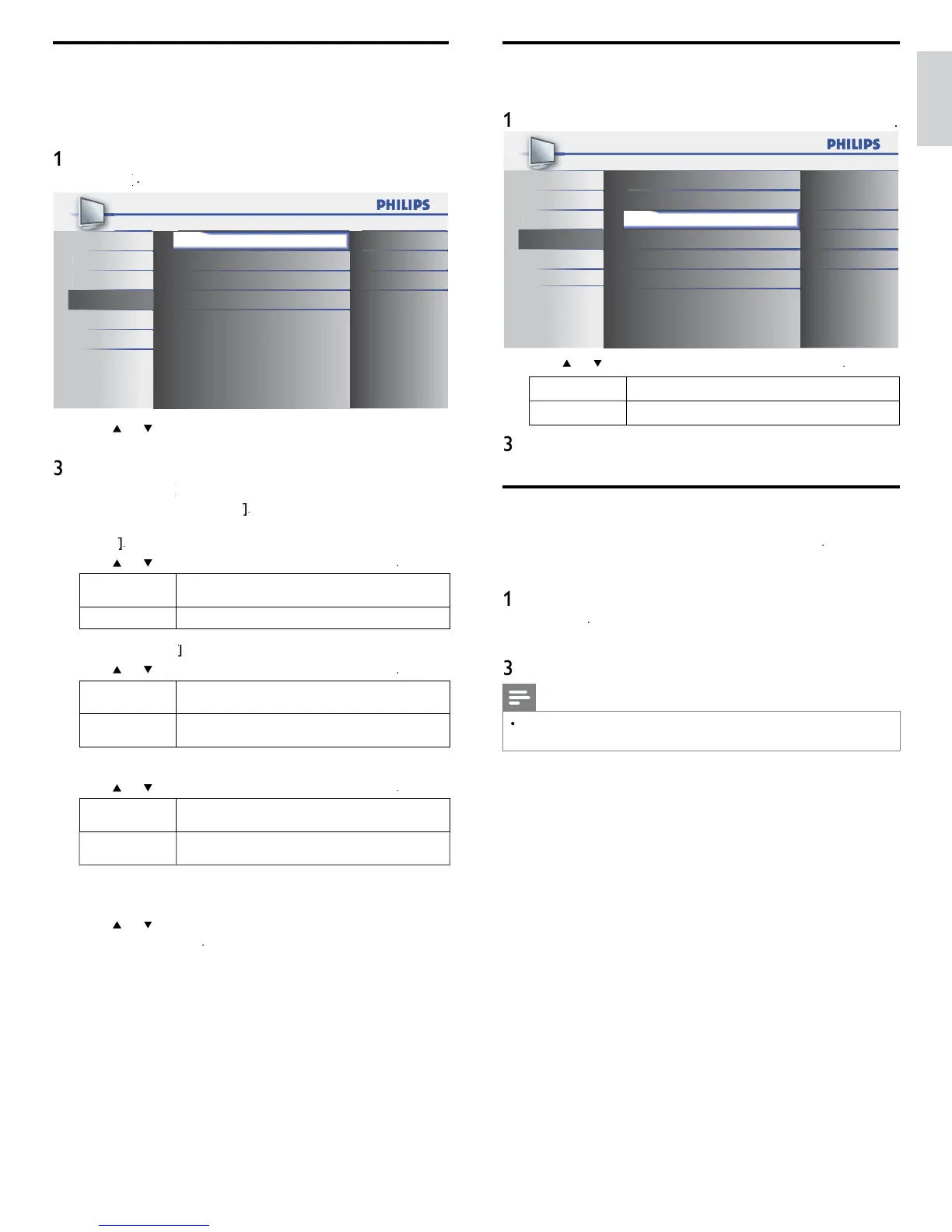
ECO
ou can set w
et
er t
e power consumpt
on
s save
or not
ress
on t
e remote contro
an
se
ect
eature
>
EC
t
r
Closed Caption
ound Child Lock
etu
ECO
On
Features
EasyLink
Location
Current Software Info
Home
an
USB
2
ress
o
to se
ect t
e
es
re
mo
e, t
en press
n
elect if you want to reduce power consumption
f
ets the backli
ht bri
hte
.
ress
to ex
t
Set your location to home
You can set the location of
our TV to
ome
o
etai
hoosin
ome
ives
ou full fl exibilit
to chan
e
redefi ned settin
s
for
icture and sound
ress
on t
e remote contro
an
se
ect
eature
>
ocation
2 Select
ome
an
press
to confi rm your choice
ress
to ex
t
Note
ou must set
ome
. Otherwise, personalized picture and sound settings will not be
memorized after the unit goes to standby mode
EasyLink
his function allows you to operate the linked functions between our
ran
ev
ces w
t
asy
n
capa
t
es an
t
s un
t connecte
v
a a
ca
e
ress
on t
e remote contro
an
se
ect
eature
>
Master EasyLink On
On
On
Auto Device Off
etup Auto TV On
Features Device List
an
ua
e
USB
2
ress
o
to
g
g
t t
e
es
re
sett
ng an
press
o
se
ect t
e sett
ng
Adjust the following items
et the EasyLink
n
o
f
he following additional settings will be grayed out when you set
o
f
ress
o
to se
ect t
e
es
re
o
t
on, t
en
ress
n
elect if you have connected an external device that
s compatible with the EasyLink function
f
Disable all EasyLink function
Auto Device Of
ress
o
to se
ect t
e
es
re
o
t
on, t
en
ress
n
our connecte
asy
n
ev
ce goes
nto stan
y mo
e
automat
ca
y w
en you put t
s un
t
nto stan
y mo
e
f
our connected EasyLink device stays on even if unit
goes
nto stan
y mo
e
Auto TV On
ress
o
to se
ect t
e
es
re
opt
on, t
en press
n
s un
t turns on automat
ca
w
en
ou turn on
ou
onnecte
as
n
ev
ce
f
his unit remains in standby mode even if you turn on
our connecte
asy
n
ev
ce
evice
is
his function lets
ou see the
roduct name of connected devices
ress
o
to se
ect t
e
es
re
ev
ce
ste
on t
e
screen, t
en
ress
ress
to ex
t





 To Next Page