26
8 Upgrade your TV software
ps cont
nuous
y tr
es to
mprove
ts pro
ucts an
we strong
y
recommend that you upgrade the TV software when upgrades are available
ew software can be downloaded from our website at
www.philips.com/suppor
using the model number of your TV (e.g
2PFL3506 ) to fi nd information
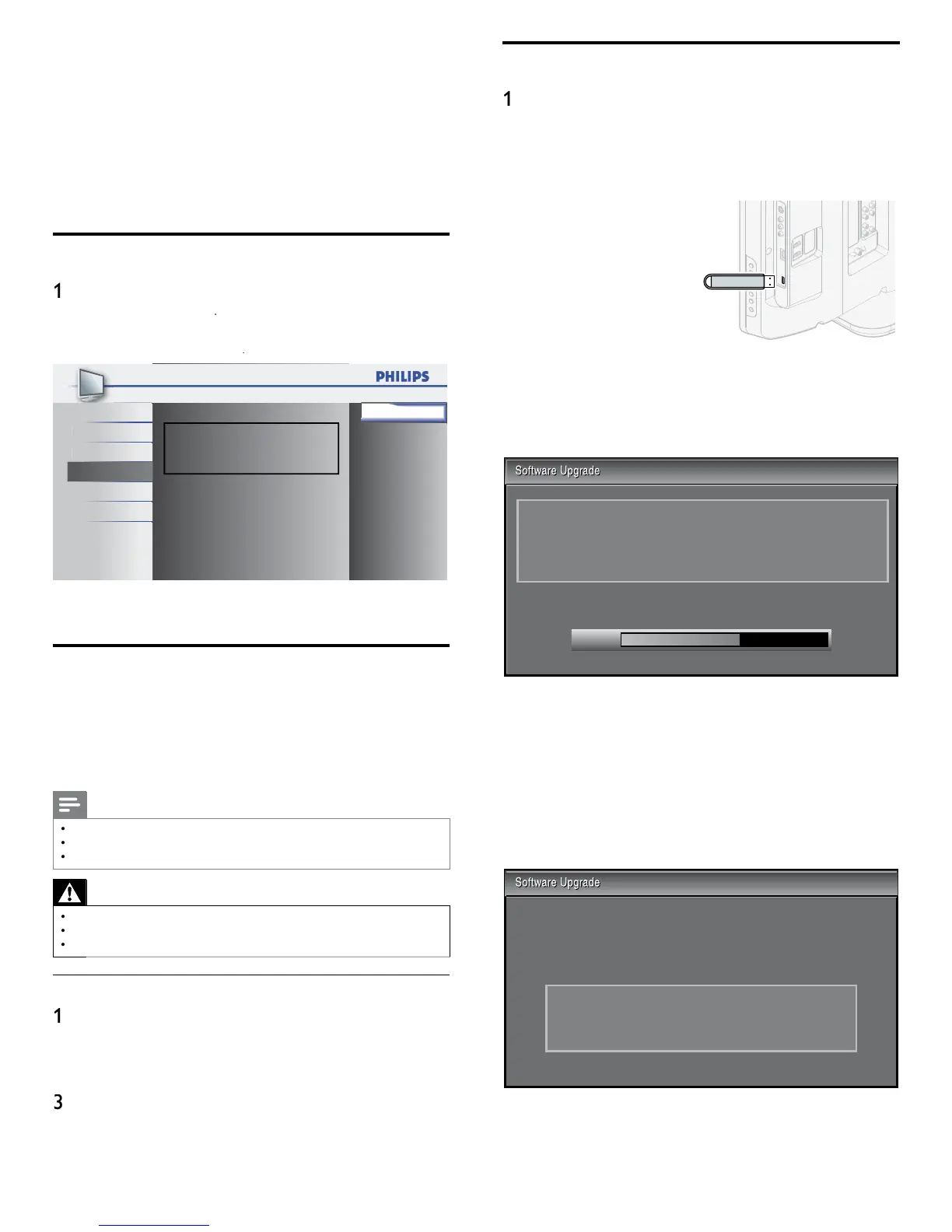
Checking your current software version
ress
on t
e remote contro
an
se
ect
eature
>
urrent Software Inf
he version and a description of the current software is
sp
aye
, t
en press
Release Version:
XXXXXXX_XXX_X_XXXX
cture Back
et
Features
an
USB
2
ress
to ex
t
Preparing for the software upgrade
o
require the following equipment
PC with web browsin
ca
abilit
n archive utility that supports the ZIP-format (e.g. WinZip fo
indows or StuffIt for Mac OS
n empty clean formatted USB stick
Note
Onl
FAT/DOS-formatted
ortable memor
is su
orted
New software can be downloaded from www.philips.com/suppor
Use onl
software u
rades that can be found on the Phili
s web site
Warning
When the software upgrade is running, don’t press any buttons
Do not remove the USB stora
e device durin
the software u
rade
If an error occurs durin
the u
rade, retr
the
rocedure or contact
our deale
.
Downloading the software
On your PC, open a web browser and go to
www.
hili
s .com/su
or
2 Find information and software related to your TV and download
he latest software upgrade fi le to your PC
Decom
ress the ZIP-fi le
Co
the u
rade fi le to the root director
of the USB stora
e
ev
ce
Upgrading software
Pre
are the software u
rade
see ‘Pre
arin
for the software
pgrade’ on page 26)
If the TV is on, press
.
OWE
at the side of the TV
3 Connect your USB storage device to the service terminal on the
ide of your TV
Switch on the TV
he TV scans the USB storage device for the upgraded
oftware and automatically enters upgrade mode
Read the on-screen instructions and confi rm that
ou want to
ont
nue w
t
t
e
nsta
at
on
Software upgrade in progress. Please wait.
Do not remove the USB storage device or turn the TV off
while upgrade is in progress.
Downloading...
When the software upgrade is complete, remove the USB storage
ev
ce
ress
OWER at the side of the TV to make sure the unit
oes
o stan
mo
e
8 Switch on the TV
he TV starts u
with the new software
he following messages are displayed without starting
oftware upgrade when it doesn’t fulfi ll the upgrade
on
t
ons
The version of this update fi le is the same or older
than the current version.
Please check the fi le and try again.




 To Next Page