14
Lock or unlock your device from the home menu
his section describes how to lock or unlock s
ecifi ed device
ress
on t
e remote contro
2
se
/
/
/
to se
ect a
ev
ce to
oc
or un
oc
3
ress
PTIONS on t
e remote contro
se
/
to se
ect
evice
oc
o
evice un
oc
, t
en press
If device lock is unlocked
evice
oc
w
e
s
a
e
If device lock is locked
evice un
oc
w
e
sp
aye
en
ev
ce
oc
s
oc
e
will be displayed at the top right
f the device icons
Enter your PIN. (See ‘Setting your PIN’ on page 26.
nce you have set PIN, PIN input menu does not appear afte
e un
t
s turne
on
Enable or disable RC key forwarding from the home menu
his section describes how to enable or disable RC key forwarding for a
art
cu
ar
ev
ce
ress
on t
e remote contro
2
se
/
/
to se
ect a
ev
ce to ena
e or
sa
e
RC key forwarding
3
ress
PTIONS on t
e remote contro
se
to se
ect
o
orwarding
, t
en
ress
If RC key forwarding is set to off,
w
e dis
la
ed. If RC ke
forwardin
is set to on
Disable RC
ey forwarding
w
e
s
a
e
•
hen you set RC key forwarding on
op left of the device icons
Note
his function is available only when your devices are connected to this unit
hrough HDMI cables and assigned to an HDMI port (HDMI1 to HDMI4) with
dd new device
n t
e
ome menu
6 Use more of your TV
Access TV menus
enus
e
p you to
nsta
c
anne
s, c
ange p
cture an
soun
sett
ngs
hen access other features
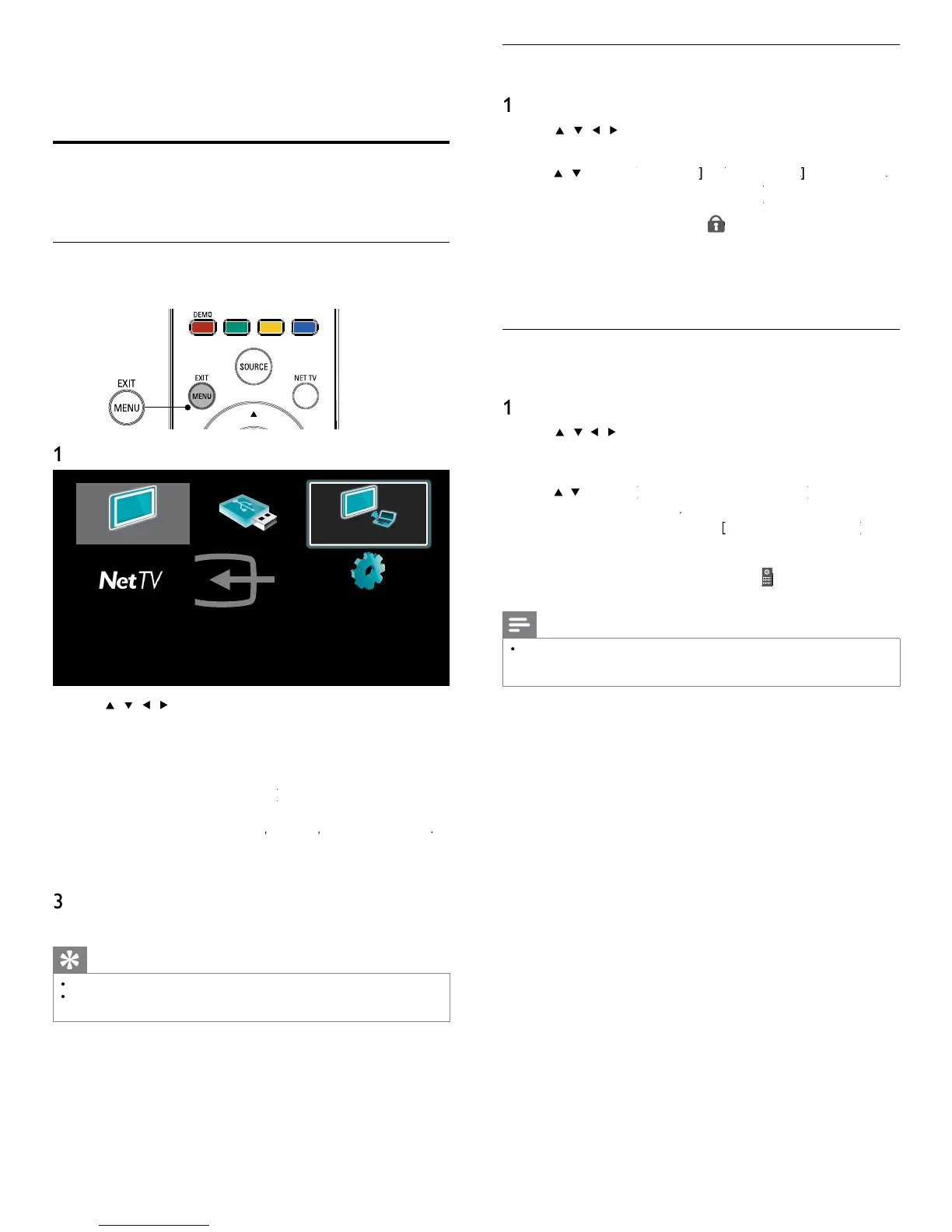
Access the home menu
e
ome menu
ves
ou eas
access to connecte
ev
ces,
cture
and sound settin
s as well as other useful features
ress
on t
e remote contro
Watch TV
Browse USB
Philips Wireless Media...
Add new devices
Setup
2
se
/
/
/
to select and navigate through one of the
following menus
atc
Switches back to the antenna source if anothe
source
s se
ecte
Browse US
Accesses USB menus
Philips Wireless MediaConnect
ccesses Philips Wireless
MediaConnect
et
ccess
uner
vu
u
o
witter
dd new device
dds new devices to the home menu
Setu
ccesses menus that allow you to change picture
soun
an
ot
er
sett
ngs
ress
to confi rm
our choice
ress
o ex
t
Tip
app
cat
on
s on
y ava
a
e on
mo
e
s
fter selecting
dd new device
follow the on-screen instructions to select the
correct
ev
ce an
connecto
.





 To Next Page