30
Wireless network
s menu
s
s
a
e
on
w
en
ou set
n
etwor
se
ection
n or
er to use a w
re
ess networ
, you must set up a connect
on to t
e
Wireless LAN Access Point
AP
e.
. wireless router
Wireless network settin
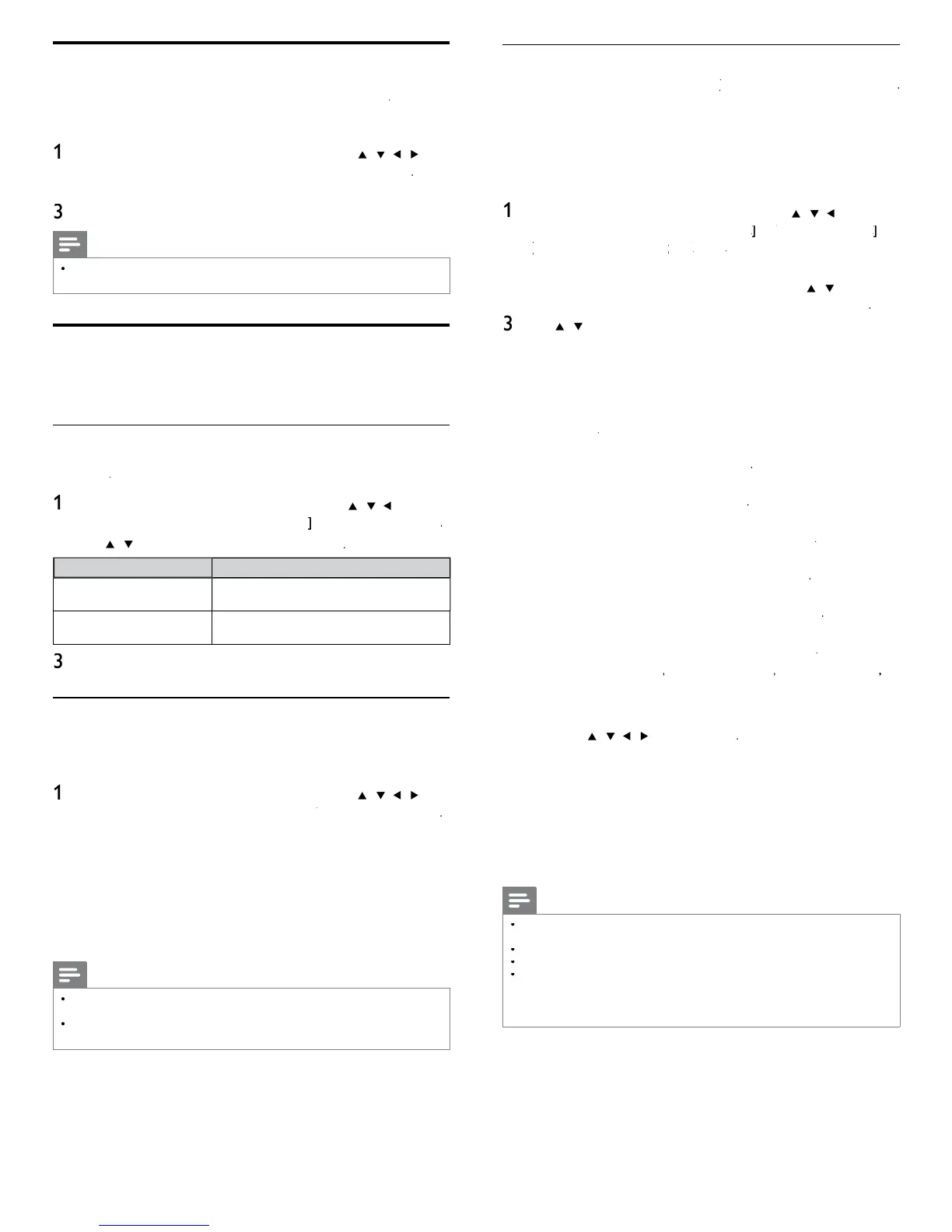
Auto
earch for wireless networks automaticall
and select the wireless network
name (SSID) from the list
ress
on t
e remote contro
an
t
en use
/
/
o
e
ect
Setu
>
nsta
ation
>
etwor
>
ire
ess networ
>
>
ut
his unit will start searching for wireless networks automatically
The list of wireless networks will be dis
la
ed. Use
/
to se
ect
he a
ro
riate wireless network name
SSID
, then
ress
se
/
to select the authentication setting of the selected
re
ess networ
or a w
re
ess networ
w
t
aut
ent
cat
on sett
n
, se
ect t
e
authentication setting, according to the security type of the
re
ess networ
or a w
re
ess networ
w
t
out aut
ent
cat
on sett
ng, se
ect
one
one
et the authentication setting to
one
et the authentication setting to
WPA-PSK (TKIP)
et the authentication setting to
PA-PSK (TKIP)
WPA-PSK (AES)
et the authentication setting to
PA-PSK (AES)
WPA2-PSK (TKIP)
et the authentication setting to
PA2-PSK (TKIP)
WPA2-PSK (AES)
et the authentication setting to
PA2-PSK (AES)
If you select
PA-PSK (TKIP)
PA-PSK (AES)
PA2-PSK (TKIP)
o
WPA2-PSK (AES)
, WEP / WPA Key
entry screen w
appea
.
Enter the WEP / WPA key of the selected wireless network
us
ng
/
/
/
, t
en press
lear
: Clear the entered number or word
ll clear
: Clear all the entered numbers or words
/A/
: Switch between abc, ABC and
!
ancel
: Shows the cancellation display
: Set the entered number or word
onfi rmation messa
e will a
ear. Select
e
to com
ete
e sett
n
s
ress
to ex
t
Note
or a w
re
ess networ
w
t
aut
ent
cat
on sett
n
,
e
con a
ears to t
e r
t
an
f the wireless network name
SSID
ignal icon shows the strength of the signal
EP / WPA key appears as asterisks on the confi rmation screen
he supplied USB wireless LAN adapter supports following specifi cations
- Wireless standards : IEEE 802.11 b/g/n
- Frequency spectrum : 2.4GHz
- Security protocol : WEP / WPA / WPA
Set your location to home
ou can set the location of your TV to
ome
o
etai
store
hoosing
ome
gives you full fl exibility to change predefi ned settings fo
p
cture an
soun
ress
on t
e remote contro
an
t
en use
/
/
o
se
ect
Setu
>
nsta
atio
>
reference
>
ocation
Select
ome
an
t
en press
to confi rm your choice
ress
to ex
t
Note
ou must set
ome
. Otherwise,
ersonalized
icture and sound settin
s will not be
memorized after the unit
oes to standb
mode
Network
et up network connection settings in order to use Netfl ix, vTune
nternet radio, VUDU, Twitter or network update function
Network selection
Before you proceed to
onnection tes
or ot
er sett
ngs
n
etwor
section, set this selection to suit your preference
ress
on t
e remote contro
an
t
en use
/
/
o
se
ect
Setu
>
nsta
ation
>
etwor
>
etwor
se
ection
se
/
to se
ect a sett
n
an
t
en
ress
Setting item
escription
ire
elect to use an Ethernet cable to connect to
t
e
nternet
y w
re
connect
on
ire
es
elect to use a USB wireless LAN ada
ter to
connect to t
e
nternet
w
re
ess connect
on
ress
to ex
t
Connection test
erform the following steps to test your internet connection after you
ave connecte
an
t
ernet ca
e or entere
networ
sett
n
s suc
as
IP address, DNS settings, etc. manually
ress
on t
e remote contro
an
t
en use
/
/
o
se
ect
Setu
>
nsta
atio
>
etwor
>
onnection test
onnection test will start automatically and the test result will
a
ear ri
ht after the connection test fi nishes
esting...
:
e test
s
n progress
as
: Connection test is successfully completed
i
: Connection test failed. Check the connection settings
ress
to go to the list of network status confi rmation screen
2
ress
to ex
t
Note
If the connection test passes, you are ready to use Netfl ix, vTuner internet radio, VUDU
witter or network update function using the internet without making any additional settings
If the connection test fails, check if the Ethernet cable is connected to this TV properly
or if
ou have entered all the re
uired details for the wireless LAN connection
ro
erl







 To Next Page