15
English
Netfl ix operations
t
t
s un
t, you can watc
mov
es an
ep
so
es streame
nstant
y
from Netfl ix via the internet. In order to use this feature, you must visit
the following website on your PC and become a Netfl ix membe
.
www.netfl ix.com/Philip
Before activating the connection to Netfl ix
fter creating a Netfl ix account at www.netfl ix.com/Philip
follow the
following procedure before activating the connection to Netfl ix
Connect this unit to the internet
(See ‘Connecting the TV to the internet using an Ethernet cable
r ‘Connecting the TV to the internet using a USB wireless LAN
adapter’ on page 41.)
Set u
the necessar
network connection settin
s
See ‘Network’ on
a
e 30.
Activating the connection to Netfl ix
In order to watch movies and TV e
isodes streamed instantl
from
etfl ix via the internet,
ou must activate the connection between this
unit and your Netfl ix account
ress
on the remote control and then use
/
/
o
e
ect
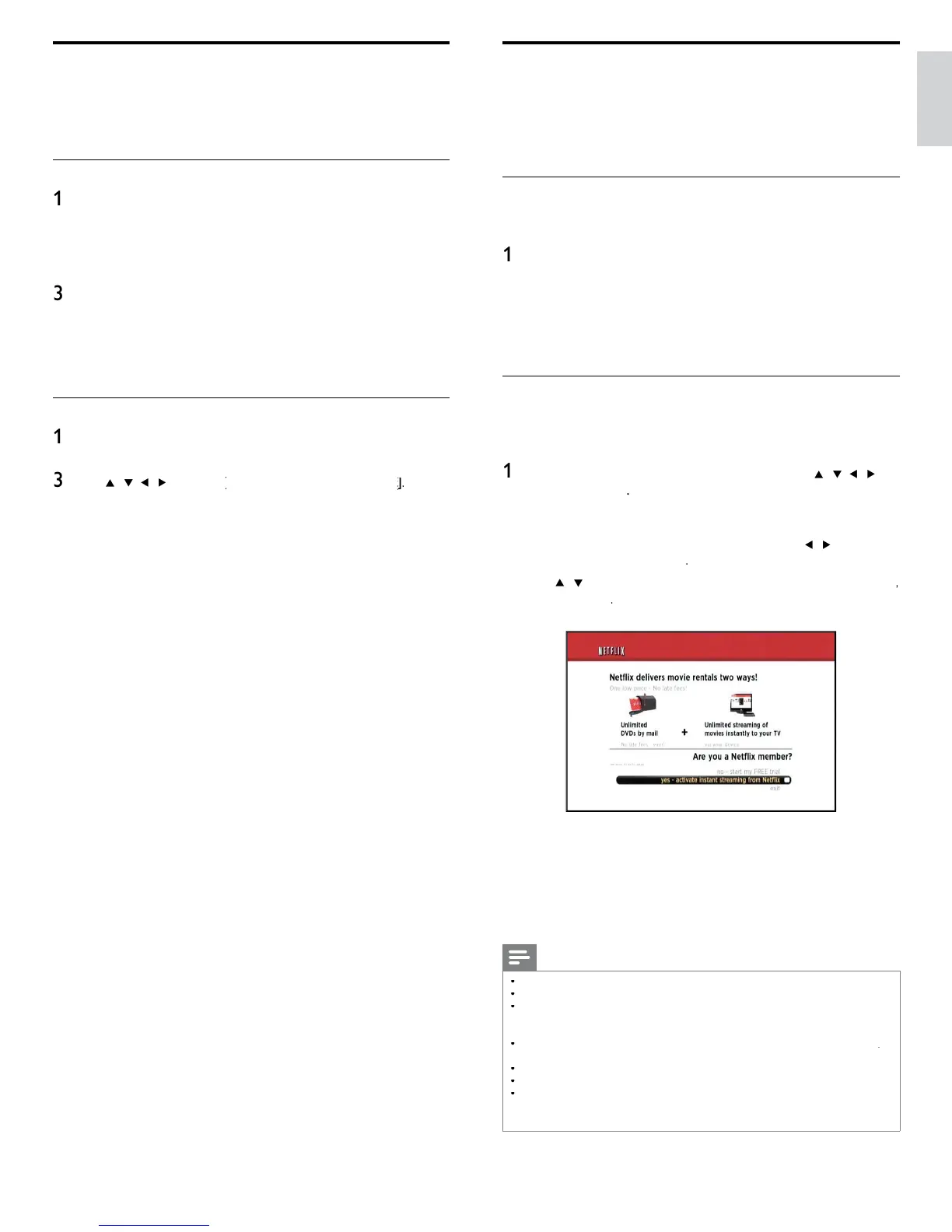
etfl ix welcome screen will appea
.
or the fi rst time only
etwor
service
isc
aimer
screen
ill appear. After confi rming the content, use
/
to se
ect
gree
, t
en press
se
/
to se
ect
yes - activate instant streaming from Netfl i
en press O
ctivation screen with the activation code will appea
.
3 On
our PC, visit www.net
ix.com/activat
an
o
nto
our account
he entry screen of activation code will appear on your PC screen
nter t
e act
vat
on co
e w
c
s
s
a
e
on t
e
screen
he Instant Queue will a
ear. The connection to Netfl ix is
successfull
made
o browse the Instant Queue and watch movies, skip to step
2 in ‘Watching streaming movies’ on page 16
Note
etfl ix is available onl
in the United States
ou cannot create a Netfl ix account on this unit
If newer version of software is re
uired, software u
date screen ma
a
ear afte
e
ect
n
in ste
2
For software u
date, see ‘U
date
our TV software’ on
a
e 36.
ou can deactivate the connection to Netfl ix b
settin
the
eactivation
o
e
See ‘Netfl ix connection’ on
a
e 32.
he screen ima
e of Netfl ix ma
chan
e after u
datin
the fi rmware
or
uestions re
ardin
the Netfl ix service, visit
etfl ix.com/Hel
hen
ou contact the Netfl ix customer service,
ou ma
be asked for the ESN
umber, which is a serial number to identif
this unit b
Netfl ix. You can check the ESN
um
er on t
e
ESN
screen.
See ‘Netfl ix connection’ on
a
e 32.
Philips Wireless MediaConnect
ou can enjoy your TV as a PC monitor wirelessly using your home
etwork. Make sure you download the Philips Wireless MediaConnect
software and install it on your PC before you perform the steps below
Install Philips Wireless MediaConnect
Start
our internet browser on
our PC and o
en the Phili
s Wireless
MediaConnect download
a
e at www.
hili
s.com/wifi mediaconnec
n the website,
ou can check the necessar
PC s
stem re
uirements
2 Enter the 12 digit code printed on the cover of the User Manual o
back of your TV
Click the ‘Download now’ button to download the free Phili
s
Wireless MediaConnect software
Once downloaded, start the fi le “Phili
s Wireless MediaConnect_
setu
.exe
. Follow the instructions on the screen to com
lete
software installation
Using Philips Wireless MediaConnect
Launch Phili
s Wireless MediaConnect on
our PC fi rst
2
ress
on t
e remote contro
se
/
/
to se
ect
Philips Wireless MediaConnect
he start up screen for Philips Wireless MediaConnect will be
isplayed and the unit searches for an available PC that is running
hilips Wireless MediaConnect software
nce connected, the Phili
s Wireless MediaConnect software will encode
and stream the screen of
our PC as a video alon
with audio
Depending on your computer and network confi guration, there will be a
elay between your PC screen and the TV but the audio-video will always
e
n sync
hilips Wireless MediaConnect Help
o read the Philips Wireless MediaConnect Help, right click the program
con in the notifi cation tray of the PC and select Help
Specifi cs
ou can project high defi nition (HD) or standard defi nition (SD) video
epending on the processing power of your PC. For smooth playback
f HD video, please use a hardware accelerated video player on you
omputer.
hardware accelerated video player uses the graphics
adapter of your PC to render HD video rather than the processo
.
his frees up the processor for Philips Wireless MediaConnect video
enco
ng.
e content protect
on on most
or
u-ray
sc mov
es
m
g
t restr
ct watc
ng t
e mov
e on
w
en t
e
sc
s p
ay
ng on
a PC. The TV shows PC media fi les with a small delay. Philips Wireless
MediaConnect is only available for PC
C re
uirements
Windows XP, Windows Vista, Windows 7
PC onl
Minimum PC requirement
Intel Core 2 Duo 1.8GHz
512MB RA
200MB free hard disk space
IEEE 802.11
nternet connect
on
Recommended PC requirement
Intel Core 2 Duo 2.1GHz
GB RA
200MB free hard disk s
ace
IEEE 802.11n
nternet connect
on




 To Next Page