17
English
Note
ou can also add your favorite stations to
avorite
on your PC. To add your favorite
tations on
our PC, visit
http://go2service.vtuner.com/ph/
an
create a v
uner account
ith the access code, which you can check from the category list. (See ‘Internet radio
playback’ on page 16.)
ou can chan
e folder names or order of lists in
our vTuner
a
e on the internet
y_
avorite
folder will appear after you add a station to
avorite
on t
s un
t
(Your favorite station will also be added to
y_
avorite
folder.)
Remove from favorite list
o
ow ste
s
o
in ‘Internet radio
la
back’ on
a
e 16
2
se
/
to se
ect
avorite
, t
en press
3
se
/
to select the station you want to remove from
avorite
, t
en
ress
olor buttons
reen
)
onfi rmation message will appea
.
se
/
to se
ect
e
, t
en press
he selected station is removed from
avorite
folde
.
Remove Favorites
ress 'Yes' to remove
rom Favorites
Ye
ress
to ex
t
Add stations on the vTuner website
n the vTuner website, you can add stations which are not in the vTune
stat
on
st.
o a
stat
ons, you must v
s
t
ttp://go2service.vtuner.com/ph/
and create a vTuner account with the access code for this unit
o
ow steps
o 2 in ‘Internet radio playback’ on page 16
2
se
/
to se
ect
et access code
, t
en press
he access code for this unit will be displayed. Please take a
ote of the access code. (This access code will be required
hen creating a vTuner account.)
3 On your PC, visit
http://go2service.vtuner.com/ph/
v
uner account
ollow the instructions given on the PC screen
Add stations by following the instructions given on the PC screen
e stat
ons w
e a
e
to
My Added Station
Reset the station list
You can remove all stations / folders in
ecent
y
aye
avorite
an
My Added Station
o
ow ste
s
o 2 in ‘Internet radio
la
back’ on
a
e 16
2
se
/
to se
ect
ese
, t
en press
3
se
/
to se
ect
e
, t
en press
ll stations / folders in
ecent
y
aye
avorite
an
My Added Station
are remove
ress
to ex
t
Note
his unit cannot play back stations with audio format other than MP3 and WMA
or some stations,
la
back is not available even if the audio format is dis
la
ed as
MP3 or WMA
Internet radio service may not be fully available with narrowband internet connection
e.
. 56k modem
When listenin
to internet radio, use broadband internet
connection. (For details, contact your internet service provider.)
Depending on the bit rate of a station or the network environment, it may take a
e to comp
ete
oa
ng t
e stat
on or p
ay
ac
may not
e ava
a
e
e stream
ng au
o may
e
nterrupte
ur
ng p
ay
ac
, w
en t
e v
uner server
s
usy
ome stations cannot be displayed in the list, depending on the network environment
If the loading time of a station exceeds 3 minutes, the loading will be canceled
he order of station / folder in the list depends on the information from vTuner serve
an
may c
ange w
t
out not
ce
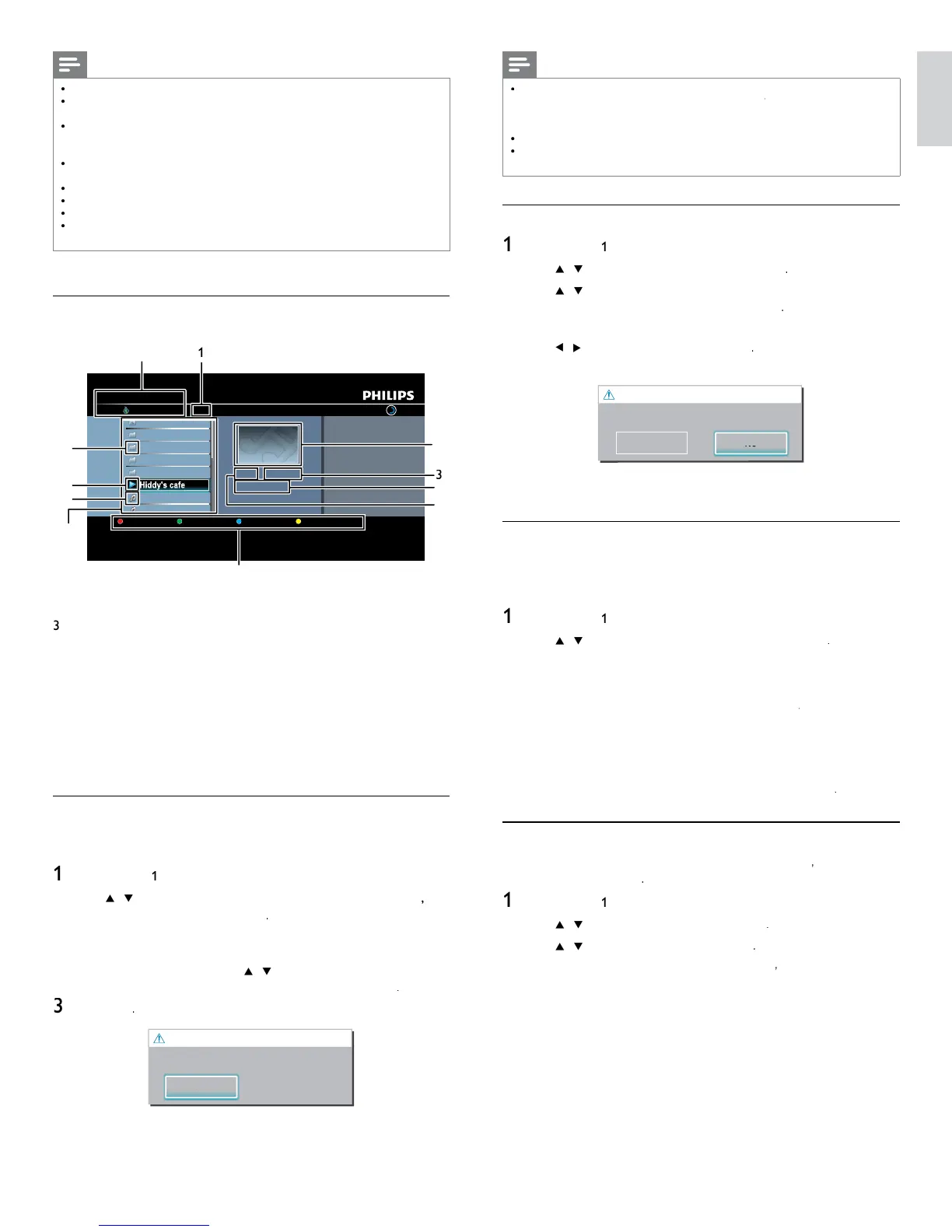
Guide to the playback screen
e.g.
)
ocation
vTuner |...| Sunhall
All Stations 45
..
Tset1
Tset2
Japan
WeatherSpoon
MP3 01:23:45
Hiddy's cafe
Hiddy's cafe
Holy's Pizza
Miyazaks
Favorite Page Down
Hiddy's cafe
2
9
8
1
umber of stations / folders in the current hierarchy
2
mage
Elapsed playing time of the current station
Current station / folder name
Audio format of the current station
Color buttons (red / green / yellow / blue) guide
Station / folder list
8 Station icon
9
ay
ac
statu
o
er
con
rectory
Add to favorite list
You can add
our favorite stations to
avorite
n t
e cate
or
st.
o
add your favorite stations, follow the following procedure
o
ow ste
s
o 3 in ‘Internet radio
la
back’ on
a
e 16
se
/
to se
ect t
e stat
on
ou want to a
to
avorite
en
ress
olor buttons
gree
)
e se
ecte
stat
on
s a
e
to
avorite
folde
.
onfi rmation message will appea
.
If you select a folder, use
/
to se
ect t
e
es
re
stat
on
n
e next
erarc
y, t
en press
olor buttons
reen
)
ress
avorite adde
lease
ush '
K
ress
to ex
t








 To Next Page