27
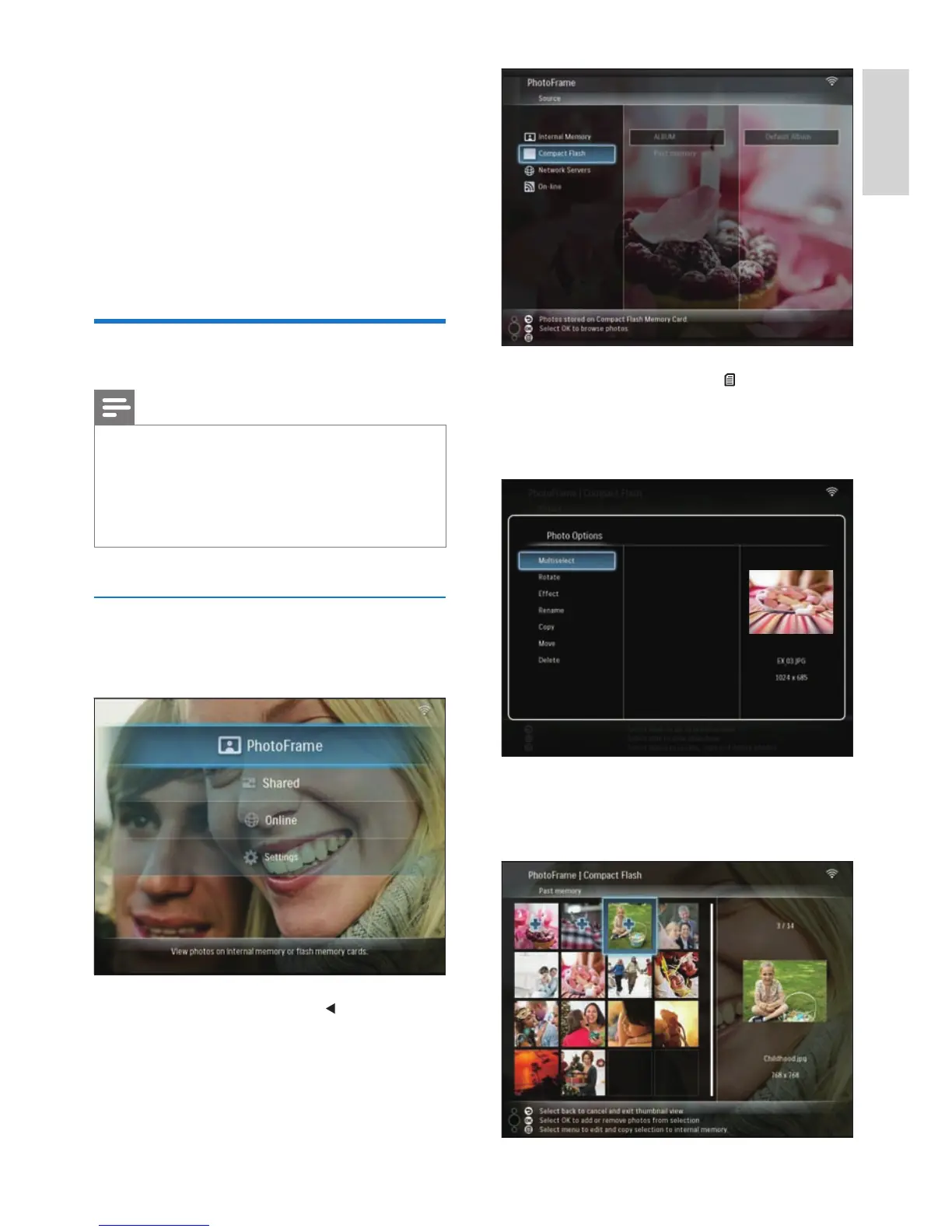
3 Select a photo and press to access
[Photo Options].
4 Select [Multiselect], then press OK to
confi rm.
5 Select a photo and press OK to confi rm
until you select all photos that you want to
edit.
4 To enter the new name (up to 24
characters), select an alphabet/number,
then press OK to confi rm.
To switch between uppercase
and lowercase, select [a/A] on the
displayed keypad, then press OK to
confi rm.
5 When the name is complete, select
[Enter], then press OK to confi rm.
Edit photos
Note
Do not remove a storage device while you are
transferring photos from or to it.
Before you rename/move/delete photos on a storage
device, ensure that the delete function of the storage
device is enabled (see ‘Protect/Unprotect content on a
storage device’ on page 38).
•
•
Select several photos at a time
1 In the main menu, select [PhotoFrame] >
a photo source, then press OK to confi rm.
2 Select an album and press (Right) to
access the thumbnail mode.
•
English
EN



 To Next Page