15
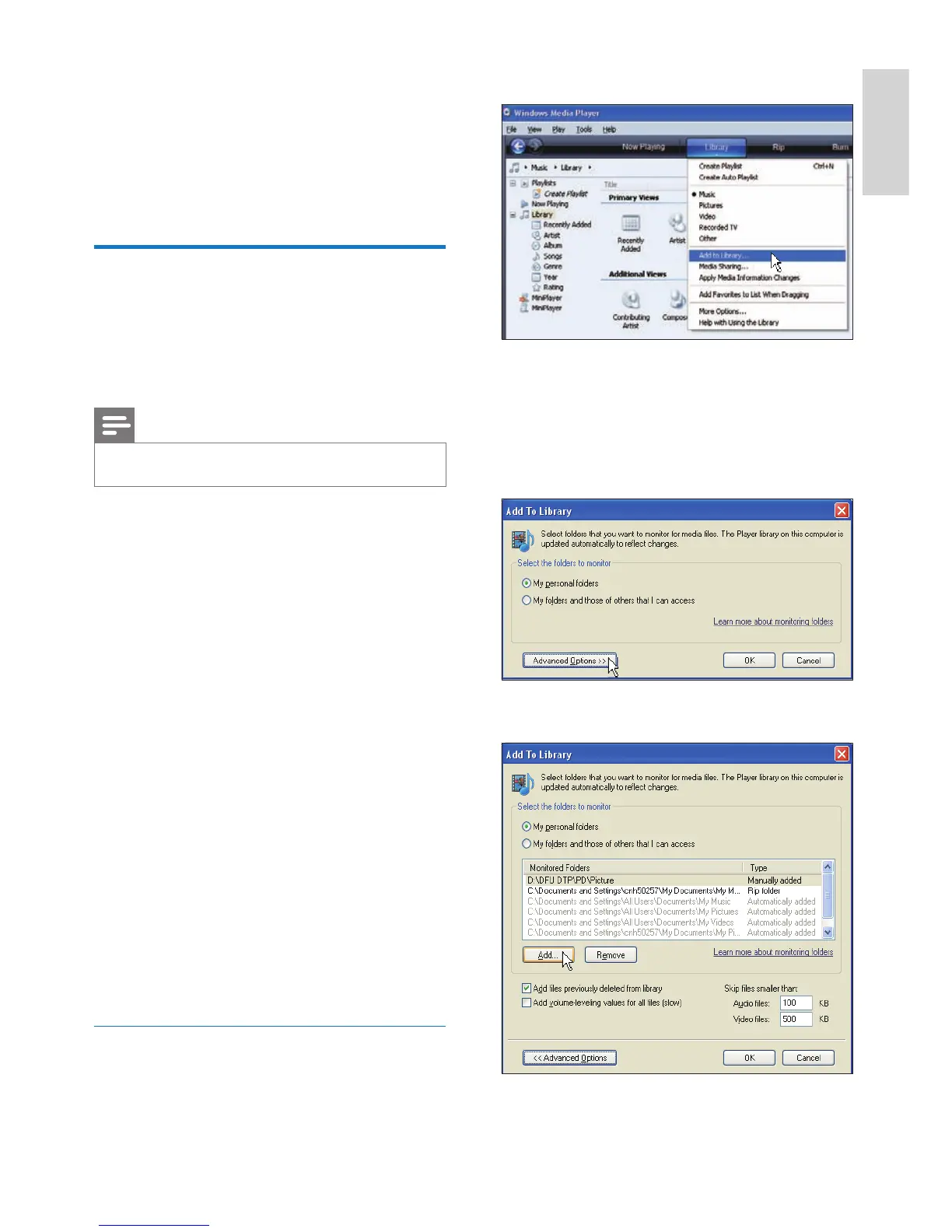
2 Click [Library].
3 Select [Add to Library ...] from the drop-
down menu.
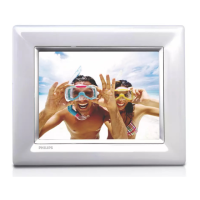
4 In the [Select folders to the monitor]
window, select [My personal folders], then
click [Advanced Options>>].
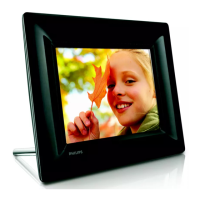
5 Click [Add].
6 Share PC photos for wireless display (see
‘Share PC/Mac photos for wireless display’
on page 15).
Display Internet photos on the
PhotoFrame (see ‘Display Internet photos’
on page 21).
Share PC/Mac photos for
wireless display
To display photos in a shared folder on a PC/
Mac, set up a wireless sharing center.
Note
Only JPEG photos can be displayed on the PhotoFrame.•
For Windows OS users, ensure that:
The PhotoFrame and the PC are
connected to the same network.
An available UPnP server, for example,
Windows Media Player 11, is installed
and set up on the PC (see ‘Download
and set up Windows Media Player 11’
on page 47).
1 Add a photo folder to be shared to
Windows Media Player 11 (see ‘Select
photos on PC to share’ on page 15).
2 Share the photo folder to the PhotoFrame
with Windows Media Player 11 (see
‘Enable access to shared photos’ on page
16).
For Mac OS users, ensure that:
The PhotoFrame and the Mac are
connected to the same network.
An available UPnP server, for example,
Elgato, is installed and set up on the
Mac (www.elgato.com).
Select photos on PC to share
Before you start, ensure that Windows Media
Player 11 is set up on the PC.
1 On the PC, open Windows Media Player 11.
•
•
•
•
•
•
•
English
EN



 To Next Page