EasyManua.ls Logo

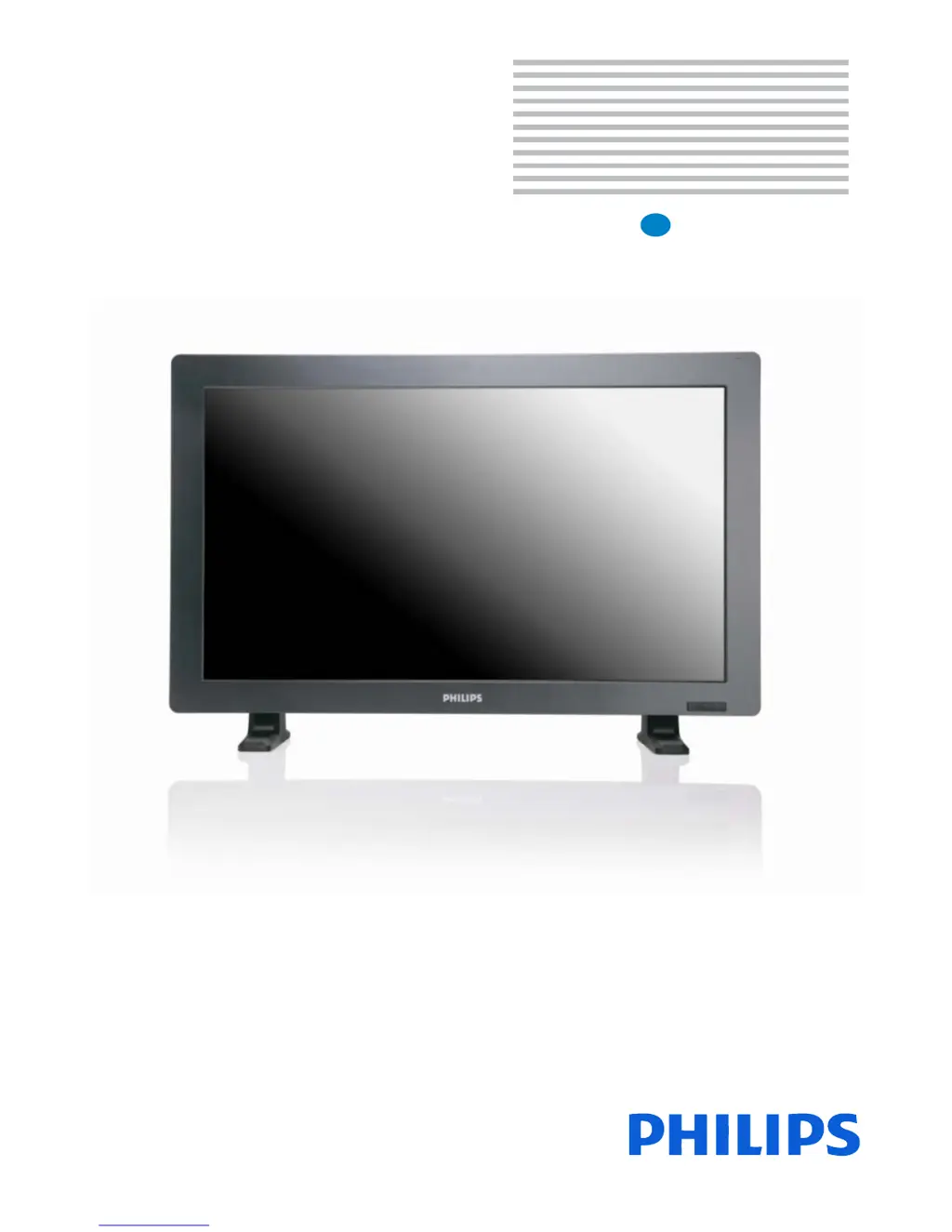
Philips BDL3215E - User Manual

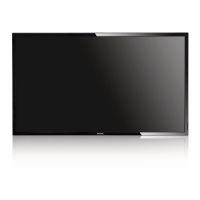
Philips BDL3215E
53 pages
Print Icon
To Next Page IconTo Next Page
Loading...
Public Signage Solutions
2010© Koninklijke Philips Electronics N.V. All rights reserved.
Philips and the Philips Shield Emblem are registered trade marks
of Koninklijke Philips Electronics N.V and are used under license
from Koninklijke Philips Electronics N.V.
User Manual
BDL3215E
BDL4225E
EN

Other manuals for Philips BDL3215E

Questions and Answers

  • S
    Shannon HendricksAug 15, 2025
    What to do if the power button on my Philips BDL3215E Monitor does not respond?
    • D
      Donald KeithAug 15, 2025
      If the power button on your Philips Monitor is unresponsive, unplug the power cord from the AC outlet. This will turn off and reset the monitor.
  • S
    scottderekAug 18, 2025
    How to fix a Philips BDL3215E Monitor with no sound?
    • R
      rojaswesleyAug 18, 2025
      If you are experiencing no sound from your Philips Monitor, first check if the mute function is activated. Also, verify that the volume is not set to the minimum level.
  • A
    Amanda KeyAug 21, 2025
    How to fix a Philips BDL3215E with no picture?
    • S
      Sarah ReynoldsAug 21, 2025
      If nothing is displayed on the screen when an HDCP device is connected to your Philips Monitor, try resetting the power of the device. Also, ensure the signal cable is completely connected to the display card/computer, and that the display card is completely seated in its slot. Verify that both the power switch and the computer power switch are set to 'ON'. Confirm the display card is in supported mode or the system is activated. Check the compatibility and recommended settings between the monitor and your display card. Inspect the signal cable connector for bent or pushed-in pins.
  • S
    Scott RodriguezAug 25, 2025
    Why is the “SCHEDULE”/“SLEEP TIMER” function on my Philips BDL3215E Monitor not working properly?
    • M
      Mary CarterAug 25, 2025
      If the 'SCHEDULE' and 'SLEEP TIMER' schedules are programmed at the same time on your Philips Monitor, the earliest or highest numbered schedule takes priority. The 'SLEEP TIMER' will be reset if the function is enabled or if the LCD monitor power supply is interrupted unexpectedly.
  • O
    oburtonAug 27, 2025
    Why is the LED on my Philips Monitor not lit?
    • J
      Jerry GordonAug 27, 2025
      To troubleshoot a Philips Monitor when the LED is not lit (no blue or amber color), ensure the power switch is in the ON position and the power cord is properly connected. Also, make sure the computer is not in a power-saving mode by touching the keyboard or mouse.
  • K
    Kyle MolinaAug 30, 2025
    Why is the image on my Philips Monitor unstable or unfocused?
    • N
      Nicole RowlandAug 30, 2025
      If the image on your Philips Monitor is unstable or unfocused, ensure the signal cable is completely attached to the computer. Also, check the compatibility and recommended signal timings between the monitor and your display card.
  • S
    Sherry HarrisonSep 2, 2025
    How to fix a Philips BDL3215E when the display image is not sized properly?
    • R
      russellmelissaSep 2, 2025
      To resolve the issue where the display image on your Philips Monitor is not sized properly, use the OSD Image Adjust controls to increase or decrease the coarse adjustment. Additionally, check and ensure that the display card is in a supported mode or the system is being activated.
  • S
    Susan MorrisSep 5, 2025
    Why is the image of component signal on my Philips BDL3215E Monitor greenish?
    • D
      david20Sep 5, 2025
      To address a greenish image from a component signal on your Philips Monitor, check to see if the COMPONENT input connector is selected.
  • S
    Sheila MitchellSep 8, 2025
    Why does the remote control for my Philips Monitor not work?
    • V
      Valerie BaileySep 8, 2025
      If the remote control for your Philips Monitor isn't working, check the status of the batteries. Ensure the batteries are inserted correctly. Also, verify that you are pointing the remote control at the monitor’s remote sensor when operating it.
  • M
    Michael BarnesSep 12, 2025
    How to prevent image persistence on my Philips BDL3215E Monitor?
    • J
      Jonathan DeanSep 12, 2025
      As with all personal display devices, Philips recommends displaying moving images and using a moving panel saving at regular intervals whenever the screen is idle or the monitor is turned off when not in use.

Summary

Safety Instructions

Understanding Safety Symbols

Identifies safety symbols and their meanings used in the manual.

Important Safety Warnings

Provides critical warnings regarding electric shock, fire hazards, and proper handling.

Regulatory Information

CE Declaration of Conformity

States product conformity with European standards and directives.

FCC Notice (U.S. Only)

Outlines FCC rules for compliance and potential interference issues.

Polish Center for Testing and Certification

EMF Information

Discusses electrical, magnetic, and electromagnetic fields and product safety.

UK Specific Information

Plug and Fuse Instructions

Details on the 13A plug, fuse replacement, and wiring connections for UK users.

Environmental and Disposal Information

End-of-Life Disposal

Guidance on recycling and disposing of the product at the end of its life.

WEEE Compliance

Information on the disposal of electrical and electronic equipment in the EU and US.

Control Panel Overview

Control Panel Buttons and Indicators

Identifies and describes the buttons and indicators on the monitor's control panel.

Terminal Panel Layout

Monitor Input;Output Connectors

Details the various input/output connectors on the monitor's rear panel.

Remote Control Operations

Remote Control Button Functions

Explains the purpose and operation of each button on the remote control.

Remote Control Usage

Operating Range

Defines the optimal distance and angle for using the remote control effectively.

Handling Precautions

Provides guidelines for proper care and maintenance of the remote control.

Monitor Mounting Options

Attaching and Removing Table Stand

Step-by-step instructions for installing and uninstalling the monitor's table stand.

Wall Mounting Instructions

Guides on how to securely mount the monitor on a wall using appropriate hardware.

Ventilation Requirements

Specifies the necessary clearance around the monitor for proper heat dissipation.

Initial Setup and Connection

System Installation and Power Connection

Covers selecting the location, installing batteries, and connecting power.

Connecting External Equipment and Basic Adjustments

Guides on connecting devices, turning them on, and making initial sound/image adjustments.

Securing the Main Power Switch

Instructions on attaching a cover to prevent accidental changes to the main power switch.

Portrait Mode Installation

Portrait Mode Setup and Logo Handling

Details on setting up the monitor in portrait mode, including logo orientation and removal.

Connectivity Options

Connectivity Diagram

Visual overview of how to connect various external devices to the monitor.

Connecting to a PC

Step-by-step guide for connecting the monitor to a personal computer via VGA and audio.

Connecting via Digital Interface (HDMI;DVI)

Instructions for connecting the monitor to computers using digital interfaces like HDMI and DVI.

Connecting to a DVD Player

Details on connecting DVD players using component or HDMI cables for video and audio.

Connecting to a Stereo Amplifier

Guide on connecting the monitor to a stereo amplifier for audio output.

Basic Operation

Powering On and Off

Explains the three methods to turn the monitor on and off, including the main power switch and remote.

Power Indicator and Management

Describes the power LED status and the VESA DPM power saving function.

Picture Size and Video Settings

Details how to set video sources and adjust picture size for different aspect ratios.

Picture and Audio Settings

Covers Smart Picture modes, audio source selection, and control lock functionality.

OSD Information and Controls

Explains how to navigate and use the On-Screen Display (OSD) menus.

OSD Menu Navigation

Using OSD Controls

Illustrates how to navigate and use the On-Screen Display menus via remote control and panel buttons.

Picture Menu Settings

Brightness, Contrast, and Sharpness

Explains adjustments for brightness, contrast, and sharpness to optimize image quality.

Black Level and Noise Reduction

Details settings for black level adjustment and noise reduction for improved image clarity.

Color Adjustments and Reset

Covers tint, color, color temperature, color control, and the picture reset function.

Screen Menu Settings

Image Positioning and Clock Settings

Adjusts horizontal/vertical position, clock, and clock phase for optimal display alignment.

Zoom Mode Selection

Allows selection of various zoom modes like FULL, NORMAL, CUSTOM, and REAL for image scaling.

Custom Zoom and Screen Reset

Explains custom zoom options and how to reset screen settings to factory defaults.

Audio Menu Settings

Balance, Treble, Bass, and Reset

Adjusts audio balance, treble, bass, and provides an option to reset all audio settings.

PIP (Picture-in-Picture) Settings

PIP Size, Audio Source, and Reset

Configures the size of the auxiliary picture, selects audio source, and resets PIP settings.

Configuration I Settings

Auto Adjust, Power Save, and Language

Configures auto-adjustment, power saving modes, and display languages for the OSD.

Panel Saving and Color System

Manages panel saving features for image persistence and selects video color system based on input.

Configuration and Factory Reset

Resets configuration settings or all factory settings for Picture, Screen, Audio, etc.

Configuration II Settings

OSD Timeout, Information, and Sleep Timer

Sets OSD menu timeout, information display duration, and automatic power-off sleep timer.

OSD Position Adjustments

Adjusts the horizontal and vertical position of the On-Screen Display menus.

Monitor Information and BNC Mode

Displays monitor model/serial and selects between RGB or YPbPr component video modes.

Advanced Option Settings

Input Resolution and Gamma Selection

Selects correct timing for input sources and adjusts color temperature.

Scan Mode, Conversion, and Film Mode

Configures display area, interlace to progressive conversion, and film mode for video content.

Remote, Keyboard, and Tiling Control

Manages remote control modes, keyboard lock, and multi-monitor tiling setup.

Date, Time, and Schedule Setup

Sets the monitor's internal clock and programs automated power on/off schedules.

Monitor ID, DDC;CI, and Smart Power

Assigns IDs for remote control, enables DDC/CI, and configures smart power saving levels.

Advanced Option Reset

Resets most advanced option settings to their factory defaults.

Image Persistence and Care

Understanding Image Persistence

Explains the phenomenon of image persistence and its causes in LCD technology.

Recommendations for Longevity

Provides advice on preventing image persistence and extending the monitor's lifespan.

Schedule Setup

Setting Up Schedules

Guides on how to program up to seven scheduled time intervals for monitor activation.

Picture Mode Combinations

PIP;POP Resolution and Sizes

Details resolution and size options for PIP and POP modes, and combinations of signal inputs.

Remote Control Numbering

Explains how to assign IDs and control multiple monitors with one remote control.

Pixel Defect Policy

Pixel and Sub-pixel Definitions

Defines pixels, sub-pixels, and the types of pixel defects like bright dots.

Dot Defect Types and Bright Dots

Explains dot definitions and provides examples of bright dot defects.

Dark Dot Defects and Proximity

Describes dark dot defects and tolerances for defect proximity.

Acceptable Defect Tolerances

Lists acceptable levels for bright and dark pixel defects based on model.

Troubleshooting Guide

Picture and Power Issues

Addresses common problems like no picture, unresponsive power button, and image instability.

Display and Sound Problems

Covers issues with image sizing, resolution, color, sound, and indicator lights.

Remote Control Issues

Helps diagnose and resolve problems with the remote control not working.

Schedule, Sleep Timer, and Signal Issues

Solves problems with schedule/sleep timer functions and the "NO SIGNAL" display.

Stripe Noise Explanation

Explains the occurrence of stripe noise and clarifies it's not a defect.

Product Specifications

BDL3215 E Model Specifications

Detailed technical specifications for the BDL3215E model, including LCD module, frequency, inputs, and dimensions.

BDL4225 E Model Specifications

Detailed technical specifications for the BDL4225E model, including LCD module, frequency, inputs, and dimensions.

Power Management and Accessories

Details power management, consumption, Plug & Play, and included accessories for BDL4225E.

Connector Pin Assignments

VGA (Mini D-SUB 15 P) Pinout

Details the pin configuration for the VGA analog video signal input connector.

S-VIDEO and HDMI Pinouts

Provides pin assignments for S-VIDEO and HDMI input connectors.

RS-232 C Input;Output Pinout

Details the pin configuration for the RS-232C serial communication input/output.

Philips BDL3215E Specifications

Picture/Display IconPicture/Display
diagonal screen size32 inch / 81 cm
panel resolution1366 x 768p
optimum resolution1360 x 768 @ 60Hz
brightness450 cd/m²
contrast ratio3500:1
response time8 ms
aspect ratio16:9
viewing angle178 / 178 degree
pixel pitch0.511 x 0.511
display colors16.7 Million colors
Supported Display Resolution IconSupported Display Resolution
computer formats640 x 480 60, 67, 72, 75Hz; 800 x 600 56, 60, 72, 75Hz; 1024 x 768 60Hz; 1280 x 768 60Hz; 1280 x 800 60Hz; 1280 x 1024 60Hz; 1360 x 768 60Hz; 1366 x 768 60Hz; 1440 x 900 60Hz; 1600 x 1200 60Hz; 1920 x 1080 60Hz; 1920 x 1200 60Hz
video formats480i 60Hz; 480p 60Hz; 576p 50Hz; 576i 50Hz; 720p 50, 60Hz; 1080i 50, 60Hz; 1080p 50, 60Hz
Connectivity IconConnectivity
PC connectivityVGA-in D-Sub 15HD, VGA-out D-Sub 15HD, DVI-D x1, RS232 D-Sub9, RS232 D-sub9 output, 3.5 mm PC audio input x1
AV inputHDMI x1, Component (BNC) x1, Composite (RCA) x1, Composite (BNC) x1, S-video x1, Audio (L/R) x2
AV outputComposite (BNC) x1, Audio (L/R) x1
Operating Conditions IconOperating Conditions
temperature range (operation)0 - 40 °C
relative humidity5 - 90 %
MTBF50.000 hours
Power IconPower
mains power90-264 VAC, 50/60 Hz
consumption (on mode)69W
standby power consumption<1W
Sound IconSound
built-in speakers2 x 7 W (8 ohm)
Dimensions IconDimensions
set dimensions (W x H x D)792 x 487 x 115 mm
set dimensions in inch (W x H x D)31.2 x 19.2 x 4.5 inch
set dimensions with stand (H x D)531 x 205 mm
set dimensions with stand in inch (H x D)20.9 x 8.1 inch
product weight11.95 kg
product weight (lb)26.35
VESA mount400 x 200 mm

Related product manuals