20
4 Select an option and press .
Press •
BACK to return to the
previous menu.
Press • HOME to exit the menu.
The menu provides options to adjust the
general settings:
Option Description
[Language
Setup]
Selects an OSD language.
[Display
Setup]
Selects the TV display type and
video output.
[Preference] Changes the parental control
password, restore default
settings and views system
information.
Adjust system language setup
1 Press HOME , select [System Setting] and
press OK .
2 Select [General Setting] and press OK .
3 Select [Language Setup] > [OSD
Language] and press
.
4 Select an option and press .
Press •
BACK to return to the
previous menu.
Press • HOME to exit the menu.
Adjust system display setup
1 Press HOME , select [System Setting] and
press OK .
2 Select [General Setting] and press OK .
3 Select [Display Setup] .
See the explanations of these •
options in the following section.
4 Select an option and press .
Press •
BACK to return to the
previous menu.
Press • HOME to exit the menu.
7 Adjust system
settings
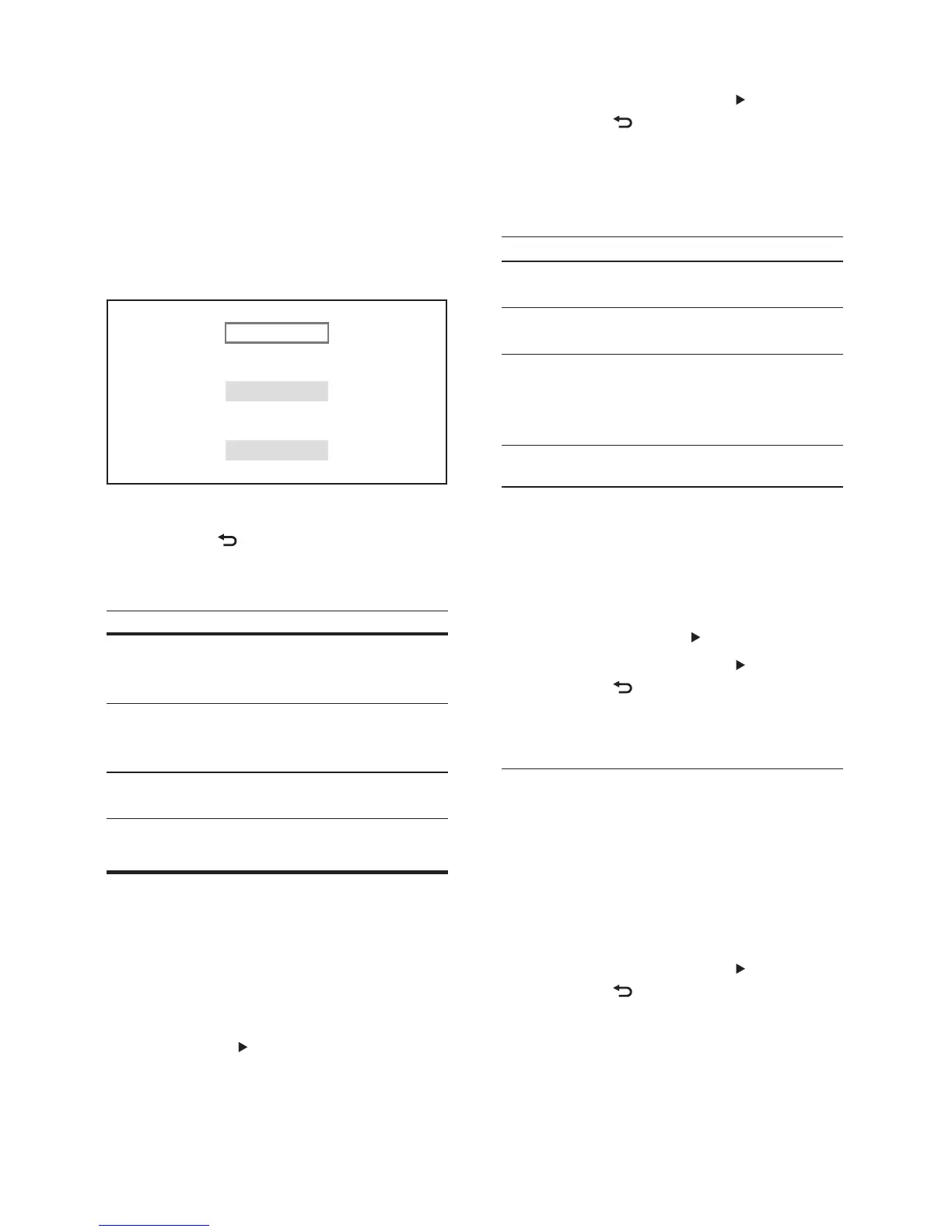
To access the menu:
1 Press HOME , select [System Setting] and
press OK .
2 Select an option and press OK .
Press •
BACK to return to the
previous menu.
Press • HOME to exit the menu.
Option Description
[General
Setting]
Selects an OSD language,
displays options and preference
setup.
[DVD/USB
Setting]
Selects the disc or menu
language, audio options and disc
options.
[TV/Radio
Setting]
Adjusts tuner setup and channel
setup.
Adjust general settings
To access general settings:
1 Press HOME , select [System Setting] and
press OK .
2 Select [General Setting] and press OK .
3 Press OK or to select an option.
See the explanations of these •
options in the following section.
General Setting
DVD / USB Setting
TV / Radio Setting
EN



 To Next Page