40
Setting the White Balance Mode
You may adjust the White Balance Mode so that subjects appear in natural colors, even
when under a light source. Normally, Auto is the preferred setting.
The white balance is adjusted automatically, using the white portion as a reference. The
white balance sometimes cannot be adjusted correctly. If the white area of the subject is
too small. If this occurs, set the White Balance Mode to the Daylight mode, Fluorescent
mode or Tungsten light mode, then take the picture.
Selecting a White Balance Mode
DATE
Subjects that the Auto White Balance may not work properly
• Monotone subjects.
• Subjects with multiple light sources.
• Subjects with a deep background, especially when a flash is used.
Note:
• If the white area of subject is insufficient, move the camera to increase the white portion of the
subject then shoot the picture.
• To adjust the White Balance Mode, make sure that REC(ord)/PLAY switch is set to REC.
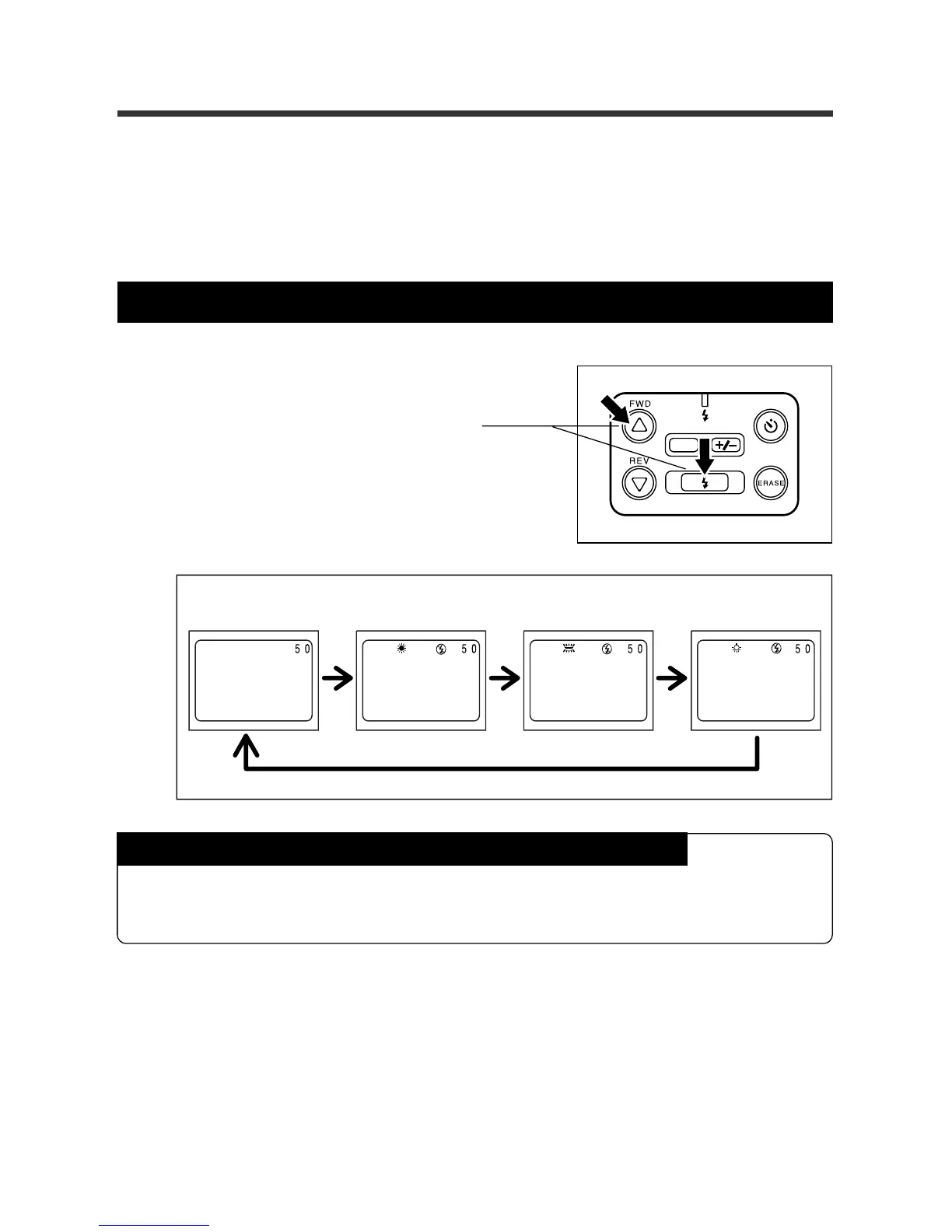
While pressing the
UU
UU
U button,
press the FLASH button. Then,
press the
UU
UU
U or
T T
T T
T button to se-
lect a white Balance Mode.
Auto mode
(no display)
Daylight mode
Fluorescent mode
Tungsten light
mode




 To Next Page