11User manual
Restrt the user wizrd
If you wnt to reuse the user wizrd, you
cn restrt it nytime.
1
Go to Settings > Generl settings >
Worklist > Strtup.
2
Activte the checkbox next to Strt
New User Wizrd.
3
Click Apply nd then click OK.
X The next time you strt
SpeechExec, the user wizrd will
utomticlly be opened.
Note
• If you wish to use the speech
recognition fetures of SpeechExec
nd hve lredy creted user
prole in Drgon NturllySpeking,
use the sme nme for your
SpeechExec uthor nme. For
more informtion, see Using speech
recognition.
• It is possible to chnge the settings
lter using the Settings menu. For
more informtion, see Settings menu.
Tip
• If working in network, select folder
on mpped network drive to store
nished dicttions. Trnscriptionists
will then be ble to ccess the folder
nd mp their pending folders to your
Finished dicttions folder.
Add or chnge user prole
1
Go to Settings > Generl settings >
Rules > Author proles.
2
To dd user prole, click Add..., nd
set your desired settings.
To chnge n existing user prole,
click prole from the list nd then
click Modify....
3
Click Apply nd then click OK.
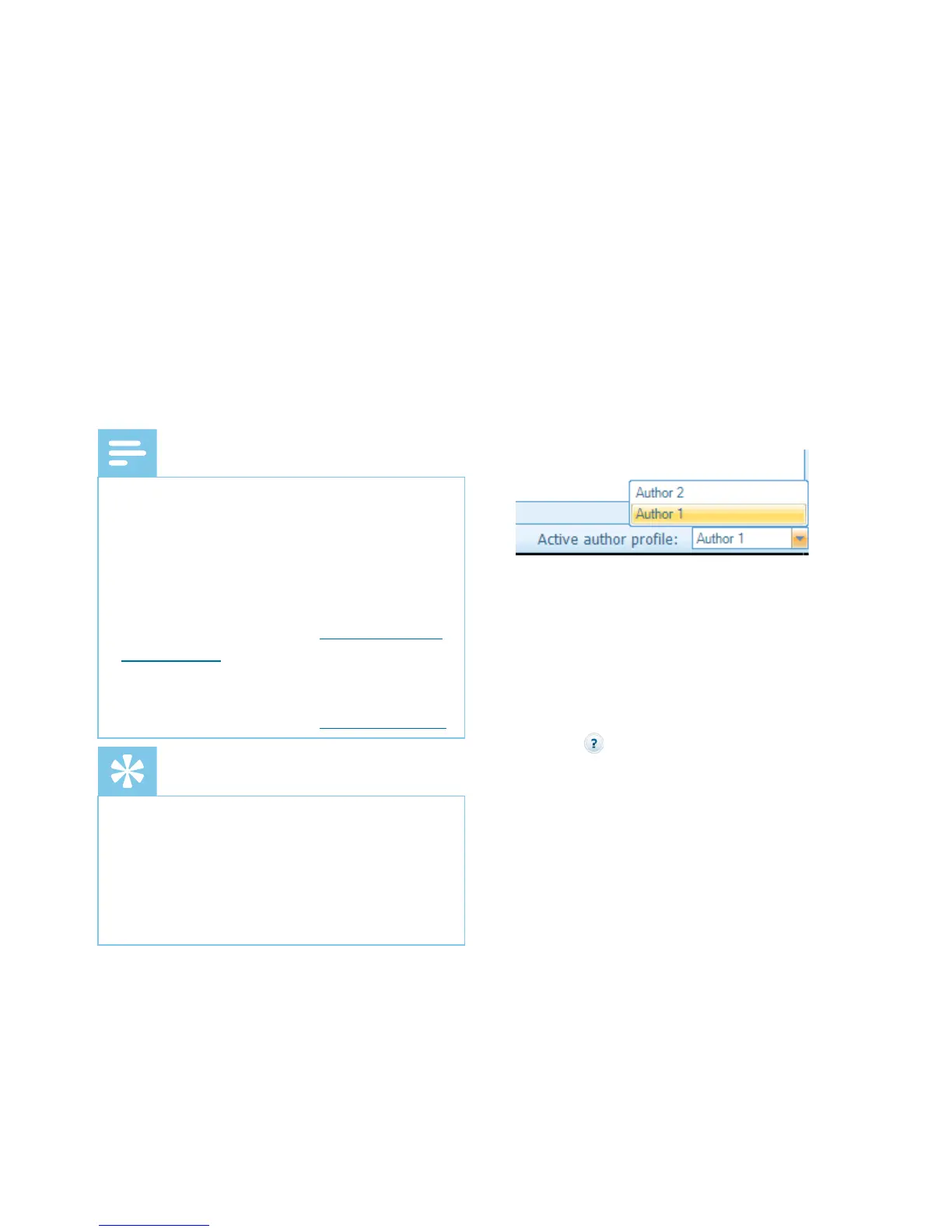
4
Select the desired uthor in the
bottom right corner of the SpeechExec
window.
SpeechExec help
For detiled informtion bout using
the SpeechExec softwre, see the help
function. To strt the help function:
• Press F1 on the keybord.
• Click the button on the toolbr in the
worklist or in the recorder window.








 To Next Page