17User manual
Edit previously recorded
le
A previously recorded le cn be edited if
trnscription hs not begun. You cn edit
le by inserting n dditionl recording
prt, overwriting prt of the recording or
ppending recording prt t the end of
the le.
1
Before you edit recording, rst
set the desired edit mode (insert or
overwrite) on your recording device.
To switch between insert nd
overwrite mode, press the INS/OVR
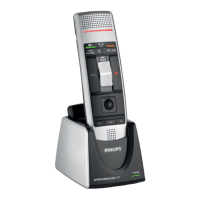
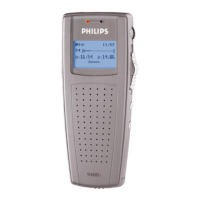
button on the SpeechMike or Pocket
Memo in stop mode. Alterntively,
click the button on the toolbr in
the recorder window.
2
Open recording by double-clicking
the dicttion le in the work list.
X The dicttion le is opened in the
recorder window.
3
Ply, forwrd or rewind to the position
where the insertion should be mde.
4
Strt recording. For more informtion
bout recording, see Crete
recording.
Finish, suspend or cncel
recording
Mrk recording s nished
• Press the • EOL/• • PRIO button on the
SpeechMike or the End of letter button
on the Pocket Memo.
Alterntively, click the Finish button or
the button in the recorder window of
SpeechExec.
X The dicttion le is sved in
the Finished dicttions folder.
SpeechExec oers dditionl
options for nished dicttions,
such s conversion to pre-
dened formt, sending vi emil
or copying to the Bckup folder.
Suspend recording
Mrk recording s suspended to
temporrily interrupt recording nd nish
it lter.
To suspend recording:
• Click on the Sve s drft button in
the recorder window.
X The dicttion le is sved in the
Finished dicttions folder.
Cncel recording
• To cncel the recording without sving
it, click the Close button in the
recorder window.







 To Next Page