13User manual
Tip
• Click the button in the recorder
window to djust the recording
volume.
Crete recording with
SpeechMike
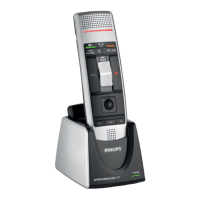
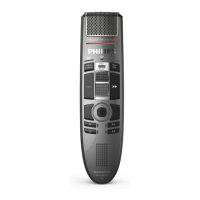
SpeechMike with push buttons:
Tip
• Use ‘Push-To-Dictte’ recording to
strt recording immeditely when
pressing nd holding the d Record
button on the SpeechMike. When
relesing the d Record button ,
recording will stop. ‘Push-To-Dictte’
cn be enbled in the Settings menu
of the SpeechExec Recorder window
(under Audio Settings > Recording).
1
Strt SpeechExec.
2
Press the d Record button on the
SpeechMike.
X The device is in record stndby
mode.
X The recorder window is displyed.
X The record indictor light shes
red (in overwrite nd ppend
mode) or green (in insert mode).
3
Press the e button to strt recording.
X The record indictor light glows red
(in overwrite nd ppend mode)
or green (in insert mode) while
recording.
4
For short puses, press the e button.
To continue recording, press the e
button gin.
5
To stop recording, press the d Record
button.
6
To mrk the recording s nished,
press the • EOL/• • PRIO button.
X The dicttion le is moved to the
Finished dicttions folder.
X The recorder window closes nd
the work list window is displyed.
SpeechMike with slide switch (Rec, Stop,
Ply, Rewind):
1
Strt SpeechExec.
2
To strt recording, move the slide
switch on the SpeechMike to the REC
position.
X The recorder window is displyed.
X The record indictor light glows red
(in overwrite nd ppend mode)
or green (in insert mode) while
recording.
3
For short puses, move the slide
switch to the f position. To continue
recording, move the slide switch bck
to the REC position.
4
To stop recording, move the slide
switch to the f position.
5
To mrk the recording s nished,
press the • EOL/• • PRIO button.
X The dicttion le is moved to the
Finished dicttions folder.
X The recorder window closes nd
the work list window is displyed.






 To Next Page