15User manual
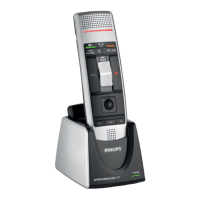
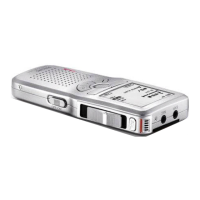
Pocket Memo with slide switch
(Forwrd, Ply, Stop, Rewind):
1
Strt SpeechExec.
2
In stop mode, press the function
button on the right side of the
recorder.
X The device is in record stndby
mode.
X The recorder window is displyed.
X The record indictor light glows red
(in overwrite nd ppend mode)
or green (in insert mode) while
recording.
3
To strt recording, move the slide
switch to the ply position.
4
For short puses, move the slide
switch to the stop position. To
continue recording, move the slide
switch bck to the ply position.
5
To stop recording, press the function
button on the right side of the
recorder.
6
To mrk the recording s nished,
press the End of letter button.
X The dicttion le is moved to the
Finished dicttions folder.
X The recorder window closes nd
the work list window is displyed.
Ply bck dicttion le
Vrious plybck functions cn be
controlled by the SpeechMike, the Pocket
Memo or the toolbr buttons in the
recorder window or worklist window.
Ply bck using the SpeechMike
or Pocket Memo
SpeechMike with push buttons:
1
Open recording by double-clicking
the dicttion le in the work list.
X The dicttion le is opened in the
recorder window.
2
To rewind, press nd hold the c
button on the SpeechMike. When
rewinding reches the desired
position, relese the c button.
3
To fst forwrd, press nd hold the
b button on the SpeechMike. When
forwrding reches the desired
position, relese the b button.
4
To strt plybck, press the e button
on the SpeechMike. To stop plybck,
press the e button gin.







 To Next Page