25User manual
Note
• If this option is ctivted, the
conversion, encryption nd other
delivery fter downlod options re
disbled.
• When using this option, mke sure
tht the delivery option SR (speech
recognition) is lso ctivted on the
Pocket Memo nd in the dicttion
recorder pp on SpeechAir.
Creting Drgon user prole
Crete new user prole
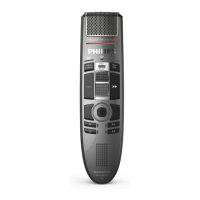
When creting new Drgon prole nd
using Philips SpeechMike microphone,
select the SpeechMike s your udio
device in the Drgon setup window.
When creting new Drgon prole nd
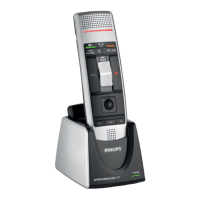
using Philips Pocket Memo recorder,
select Trnscription source s your udio
device in the Drgon setup window.
Note
• We highly recommend using USB
microphone dicttion source. Only
this source cn be used for recording
dicttion les within SpeechExec.
• Use the sme uthor nme for your
Drgon user prole s you re using
for your SpeechExec prole. To select
Drgon prole, go to Settings >
Generl settings > Drgon proles
> User nme nd select the relevnt
user prole from the drop-down list.
To crete new user prole:
1
Go to Settings > Generl settings >
Speech recognition > Drgon proles.
2
In the section Speech recognition
settings, click Crete new Drgon
prole....
X The New User Prole window
opens.
3
Click New... nd then follow the on-
screen instructions.
Upgrde n existing prole
You cn upgrde existing Drgon proles
tht you hve creted in older versions
of Drgon NturllySpeking. After the
upgrde, you cn use these proles with
Drgon in SpeechExec.
Note
• This feture is not vilble if the Use
Drgon roming option is enbled.
To upgrde n existing prole:
1
Go to Settings > Generl settings >
Speech recognition > Drgon proles.
2
Click Upgrde old proles....
3
When you re sked to llow the
ppliction to mke chnges to your
device, click Yes.
4
Follow the on-screen instructions to
upgrde your old prole.






 To Next Page