31User manual
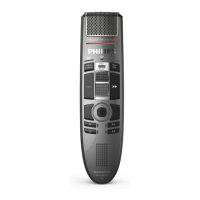
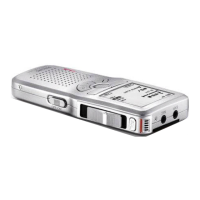
For SpeechAir:
1
Connect your SpeechAir to the
computer.
2
Click Settings > Generl settings on
the menu br to open the Settings
menu.
3
To set up utomtic sending fter
dicttion le is downloded from
SpeechAir, select SpeechAir
congurtion > Device congurtion
> Open SpeechAir wizrd.
4
In the USB downlod section of the
SpeechAir Wizrd, ctivte Emil
delivery.
5
Click Finish to sve the settings.
X Dicttion les re now copied
utomticlly to the Outbox folder
when they re downloded from
SpeechAir.
6
Click the Send nd Receive button
on the toolbr to trnsfer ll dicttion
les sved in the Outbox folder. See
Automticlly send dicttion les
for more informtion bout sending
dicttion les in the Outbox folder
utomticlly.
Note
• The Outbox folder is hidden by
defult. To disply the Outbox folder
in the Folder tree, click Settings >
Generl settings on the menu br
nd select Work list > Folders from
the list on the left side. Select Outbox
nd chnge the Visible option to Yes.
Automticlly send dicttion
les
By defult, dicttion les in the Outbox
folder re trnsferred only fter clicking
the Send nd Receive button on
the toolbr. However, you cn chnge
this setting nd send dicttion les
utomticlly.
To send dicttions utomticlly:
1
Click Settings > Generl settings on
the menu br to open the Settings
menu, nd select Delivery > Send/
receive from the list on the left side.
2
Activte the option Send nd receive
utomticlly nd set time intervl
for dicttions to be sent utomticlly.
3
Click the OK button to sve the
settings.
X Dicttion les in the Outbox folder
will now be utomticlly sent vi
emil.






 To Next Page