20 User manual
5 Use more of
SpeechExec
Settings menu
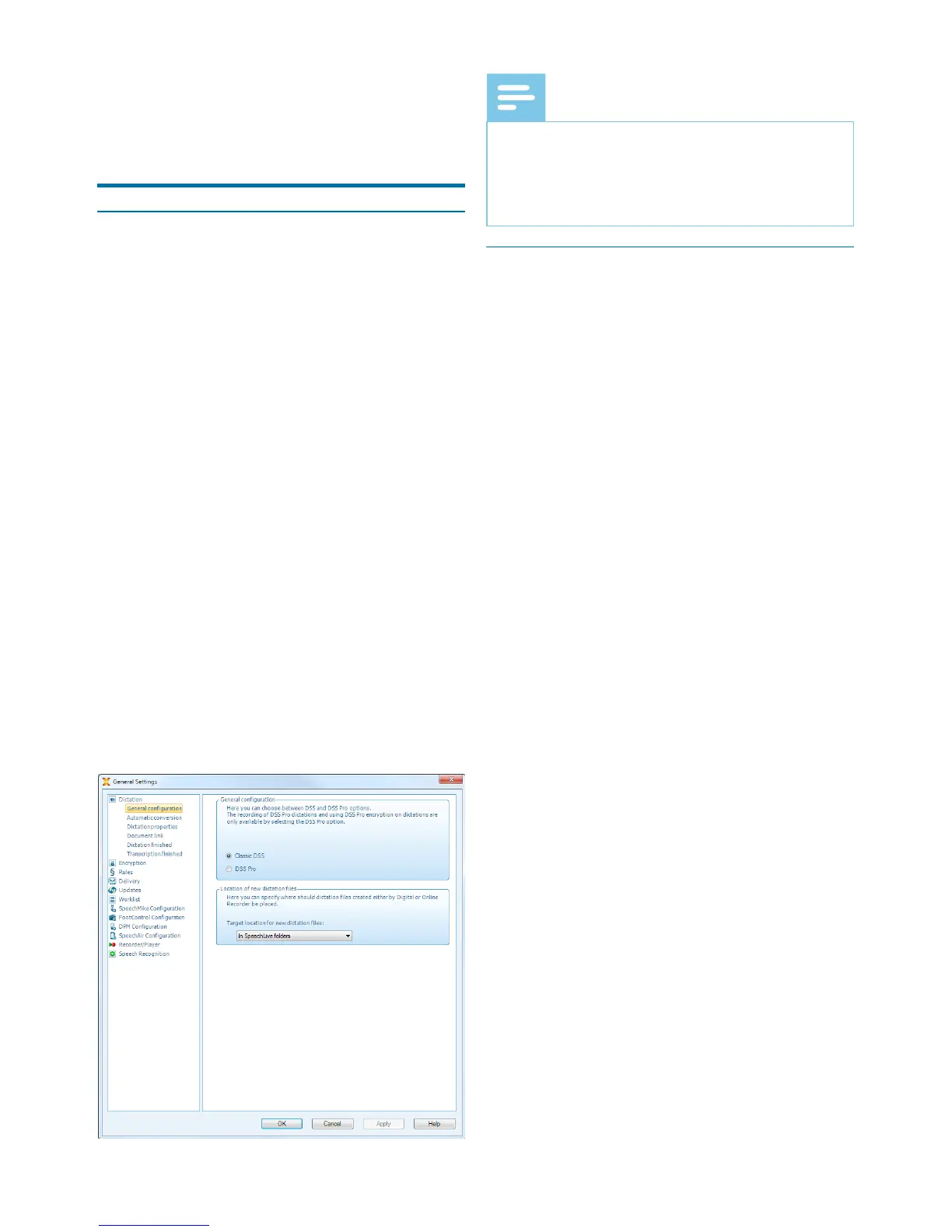
The Generl Settings window llows
personliztion of vriety of ppliction
settings, such s dicttion options, en-
cryption, user proles, delivery rules, soft-
wre updtes nd work list options. It lso
llows the congurtion of SpeechMike,
Pocket Memo, SpeechAir, foot control
nd recorder/plyer settings.
1
Click Settings > Generl settings on
the menu br to open the Settings
menu. The left pne contins the list of
the vilble settings.
2
Select n option in the list to disply
the ssocited options on the right
pne.
3
Click Apply to sve the chnges or
click OK to sve the settings nd close
the window.
Note
• All or some of the settings cn be pre-
congured nd locked by your system
dministrtor. Locked settings re
red-only.
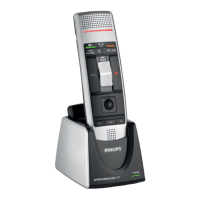
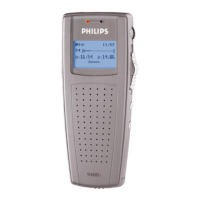
Pocket Memo
Congurtion Wizrd
The Pocket Memo Congurtion
Wizrd guides you through the device
congurtions nd settings of Pocket
Memo.
1
Mke sure tht the Pocket Memo is
turned on nd connect the device to
the computer using USB cble.
2
Strt Philips SpeechExec softwre.
3
Click Settings > Generl settings
on the menu br nd select DPM
Congurtion > DPM Wizrd from the
list on the left side.
4
Click the Strt Wizrd... button to
open the wizrd. Follow the on-screen
instructions to customize the Pocket
Memo.
5
Click the Finish button to close the
wizrd nd conrm the trnsfer of the
new settings to the Pocket Memo.






 To Next Page