26 User manual
Using speech recognition
SpeechExec supports two types of
speech recognition. Your words re
trnscribed onto your screen s you
dictte (online speech recognition) or
les tht where previously recorded (e.g.
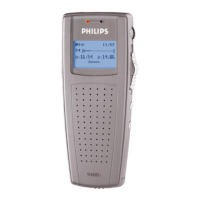
on Pocket Memo or SpeechAir) re
trnscribed when they re downloded
to your computer (oine speech
recognition).
Online speech recognition
Dictte directly into the speech
recognition softwre nd hve your
spoken text trnscribed by Drgon
stright wy.
1
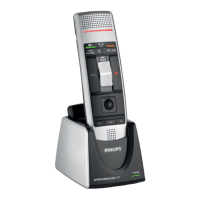
Connect your SpeechMike or your
Pocket Memo to your computer.
2
Crete dicttion with speech
recognition in SpeechExec by
selecting New with speech
recognition from the toolbr or the
File menu.
X The SpeechExec Speech
Recognition Recorder window
opens.
3
Strt recording. For more informtion
bout recording, see Crete
recording.
Note
• As you tlk, your words re
trnscribed onto your screen.
Corrections to the trnscribed text
cn be mde during recording or
when recording is complete.
4
To mrk the previous or the next word
for editing or correcting, press the c or
b button on the SpeechMike briey.
Press the • EOL/• • PRIO button
repetedly to mrk one or more words
previous to the cursor.
To disply the correction or spell
dilog of Drgon NturllySpeking,
select the word recognized incorrectly
nd press the INS/OVR button on the
SpeechMike.
If no text is selected, the word or
phrse previous to the cursor is tken
into ccount.
Tip
• Dene the dilog to be displyed
when the INS/OVR button is pressed
under Settings > Generl settings
> Worklist > Shortcuts > Online
recorder.
5
When the recording is complete,
select one of the following options
from the toolbr or the File menu:
• Finish: The dicttion le is moved
to the Archive folder nd the sttus
is set to Trnscription nished. A
Text document (.rtf) contining the
trnscribed text is ttched to the
dicttion le.
Note
• The Archive folder is hidden by
defult. To disply the Archive
folder in the folder tree, click
Settings > Generl settings on
the menu br nd select Work
list > Folders from the list on
the left side. Select Archive nd
chnge the Visible option to Yes.







 To Next Page