7User manual
1 The menu br cross the top orgnizes commnds under menus.
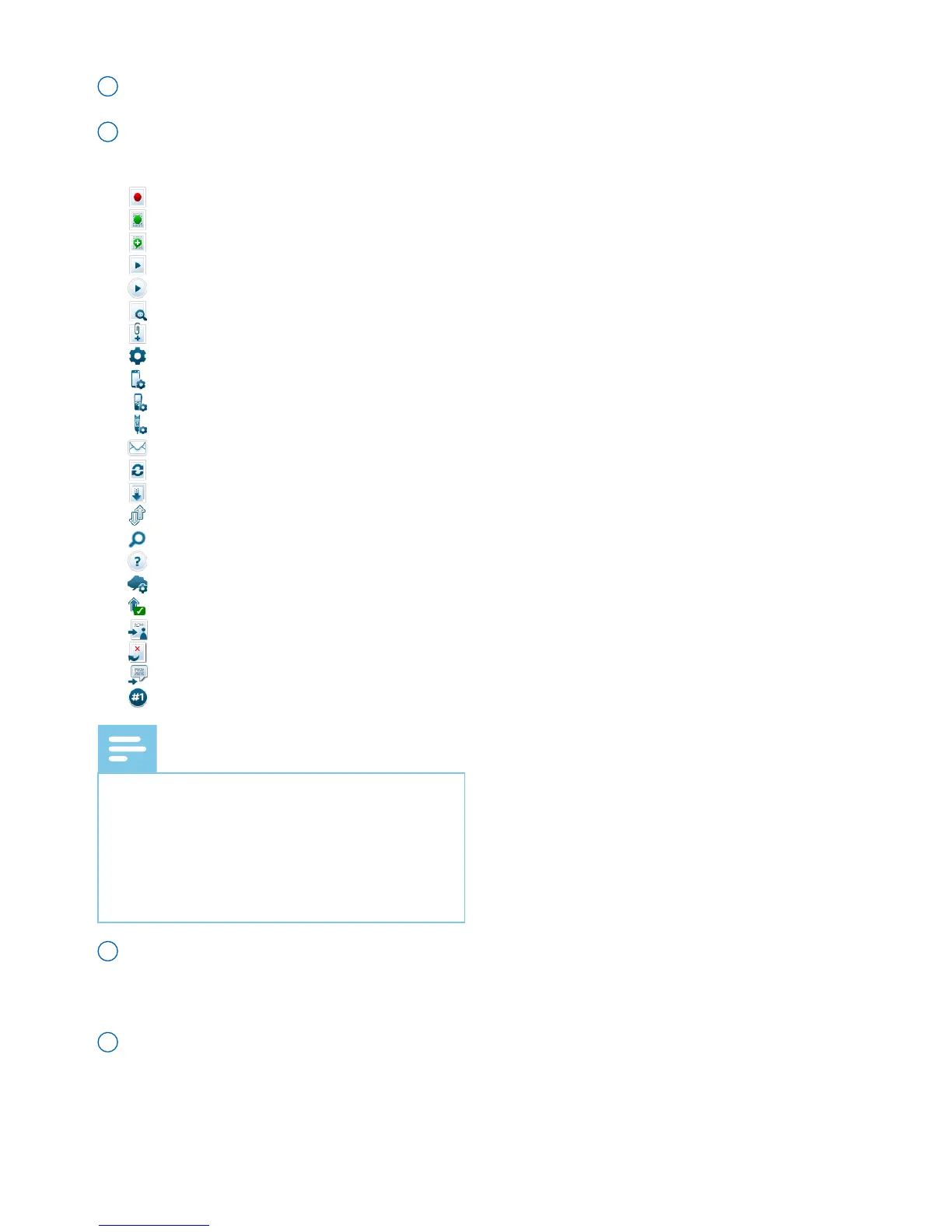
2 The toolbr contins tools for creting, plying nd editing dicttion les. Relted
tools re grouped together.
Create a new dictation le
Create a new dictation le for speech recognition
Add to speech recognition queue
Open the selected dictation le in the SpeechExec player window
Start/stop playback of the selected dictation le
Display the dictation properties of a le
Attach a document
Display the General settings window
Display the settings window for a connected Philips SpeechAir recorder
Display the settings window for a connected Philips Pocket Memo recorder
Display the settings window for a connected Philips SpeechMike microphone
Create a new email message with the selected dictation le attached
Refresh the information displayed in the work list
Start downloading from a connected Philips Pocket Memo recorder to a PC
Send emails with dictations via a connected email system
Search for items in your dictation list
Open the help function
Display the SpeechLive settings window
Display dictation les queued for SpeechLive upload
Send dictation to SpeechLive transcription service
Recall dictation from SpeechLive transcription service
Send dictation to SpeechLive speech recognition service
Find out more about Philips dictation products
Note
• To customize the toolbr, click
Settings > Generl settings on the
menu br nd select Worklist >
Toolbr. Select the icon you wish to
dd from the left column nd click the
Add item button.
3 The folder list displys the folder structure. The structure depends on personl or
pre-congured settings. Click the rrow t the left of folder to expnd the tree
nd disply folder’s sub-folders.
4 The dicttion le list displys informtion bout the dicttion les stored in the
selected folder. The columns disply the properties of the dicttion les. Chnge
the focus between the tree view nd the dicttion list view by clicking inside ech
pne.






 To Next Page