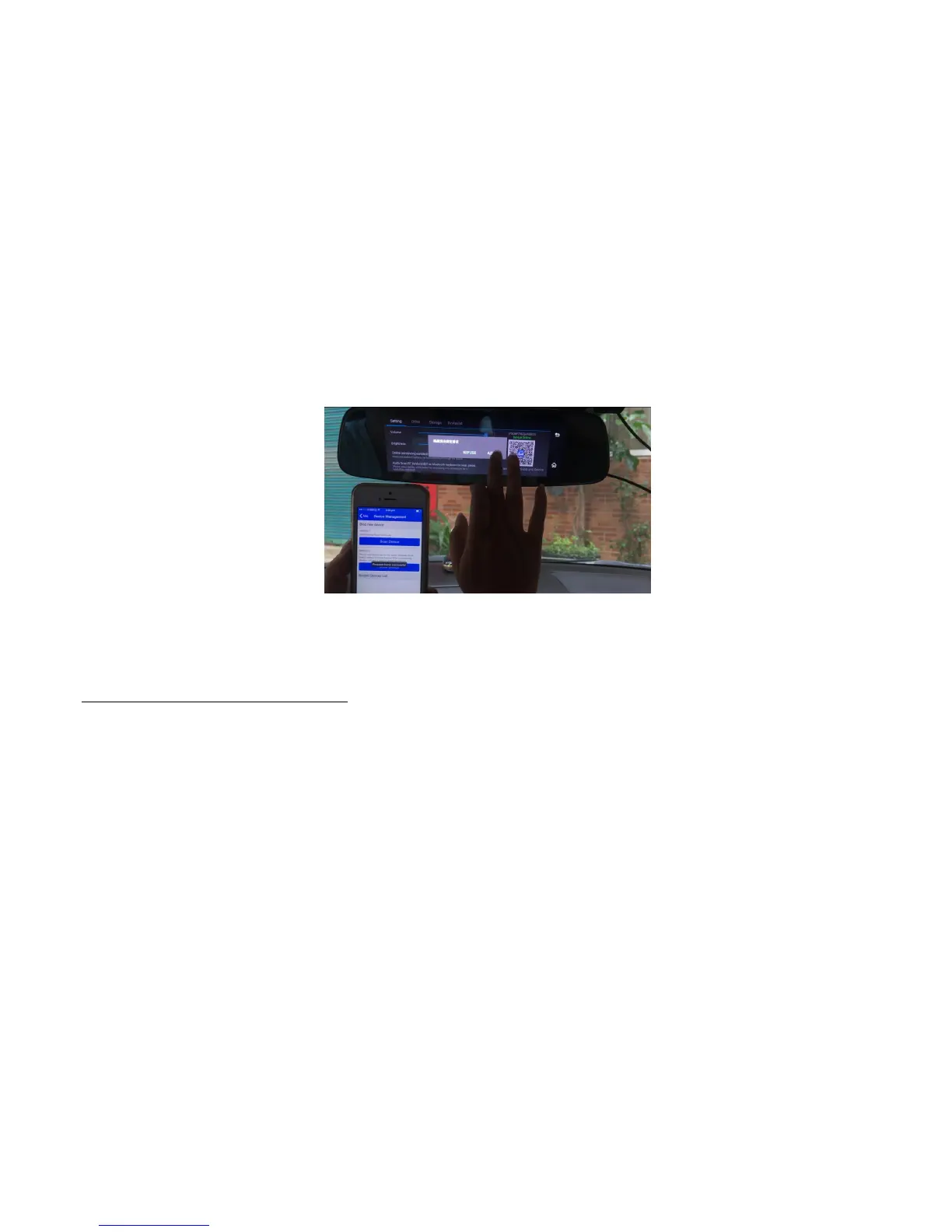
➢ And then the app will send the binding request to the dvr, click “Agree” on dvr will finally bind the phone and camera.
Image 36 : Accept the binding request on dvr
After confirmation, your smart phone will be binding with this car dvr. You could start to capture the live time video from the camera via Wifi hotspot connection, or
remotely capture the image / video from this camera via 4G/3G internet connection.
Part 3: CarAssist App operation interface
All photos here are for reference only, details are subject to the actual app you downloaded.
Ps: Android OS and iOS version will have a bit difference.
Enter CarAssist app (Android version), it’s operation interface as below:
➢ One-Key 10s Video Capture: please ensure your smart phone already connect with this car dvr’s WiFi hotspot. And then you could click “10s video capture” to
see the live time video streaming from the camera.
Step1: please turn on the car dvr’s WiFi hotspot
Step2: please click “+” button on car assist app to find the car dvr’s wifi hotspot and connect it


 To Next Page