PicoQuantGmbH MultiHarpSoftwareV.3.1.0.0
4.3. The Toolbar
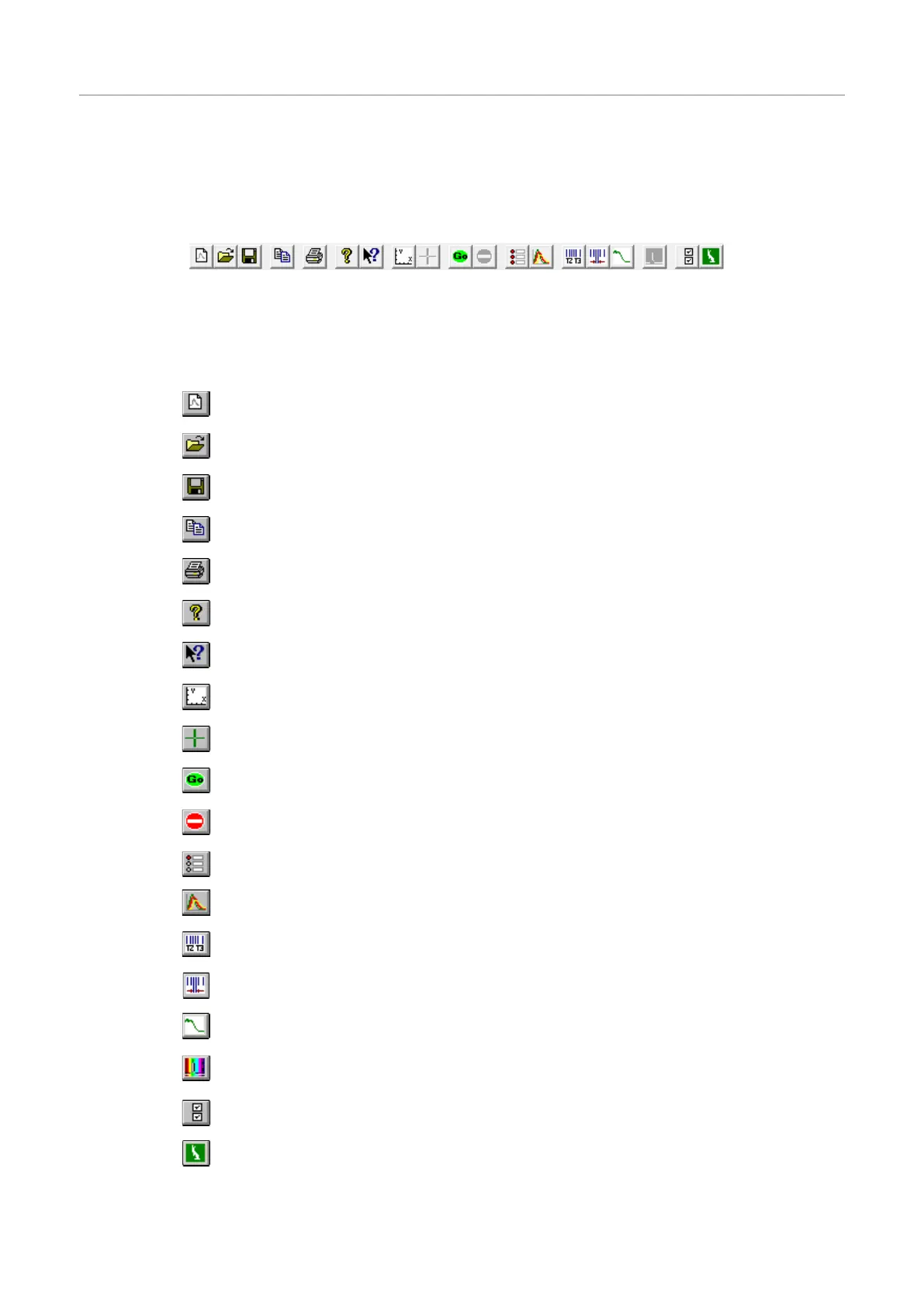
ThetoolbarisdisplayedacrossthetopoftheMultiHarpmainwindow,belowthemenubar.Thetoolbarprovides
quickmouseaccesstofrequentlyusedcommandsandtools.Notethatsomebuttonsmaybegrayedout(dis-
abled)dependingontheinstalledsoftwarecomponentsand/orthestateofthehardware.
Tohideordisplaythetoolbar,chooseToolbarfromtheViewmenu(<Alt>+VT).Thefollowingtableexplains
theindividualbuttons.
Click… to…
openablankhistogramwithdefaultcontrolpanelsettings
openanexistinghistogramfile.DisplaystheOpendialogbox,inwhichyou
canlocateandopenthedesiredfile.
savethecurrenthistogramdatawithitscurrentname.Ifyouhavenotnamed
thefile,theSave As…dialogboxisdisplayed.
copythecurrentlydisplayedcurvestotheclipboard(ASCIIexport).
printthecurrentlydisplayedhistogramcurves.
displaytheAbout…window.Thisiswhereyoucandeterminetheversionof
yourMultiHarpsoftwareandhardware.Alsoprovideslinksforupdatesetc.
activatecontextsensitivehelp.
launchtheaxispanel.
launchthedatacursordialog.
startmeasurementbasedoncurrentMultiHarpcontrolpanelsettings
stopmeasurementandhistogramaccumulation.
launchtheMultiHarpcontrolpanel.
launchthetracemappingdialog.
launchtheTTTRmodedialog.
launchthefilteredTTTRmodedialog.
LaunchtheTTTRmodereal–timecorrelatordialog.
launchthedialogformonochromatorcontrolandTRESsetup.
launchthegeneralsettingsdialog.
LaunchtheWhiteRabbitdialog
Page25


 To Next Page