Creating a shipping label and a shipping label
account
You can create and print a shipping label and charge the postage costs
for that label to an account.
Your device uses two separate postage accounts, one for shipping
labels and one for envelope printing. The funds for one cannot be used
for the other.
Creating and printing a shipping label
Use Trackable Labels or Shipping Labels to get the best pricing, free
tracking, and detailed delivery history for USPS package services. You
can also send via UPS® or FedEx®. The packaging options and
benefits are almost identical.
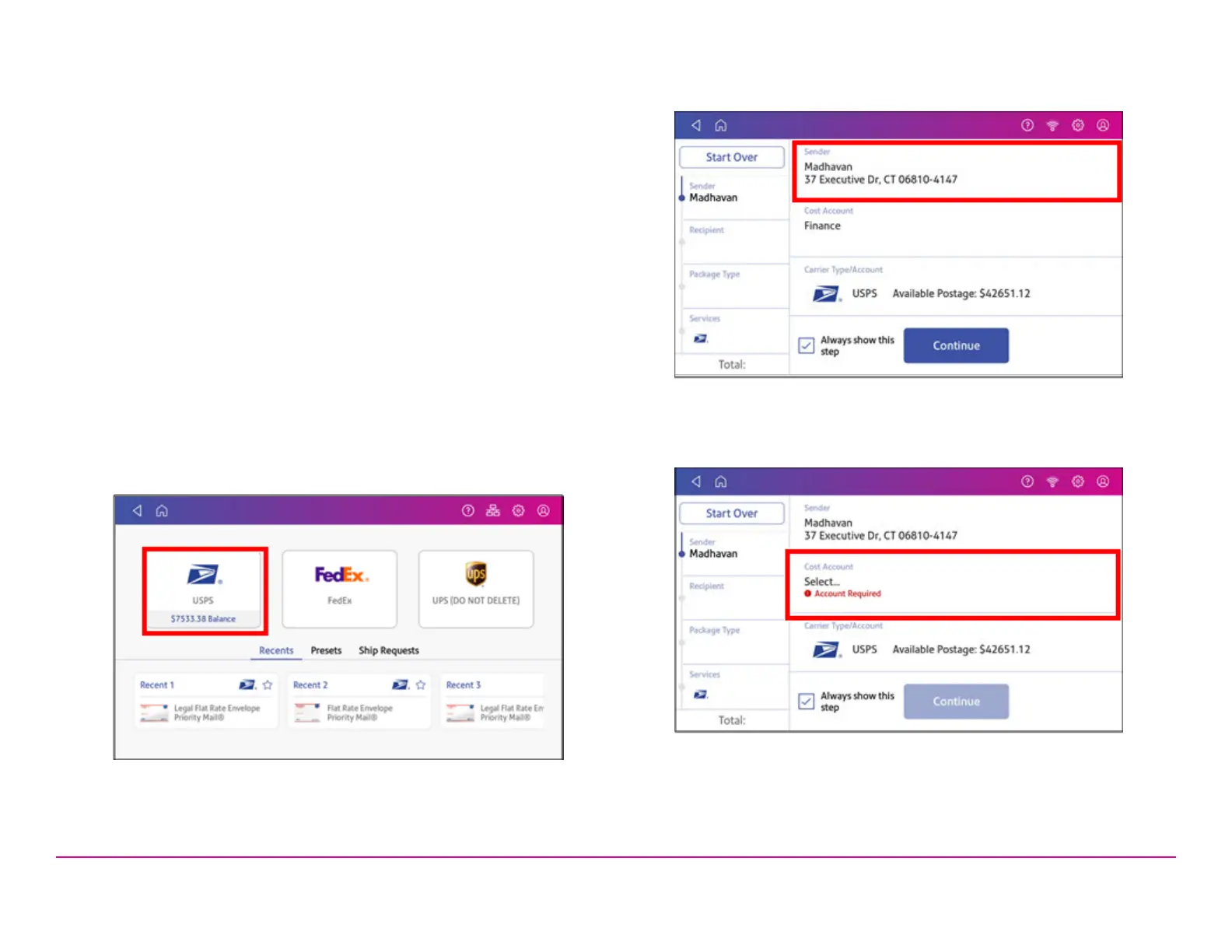
1. Tap Envelope Printing or Print on Envelopes on the Home
screen.
2. Tap the carrier you wish to use.
3. Verify that the sender address is correct. If not, tap on the Sender
field and select a new address.
4. If cost accounts are enabled, you must select an account. If an
account is already selected, verify that it is correct. To change or add
the account, tap the Cost Account field and select an account.
5. Tap Continue.
Pitney Bowes Quick ReferenceGuide December 08,2020 Page 5 of 18












 To Next Page