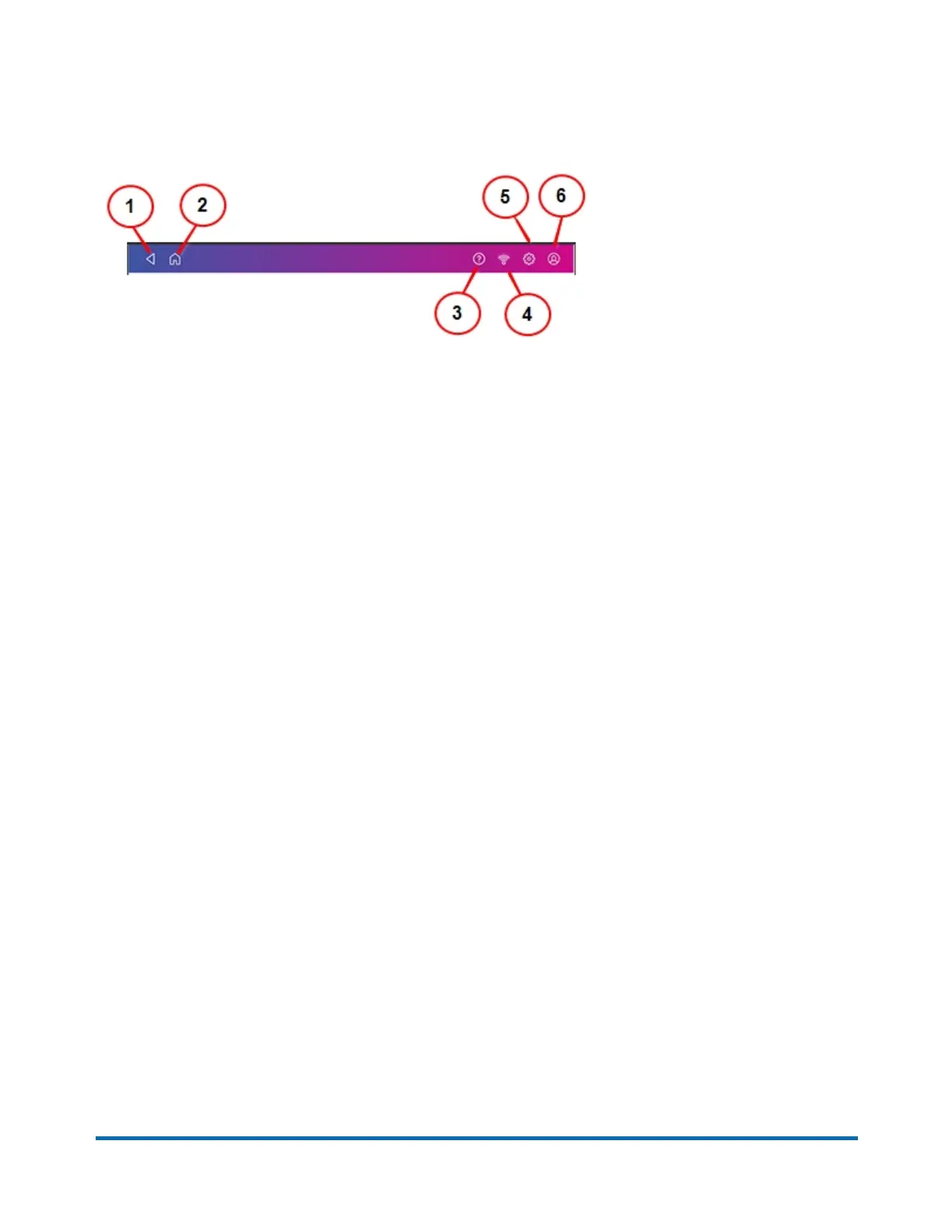
The toolbar
The toolbar appears at the top of every screen. It allows you to view and change settings for your
device.
1. Back - Return to the previous screen.
2. Home - Return to the Home screen from anywhere in Create Shipping Labels or Print on
Envelopes.
3. Tap the question mark in the toolbar to open the SendPro Care app.
4. Network - View the current network type (wireless or Ethernet) and status and strength (for
wireless connection). Allows you to turn wireless connection on or off. The icon here represents
a wireless connection.
5. Settings - View or change your device and app settings. This includes adjusting the screen
brightness, setting sound notification levels, and viewing wireless or Ethernet connection
information. For Print on Envelopes, this includes setting the default postage refill amount,
installing external scales and performing maintenance. For shipping labels, this includes
managing your carrier accounts and setting up your shipping label printer default values.
6. Profile - View your profile (name and email for shipping label account), log out, or lock your
SendPro C Lite, SendPro C, SendPro+.
Printing a shipping label or printing postage on an
envelope
You can either create a shipping label or print postage on an envelope. For a shipping label, tap
Create Shipping Labels on the Home screen. For postage, tap Print on Envelopes on the Home
screen.
Use Create Shipping Labels to get the best pricing, free tracking, and detailed delivery history for
USPS package services. You can also send via UPS® or FedEx®. The packaging options and
benefits are almost identical.
Pitney Bowes Quick Reference Guide April 2022 5












 To Next Page