SendPro Tablet Operator’s Guide
21
SendPro Tablet Operator’s Guide
boundary.
• Do not leave any printed labels in the printer. Doing so will cause the labels to jam.
• When not in use, remove any DK Rolls from inside the printer and close the DK Roll Compartment
Cover to prevent dust and debris from accumulating in the printer.
To remove a label roll:
1. Make sure that the printer is turned Off.
2. Pull the release levers on both sides of the printer to unlock the DK Roll Compartment Cover.
Hold the printer by the front, and firmly lift the DK Roll Compartment Cover to open it.
3. Hold the label roll by the spool arms and pull the inserted DK Roll up.
4. Close the DK Roll Compartment Cover.
Labels are jammed in the machine or are not ejected correctly after printing.
1. Make sure that the printer is turned off and disconnect the AC adapter.
2. Open the DK Roll Compartment Cover.
3. Remove any jammed labels.
Warning - Do not touch the cutter. Personal injury could result.
When I load a die-cut DK roll in my printer and turn it on, it does not feed any labels.
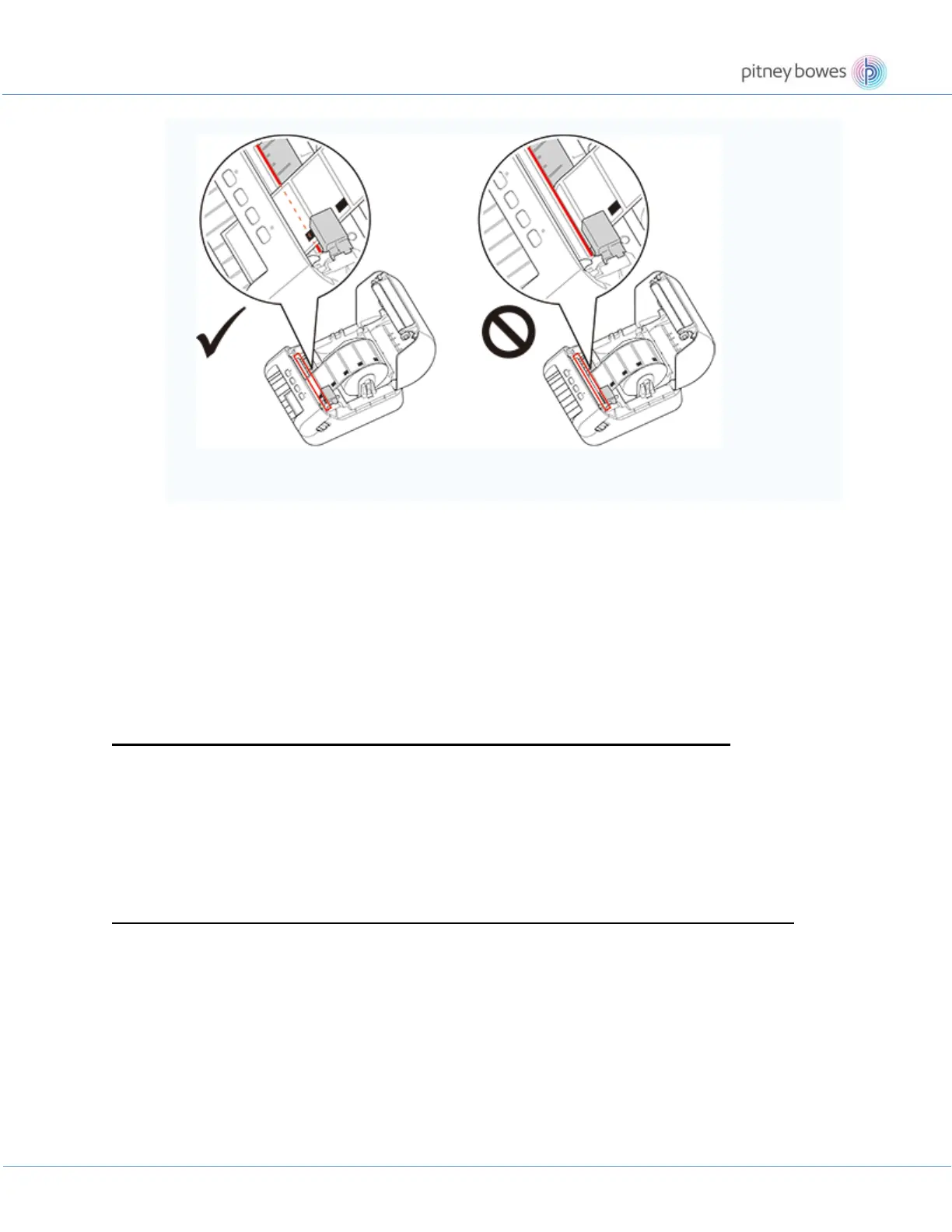
• When loading a die-cut DK roll (such as DK-11208) through the Label Output Slot, make sure that the end of
the first label is just visible.
• If too much roll or too little roll is fed, the printer cannot read the sensor mark on it, and will not automatically
feed the labels.











 To Next Page