EasyManua.ls Logo

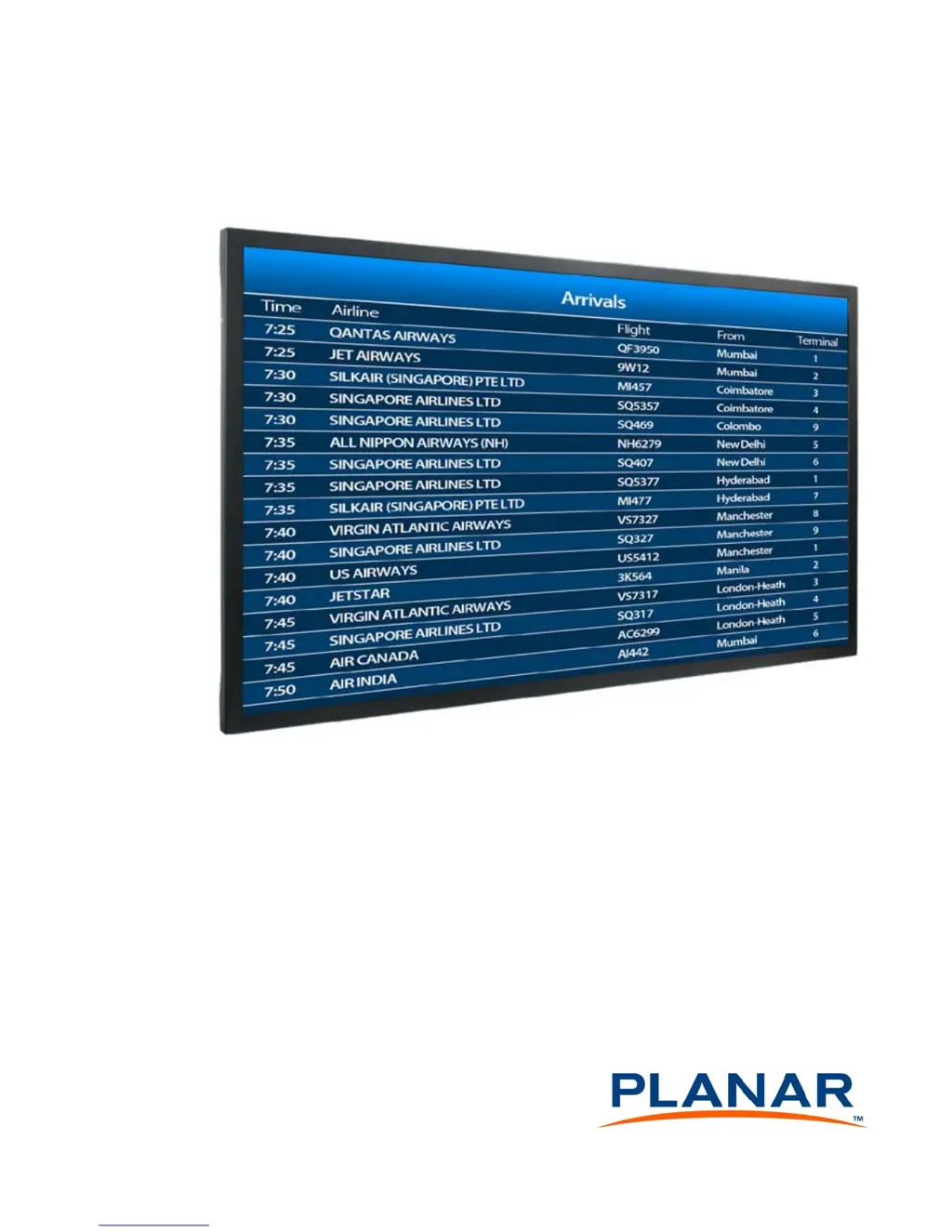
Planar EP4650 - User Manual

Planar EP4650
90 pages
Print Icon
To Next Page IconTo Next Page
Loading...
EP4650/EP5550 User
Guide

Table of Contents

Other manuals for Planar EP4650

Questions and Answers

  • L
    linbenjaminAug 11, 2025
    How to fix a Planar Monitor when no image is displayed?
    • S
      Sherry LongAug 11, 2025
      If your Planar Monitor isn't displaying an image, verify the following: * Ensure the correct source is selected. * Confirm the main power switch is turned ON. * Check that the source equipment is working correctly. * Verify the input signal is compatible with the monitor.
  • M
    Michael HouseAug 20, 2025
    Why does the picture color look poor on my Planar EP4650?
    • S
      Scott RoyAug 20, 2025
      If the picture color on your Planar Monitor looks poor, try these steps: * Check the picture settings. * Reset the display. * If using YUV terminals, ensure the cables are correctly connected. * Check ADC calibration.
  • S
    Steven PerezAug 29, 2025
    What to do if the Planar Monitor remote control doesn’t work?
    • J
      Joseph BlackAug 29, 2025
      If the remote control for your Planar Monitor isn’t working: 1. Make sure the batteries are new and installed correctly, and ensure the remote is aimed at the IR sensor. 2. Check that the remote control sensor is plugged in correctly. 3. Ensure the remote is aimed towards the back of the display, where the sensor is located.

Summary

Safety Information and Precautions

Safety Precautions

Specific warnings and precautions to prevent hazards during operation and installation.

Installing the EP4650;EP5550

Operating the EP4560;EP5550

OSD Keypad

Description and functions of the On-Screen Display keypad.

Selecting the Input Source

Guide on how to choose and switch between different video input signals.

OSD Menu Functions

Image Settings Menu

Audio Settings

Basic Settings

Fundamental display configurations and initial setup options.

Basic Settings

Advanced Settings

Extended and in-depth configuration options for display features.

Advanced Settings

Network Settings

Configuration options for network connectivity and management.

Display Settings Menu

Audio Settings Menu

Basic Settings Menu

Advanced Settings Menu

Auto Adjustment

Feature to automatically reacquire and lock the input video signal.

Advanced Settings Menu

Advanced Settings - Ethernet Setup Submenu

Configuration of network interface parameters including IP and DNS settings.

Advanced Settings Menu

User ADC Calibration

Procedure for calibrating the Analog-to-Digital Converter for optimal input.

Default Settings

LAN Control

Supported Operating Systems

List of operating systems compatible with the LAN control utility.

Installation

Steps to install the necessary VCOM driver for network control.

Configuring VCOM

Function Descriptions

Search

Utility function to discover network-connected devices.

Search By IP

Utility function to find devices using their IP addresses.

Configure IP Address

Adding a Virtual COM Port

Removing a COM Port

Setting Up Email Alerts

Administrator

Administrator

Firmware Update and Boot Loader Upgrade

TCP Mode, UDP Mode and UART

Reset Device

Signal Compatibility

Specifications

Troubleshooting

Accessing Planars Technical Support Website

Planar EP4650 Specifications

General IconGeneral
Screen Size46 inches
Resolution1920 x 1080
Aspect Ratio16:9
Brightness700 cd/m²
Viewing Angle178°/178°
Response Time8 ms
ConnectivityDVI-D, HDMI, VGA, DisplayPort, USB

Related product manuals