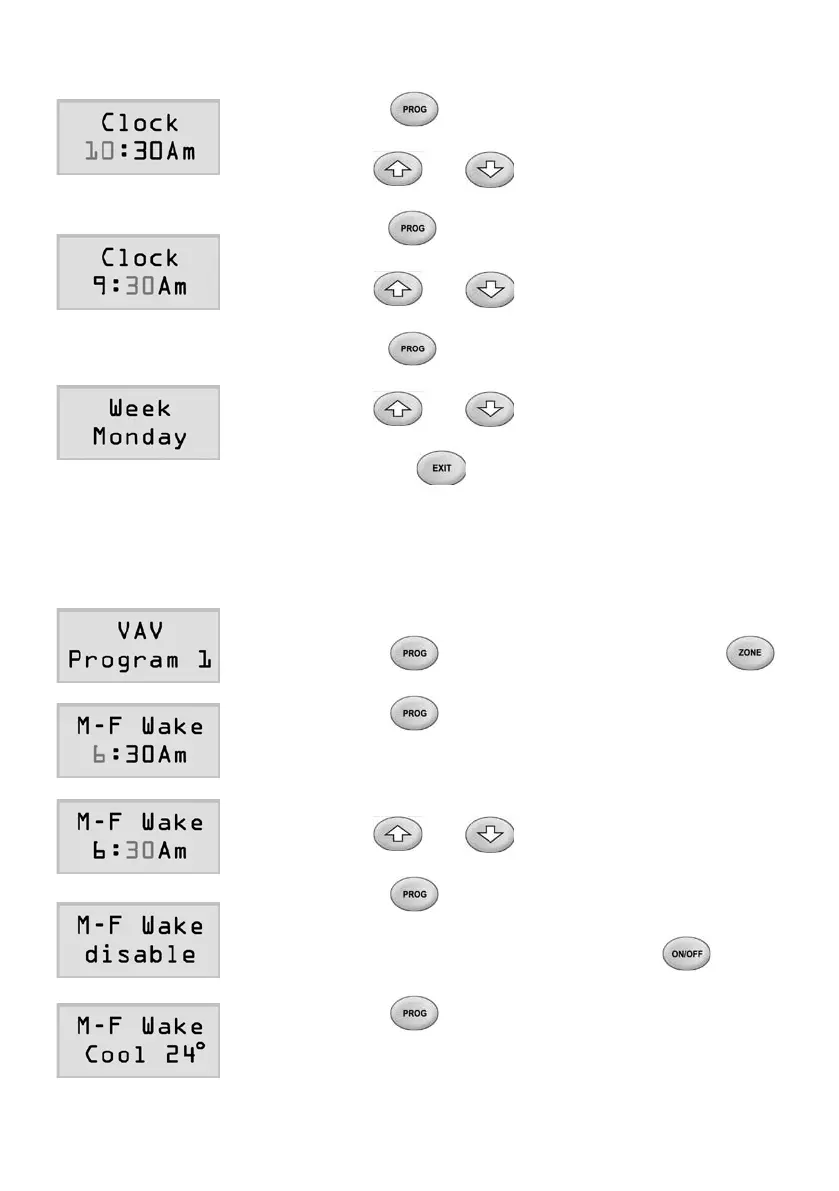
SettingClockandWeek
1) Press button once to select the clock
andweeksetting.
2) Useorbuttontochangethe
ashinghourstothedesiredvalue.
3) Press button once more to select the
minutestobeashing.
4) Useorbuttontochangethe
ashingminutetothedesiredvalue.
5) Pressbuttonagaintoselectweekto
set.
6) Useorbuttontochangethe
weekdaytothedesiredday.
7) Pressingbuttoncanexittheclockand
weeksettingmode.Alternatively,itwillreturnto
the normal operation mode itself in 20 seconds
withnokeybeingpressed.
AdjustProgramData
1) Press button once and then press
buttononce.TheLCDshowsVAVprogram1.
2) Pressbuttonagain.TheLCDwillshow
thedetailoftheprogram1.Attherstscreen,
it shows the start time of the Wake event of the
program1forMondaytoFriday.
3) Useorbuttontochangethe
ashinghourstothedesiredvalue.
4) Pressbuttononcetoselectminutes,
andrepeatstep3)tochangetheminutes.
5) Ifyoudonotwanttheeventpress
button to disable it.
6) Pressbuttonagainfortheenableevent,
the LCD will show the temperature setpoint for
thecoolingmodeoftheevent.
Page 20



 To Next Page