EasyManua.ls Logo

Polycom CX700 - User Manual

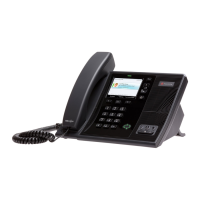
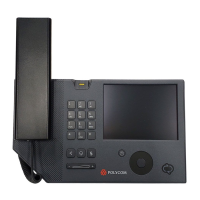
Polycom CX700
62 pages
Print Icon
To Next Page IconTo Next Page
Loading...
| September 2011 | 1725-31402-001 Rev. C1
User Guide for the Polycom®
CX700 IP Phone
Microsoft
®
Lync™ 2010 Edition

Table of Contents

Other manuals for Polycom CX700

Questions and Answers

  • A
    Amy WoodAug 21, 2025
    What to do if Polycom IP Phone CX700 is not connected to the network?
    • B
      Brent StephensAug 21, 2025
      If your Polycom CX700 IP phone isn't connecting to the network, check the following: * Ensure your phone is properly connected to the switch or router. * Confirm that the switch outlet has proper connectivity to your network. * Verify that DHCP is enabled in your system.
  • E
    ellishollyAug 23, 2025
    Why is my Polycom CX700 not ringing?
    • A
      Aaron LawsonAug 23, 2025
      If your Polycom IP Phone isn't ringing, consider these solutions: * Adjust the ringing level from the front panel using the volume up/down keys. * Check the status of the handset, headset (if connected), and through the speakerphone. * Verify that the phone is logged in and registered with Microsoft Office Communication Server 2007.
  • T
    Tonya SmithAug 26, 2025
    What to do if the dial pad on Polycom IP Phone CX700 does not respond?
    • M
      Michelle FinleyAug 26, 2025
      If the dial pad on your Polycom CX700 IP phone isn't responding, try these steps: * Check for a response from other feature keys or from the dial pad. * Place a call to the phone from a known working telephone. Check for display updates. * Check the termination at the switch or hub end of the network LAN cable. Ensure that the switch/hub port connected to the telephone is operational (if not accessible, contact your system administrator). * Before restarting your phone, contact your system administrator, since this may allow more detailed troubleshooting to occur before losing any current status information.
  • A
    Andrew PachecoAug 27, 2025
    What to do if Polycom IP Phone CX700 is not recognized?
    • S
      sherrygreeneAug 28, 2025
      If your Polycom CX700 IP phone is not recognized, consider the following: * Make sure your username and password are correct. * If you change your password on the phone before the server attempts to reauthenticate, the phone will not be able to sign in to the server and will be left on the Sign In screen. Enter your old password in the Password field and press Sign in. * If your domain password has changed and the server attempts to reauthenticate, the phone will return to the Sign In screen. Enter your new password in the Password field and press Sign in. * Make sure time on your phone is correct if Kerberos is enabled in your system. * Make sure WINS server is enabled if Kerberos authentication is being used on the server.
  • R
    Raymond NelsonAug 30, 2025
    How do I fix a Polycom IP Phone CX700 that is not recognized by the server?
    • M
      melissa94Aug 30, 2025
      If your Polycom CX700 IP phone isn't being recognized by the server, try the following steps: * Validate that your domain name is correct. * Ensure DHCP is configured to provide a DNS address as part of the DHCP response. * Ensure DNS has SRV records for the SIP service. * Ensure the SIP server is reachable from the Polycom CX700 LAN.
  • T
    Tammy BerrySep 1, 2025
    How to check if LAN cable is properly connected to Polycom CX700?
    • J
      Jennifer BanksSep 1, 2025
      To check if the LAN cable is properly connected to your Polycom IP Phone, follow these steps: * Check the termination at the switch or hub (the end of the cable furthest from the phone). * Check that the switch or hub is operational (look for flashing link/status lights) or contact your system administrator. * Reboot the phone to attempt re-registration to the call server.
  • D
    David HansonSep 3, 2025
    Why is there no audio on my Polycom CX700 IP Phone headset?
    • A
      adamsmithSep 4, 2025
      If you're not getting any audio on your headset with the Polycom IP Phone, it could be due to the following reasons: * The headset is not properly connected or turned on. * The volume may be set too low. Ensure that the headset is properly connected. Ensure that the headset amplifier (if required for your headset) is turned on and/or the volume is correctly adjusted. Verify that the phone is logged in and registered with Microsoft Office Communication Server 2007.
  • M
    Monica BergSep 6, 2025
    What to do if Polycom IP Phone CX700 is not in active state?
    • D
      dnixonSep 6, 2025
      If the Polycom CX700 IP phone is not in an active state, try the following: * Press the keys more slowly. * Check with the system administrator to see whether or not the key has been mapped to a different function or disabled. * Make a call to the phone to check for inbound call display and ringing as normal. If successful, try to press feature keys within the call to access the Menu, for example. * Reboot the phone to attempt re-registration to the call server.
  • M
    michaelmcintyreSep 8, 2025
    How to resolve Polycom IP Phone CX700 not recognized by the server’s certificate?
    • M
      Megan AlvarezSep 8, 2025
      If the Polycom CX700 IP phone is not recognized by the server’s certificate, take these steps: * Ensure either time.windows.com is accessible or NTP is configured with appropriate SRV records created in DNS. * Ensure PKI enrollment objects have been created on AD to point to CA or CA delegate.
  • R
    ramirezandreaSep 12, 2025
    Why is there no audio on the Polycom IP Phone CX700 handset earpiece?
    • M
      Morgan RoySep 12, 2025
      If you're experiencing no audio on the Polycom CX700 handset earpiece, contact your system administrator to ensure your account is configured in Enterprise Voice mode.

Summary

Getting Started with Your Phone

Parts List

Lists all components included in the Polycom CX700 IP phone package.

Assembling Your Phone

Provides step-by-step instructions for physically setting up the phone.

Connecting the Phone to the Network

Details how to connect the phone to the network using Ethernet.

Connecting to Your Computer Using a USB Cable

Explains how to connect the phone to a computer via USB for enhanced functionality.

Features of Your Phone

Outlines the advanced functionalities and features of the Polycom CX700 IP phone.

Logging in on Your Phone

Step-by-step guide on how to log in to the phone to place calls.

Customizing Your Phone

Configuring Basic Settings

Overview of how to adjust fundamental phone settings like date, time, and language.

Locking and Unlocking Your Phone

Instructions on how to lock and unlock the phone for security.

Changing Your PIN

Guide to changing the phone's personal identification number.

Using the Basic Features of Your Phone

Placing Calls

How to initiate outgoing calls using various methods.

Answering Calls

Steps to answer incoming calls using handset, speakerphone, or headset.

Troubleshooting Your Phone

Power and Startup

Common issues and solutions related to powering on and starting the phone.

Making and Receiving Calls

Solutions for problems encountered when making or receiving calls.

Audio

Solutions for problems with audio output on the handset or headset.

Microsoft Lync 2010

Troubleshooting issues related to the Microsoft Lync 2010 client integration.

Polycom CX700 Specifications

Power IconPower
power over EthernetIEEE 802.3af Class 2
maximum power consumption13 Watts
LCD Display IconLCD Display
display size5.7 inches
display typeamorphous-TFT Active-Matrix Transmissive
display resolution320x240
Audio IconAudio
frequency response30 – 20kHz
signal-to-noise ratio78 dB (@ 1kHz)
dynamic range>80 dB (@ 1kHz)
total harmonic distortion + noise<0.08% (@ 1 kHz)
Operating Environment IconOperating Environment
operating temperature range-10°C to 40°C
relative humidity80% max (non-condensing)
operating altitude range-304.8 meter to 3962.4 meter
Weight and Dimensions IconWeight and Dimensions
dimensions when not tilted252.7 x 268.6 x 91.3 mm
dimensions when tilted up193.2 x 268.6 x 192.1 mm
unit weight2.1 kg
handset weight200 g
shipping weight2 kgs

Related product manuals